• ×
    Information
    Need Windows 11 help?
    Check documents on compatibility, FAQs, upgrade information and available fixes.
    Windows 11 Support Center.
  • post a message
  • ×
    Information
    Need Windows 11 help?
    Check documents on compatibility, FAQs, upgrade information and available fixes.
    Windows 11 Support Center.
  • post a message
Guidelines
Join the HP Community Solve‑a‑thon | Help Others & Share Your Solutions | Live on Zoom | 2:30 PM to 2:30 AM IST | Every Wednesday Click here to know more
Check out our WINDOWS 11 Support Center info about: OPTIMIZATION, KNOWN ISSUES, FAQs, VIDEOS AND MORE.
HP Recommended
HP pavilion
Microsoft Windows 10 (64-bit)

ANYONE OUT THERE KNOW WHAT I SHOULD DO??? There was a message about an update. I clicked on it, let it go, restarted and now it's asking me to press F1 to accept or F2 to reject. Not sure what I should do? After reading some threads about this, I'm really confused? Not that computer savy! Any help would be aprreciated. 

Thanks, Pat

1 REPLY 1
HP Recommended

Hi! @Pat33, Thank you for visiting the HP Forums! A great place where you can find solutions for your issues, with help from the community!


I understand after the update you have issues booting into your PC.


Don't worry I'll try to help you out.


Did you make any software or hardware changes on your PC?


Are you able to boot into BIOS or F2 from your PC?


Do you get any errors on your PC?


Excellent description and a great diagnosis done. It is greatly appreciated.


By not wasting much of your time. Try restoring the BIOS to default on your PC and check if it helps.


1.    Turn off the computer and wait five seconds.
2.    Press the Power button to start the computer and repeatedly press the F10 key to enter the BIOS setup menu.
3.    On the BIOS Setup screen, press F9 to select and load the BIOS Setup Default settings.
4.    Press F10 to Save and Exit.
5.    Use the arrow keys to select Yes, then press Enter when asked Exit Saving Changes?
6.    Follow the prompts to restart your computer.


To perform a power reset on a laptop with a removable battery, use the following steps:
Turn off the computer.
Remove the computer from any port replicator or docking station.
Disconnect all external connected peripheral devices such as USB storage devices, external displays, and printers.
Unplug the AC adapter from the computer.
Remove the battery from the battery compartment.
With the battery and power cord unplugged, press and hold the Power button for about 15 seconds to drain any residual electrical charge from the capacitors.
Insert the battery and plug the AC adapter back into the laptop, but do not connect any of the peripheral devices.
Press the Power button to turn on the computer.
If a startup menu opens, use the arrow keys to select Start Windows Normally, and then press the Enter key.
After Windows opens, reconnect each peripheral device that was disconnected, one device at a time, until all devices are reconnected.
Your laptop has been reset. After a power reset, it is a good idea to run Windows Update and HP Support Assistant to update all device drivers. See Updating Drivers and Software with Windows Update (Windows 10, 😎 and Using HP Support Assistant (Windows 10, 8, 7) for more information.


Try performing a BIOS recovery on your PC.


  1. Turn off the computer, and then connect the power cord.

  2. Press and hold the Windows key  and the B key at the same time, and then press and hold the power button for 2 to 3 seconds.
  3. Release the Power button but continue pressing the Windows and B keys. You might hear a series of beeps.

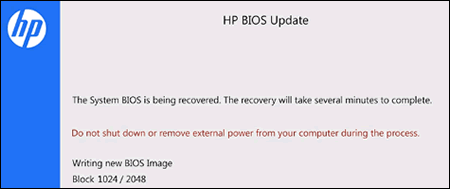
    The HP BIOS Update screen displays and the recovery begins automatically. Follow any on-screen prompts to continue the startup to complete the recovery.

    HP BIOS Update recovery in progress

    • If the HP BIOS Update screen does not display, repeat the previous steps but press the Windows key and the V key. If the screen still does not display, your computer might not support the feature or there is a hard drive issue. Continue to the next step to install a BIOS recovery file from the HP website.

    • If the Power light turns off, the Power button was held too long. Repeat the previous steps, making sure to hold the button for only 2 to 3 seconds.

    • If a BIOS recovery message repeatedly displays, continue to the next step to install an updated BIOS version.

    • If a message that the computer improperly shut down or a boot problem is detected displays, follow the on-screen instructions to resolve the error.


Refer the instructions from HP support to know more information about performing a BIOS recovery. Click Here


Let me know if this helps!

Have a pleasant day ahead! 🙂


Please click “Accept as Solution” if you feel my post solved your issue, it will help others find the solution.

Click the “Kudos, Thumbs Up" on the bottom right to say “Thanks” for helping!

A4Apollo
I am an HP Employee

† The opinions expressed above are the personal opinions of the authors, not of HP. By using this site, you accept the <a href="https://www8.hp.com/us/en/terms-of-use.html" class="udrlinesmall">Terms of Use</a> and <a href="/t5/custom/page/page-id/hp.rulespage" class="udrlinesmall"> Rules of Participation</a>.


