• ×
    Information
    Need Windows 11 help?
    Check documents on compatibility, FAQs, upgrade information and available fixes.
    Windows 11 Support Center.
  • post a message
  • ×
    Information
    Need Windows 11 help?
    Check documents on compatibility, FAQs, upgrade information and available fixes.
    Windows 11 Support Center.
  • post a message
Guidelines
Seize the moment! nominate yourself or a tech enthusiast you admire & join the HP Community Experts!
Check out our WINDOWS 11 Support Center info about: OPTIMIZATION, KNOWN ISSUES, FAQs, VIDEOS AND MORE.
HP Recommended
Hp pavilion 15-cb086ng
Microsoft Windows 10 (64-bit)

Please help. 

Yesterday i cleaned the vents of my laptop because they were full with dust and the laptop heated up quickly and was slow. 

But when i tried to start him, it showed "thermal shutdown occurred" and it will word normally. But then the windows bluescreen with "critical process died" appears.

Did i broke something in the computer? 

3 REPLIES 3
HP Recommended

Luckily I could find a other post with a similar problem.

He tried everything but nothing worked.

Then the spammed "F2" while startup. And it worked!!!


His post: https://h30434.www3.hp.com/t5/Notebook-Operating-System-and-Recovery/Thermal-Shutdown-Occured-System...


But I'm not sure if this is a temporary fix 😕

And my fans are still spinning at full speed, but the Laptop isn't hot.

HP Recommended

Update:

I don't know how i got it to start, but it's not always working. And if it does, the grafics card doesn't get recogniesed. I tried to fix it, but now i can't start it again. The wierd thing is:its always different when i start it. Somethimes the overheating message occours, sometimes the blue screen comes, sometimes nothing. But its just not working.

I will try a hard reset tomorrow. 

If you have any idea whats going on, then i would really appreciate if you could help me. 

HP Recommended

@DaMa03


Welcome to HP support community.


In most cases, buggy drivers could cause Critical Process Died blue screen of death error. You can try updating all the device drivers to the latest versions to fix it. 

There are two ways you can get the right drivers for your video card and monitor: manually or automatically. 

Manual driver update – You can update your device drivers manually by going to the manufacturer’s website for both all your devices, and searching for the most recent correct driver for each. Be sure to choose only drivers that are compatible with your variant of Windows 10. 


Another big cause of Critical Process Died is faulty or buggy hardware or software programs installed. If you’ve recently installed some programs or hardware components, try upgrade them to the latest versions available or remove them completely from your PC. 


If your hard drive or RAM is corrupted, a blue screen of death error such as Critical Process Died would pop up and force reboot your computer. This is your computer’s way of protecting itself from further damage. You can run two built-in checks to make sure that your disk and RAM are at a good state: 


1: Run SFC (System File Checker)

SFC stands for system file checker. It helps you replace corrupted or faulty system files with new good ones. 

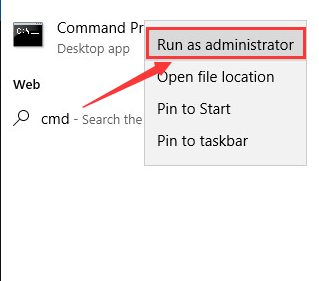
1) On your keyboard, press the Windows logo key, and type in cmd. Right-click Command Prompt and click Run as administrator

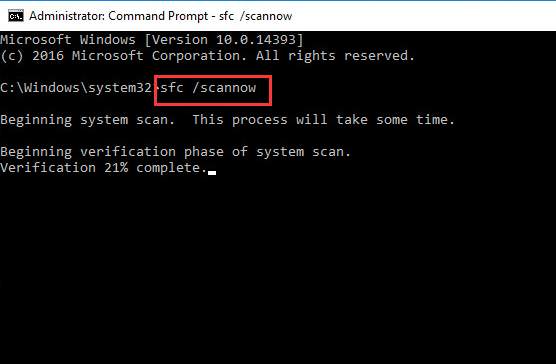
2) Type sfc /scannow and press Enter on your keyboard. 

Wait for a while for this process to finish. Then restart your computer. 

3) Restart your computer when the check is done. See if the Critical Process Died error happens again. If the problem continues, move on to the DISM check. 


DISM stands for Deployment Image Servicing and Management. If the system file checker can’t help you fix the Critical Process Died blue screen of death error, you can run DISM as well. Otherwise, it wouldn’t be necessary. 

1) On your keyboard, press the Windows logo key, and type cmd. Right-click Command Prompt and click Run as administrator


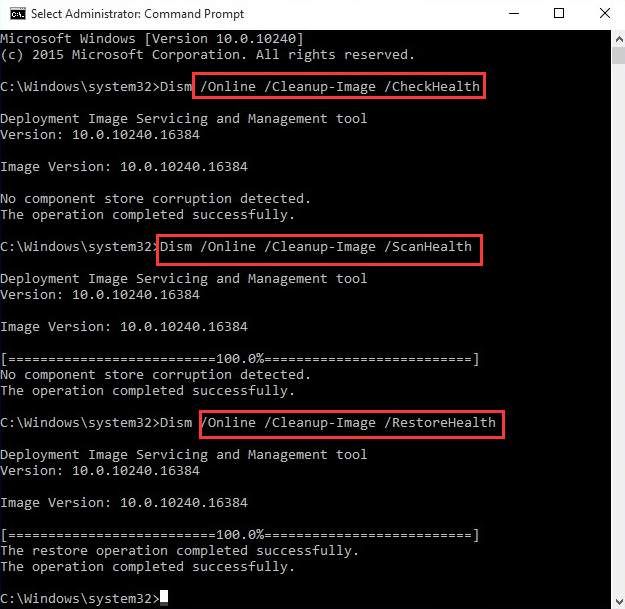
2) In the Command Prompt window, type in the following commands one by one, and press Enter key after each one. 

Dism /Online /Cleanup-Image /CheckHealth

Dism /Online /Cleanup-Image /ScanHealth

Dism /Online /Cleanup-Image /RestoreHealth

3) Restart your computer when all the checking are done.  


If you’ve tried all the above methods but still can’t solve your Critical Process Died problem, it’s time to refresh or reset your Windows 10: click here for steps.


I hope that helps.

To thank me for my efforts to help you, please mark my post as an accepted solution so that it benefits several others.

Cheers.


Sandytechy20
I am an HP Employee

† The opinions expressed above are the personal opinions of the authors, not of HP. By using this site, you accept the <a href="https://www8.hp.com/us/en/terms-of-use.html" class="udrlinesmall">Terms of Use</a> and <a href="/t5/custom/page/page-id/hp.rulespage" class="udrlinesmall"> Rules of Participation</a>.