• ×
    Information
    Need Windows 11 help?
    Check documents on compatibility, FAQs, upgrade information and available fixes.
    Windows 11 Support Center.
  • post a message
  • ×
    Information
    Need Windows 11 help?
    Check documents on compatibility, FAQs, upgrade information and available fixes.
    Windows 11 Support Center.
  • post a message
Guidelines
Join the HP Community Solve‑a‑thon | Help Others & Share Your Solutions | Live on Zoom | 2:30 PM to 2:30 AM IST | Every Wednesday Click here to know more
Check out our WINDOWS 11 Support Center info about: OPTIMIZATION, KNOWN ISSUES, FAQs, VIDEOS AND MORE.
HP Recommended
Pavilion 15 cs 2082tx
Microsoft Windows 10 (64-bit)

Hello ,

About the problem

I have updated the Intel UHD Graphics 620

From : 26.20.100.7990 version

To : 27.20.100.7990 version

Through the windows update option in the settings

It was a Display Driver Update and has been successfully updated and installed .


After the restart , when I tried to change the screen brightness using the following

  1. Using the buttons on the keyboard
  2. Using the slider bar
  3. In the display settings


All were showing an increase / decrease in the brightness value when I was changing But none of them was able to change the screen brightness and

upon searching the web and doing the following


  1. Roll back ( uninstalled the current ( latest ) version ) to the previous version and again restarted it But it did not work

The only way to change was to increase / decrease the brightness value using buttons / slider ( although physically screen brightness it won't change ) and restart the laptop

And then the screen brightness would increase / decrease .

My windows 10 software version is : 20H2

OS BUILD : 19042.330


Hoping to get an early reply and thanking you in anticipation.


1 REPLY 1
HP Recommended

@BHARGAVA_B_U


Welcome to the HP support community.


Welcome to the HP support community.


Update the Bios, chipset, and graphics driver using HP Support Assistant.

Download and run the HP Support Assistant from this Link: Click here


HPSA will automatically search for all the latest drivers for your Notebook

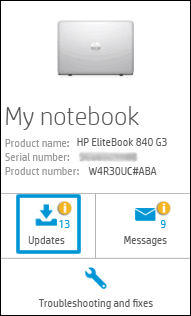
  1. Click My devices in the top menu, and then click Updates in the My PC or My notebook pane.

    Click Updates in the My notebook pane

  2. Click Check for updates and messages to scan for new updates.

     Updates list in HP Support Center

  3. Review the list of updates. Updates with a yellow information icon are recommended. Updates with a blue information icon are optional.

  4. Click the update name for a description, version number, and file size.

  5. Select the box next to any updates you want to install, and then click Download and install.

Also, ensure Windows is up to date.

Select the Start button, and then go to Settings  > Update & security  > Windows Update, and select Check for updates. If Windows Update says your device is up to date, you have all the updates that are currently available


Let me know how it goes.

To thank me for my efforts to help you, please mark my post as an accepted solution so that it benefits several others.

Cheers.

Sandytechy20
I am an HP Employee

† The opinions expressed above are the personal opinions of the authors, not of HP. By using this site, you accept the <a href="https://www8.hp.com/us/en/terms-of-use.html" class="udrlinesmall">Terms of Use</a> and <a href="/t5/custom/page/page-id/hp.rulespage" class="udrlinesmall"> Rules of Participation</a>.