• ×
    Information
    Need Windows 11 help?
    Check documents on compatibility, FAQs, upgrade information and available fixes.
    Windows 11 Support Center.
  • post a message
  • ×
    Information
    Need Windows 11 help?
    Check documents on compatibility, FAQs, upgrade information and available fixes.
    Windows 11 Support Center.
  • post a message
Guidelines
Seize the moment! nominate yourself or a tech enthusiast you admire & join the HP Community Experts!
Check out our WINDOWS 11 Support Center info about: OPTIMIZATION, KNOWN ISSUES, FAQs, VIDEOS AND MORE.
HP Recommended
HP Stream - 14-ds0013dx
Microsoft Windows 10 (64-bit)

Hello. Unsure if I am posting in the correct board. I tried upgrading to Windows 11. It said that my laptop would not be able to run it. I am trying to uninstall Win11_24H2_English_x64 because it is taking up some much storage space and is unusable. Every time I try to uninstall it says that I can't because it is open in System. Has anyone else had this issue? Thanks so much for any information given.

2 REPLIES 2
HP Recommended

I suspect you do not have enough space to re-install windows 10 and preserver existing files.

You should have backed up important files either to OneDrive or a USB flash.


Basically you download the latest window 10 (should work for 11), create a USB boot drive, boot up the USB version of Windows, do the install.   You will need to know if using Windows Home, Pro or some other version.


Using another system go here and download the windows installation media. Specify the 16gb flash and be sure to check the 'Create installation media (USB)' and uncheck the 'Use the recommended options for this PC'


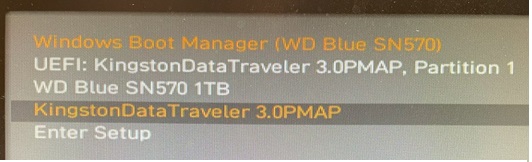
Insert the USB in to the system you need to repair and turn it on. Press ESC or DEL or F12 so that you can get into the bios and change the boot device. For example, the one with the dark bar highlight.


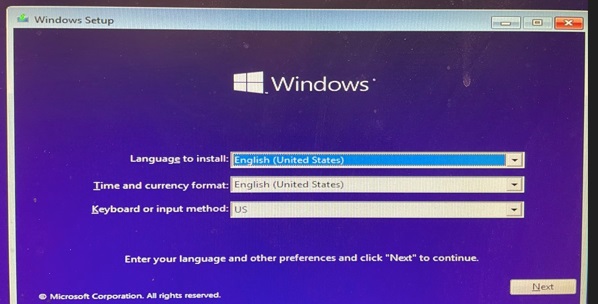
After the USB boots up select the language and agree to the fine print, if any.


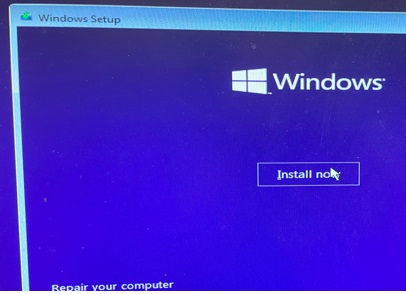
Once you agree the option to either install or repair will be shown. Since the repair did not work then chose install.


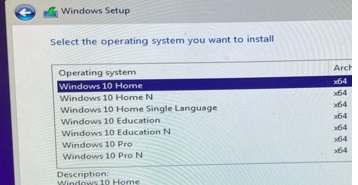
You must then pick the OS that was licensed. If there is no option for the correct OS you forgot to uncheck the 'Use the recommended options' earlier.


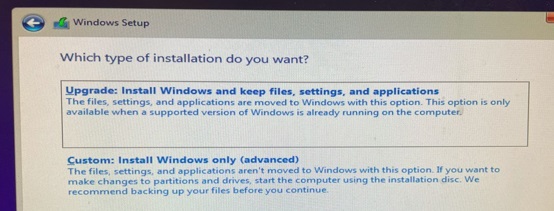
The next screen will ask if you want to upgrade and preserve files or do a clean install and lose all your stuff if not backed up.


Log into windows using your Microsoft account (or your email) credentials. Use whatever credential you used to activate windows originally. Install the HP support assistant and let it download drivers.


Be sure to do a clean install to get rid of all the win11 leftovers.


Thank you for using HP products and posting to the community.
I am a community volunteer and do not work for HP. If you find
this post useful click the Yes button. If I helped solve your
problem please mark this as a solution so others can find it
HP Recommended

This happens quite a bit after failed Windows 11 upgrades, that Win11_24H2 ISO or setup folder gets locked by the system. Try rebooting and then deleting it manually from File Explorer or Command Prompt (as Administrator). If it’s still “open in System,” use Disk Cleanup → System Files to remove temporary Windows installation files. That usually frees up the space safely without affecting your current OS.

† The opinions expressed above are the personal opinions of the authors, not of HP. By using this site, you accept the <a href="https://www8.hp.com/us/en/terms-of-use.html" class="udrlinesmall">Terms of Use</a> and <a href="/t5/custom/page/page-id/hp.rulespage" class="udrlinesmall"> Rules of Participation</a>.