• ×
    Information
    Need Windows 11 help?
    Check documents on compatibility, FAQs, upgrade information and available fixes.
    Windows 11 Support Center.
  • post a message
  • ×
    Information
    Need Windows 11 help?
    Check documents on compatibility, FAQs, upgrade information and available fixes.
    Windows 11 Support Center.
  • post a message
Guidelines
Join the HP Community Solve‑a‑thon | Help Others & Share Your Solutions | Live on Zoom | 2:30 PM to 2:30 AM IST | Every Wednesday Click here to know more
Check out our WINDOWS 11 Support Center info about: OPTIMIZATION, KNOWN ISSUES, FAQs, VIDEOS AND MORE.
HP Recommended
15s-du0093TU
Microsoft Windows 10 (64-bit)

how to turn on keyboard backlit? there is no backlit icon on my keys, what is the procedure to turn on backlit?

1 REPLY 1
HP Recommended

@Dinesh98r Welcome to HP Community!


I understand that you would like to turn on the keyboard backlit.


Do not worry. I will try to fix the issue

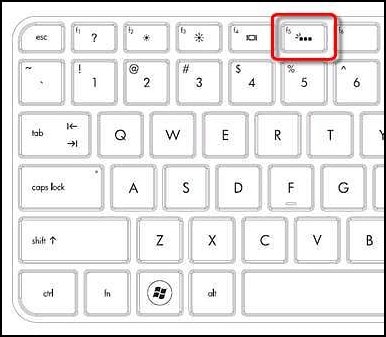
  • To check whether your particular model has a backlit keyboard, check the F5 key to see if the backlit keyboard key  is present.

  • To turn the keyboard back light on or off, press the F5  key.

Figure : F5 key - Backlit keyboard key

F5 key - backlit keyboard key


You could  try one of the following methods depending on your model, to turn the backlit keyboard on or off.

  • If the spacebar has a keyboard icon on the left side, press and hold the Function key (Fn) and then tap the space bar one time.

  • Press the F12 key.

  • Press the F5 key.

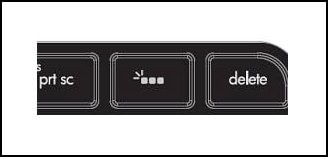
  • Press the special key dedicated to turning the back light on and off.

    Figure : Dedicated key for the keyboard back light

    Dedicated key for the keyboard back light

If the keyboard backlit symbol is not available, Your laptop does not support it.


Keep us posted,

If you would like to thank us for our efforts to help you, 


Give us a virtual high-five by clicking the 'Thumbs Up' icon below, followed by clicking on the "Accept as solution" on this post, 


Have a great day!

† The opinions expressed above are the personal opinions of the authors, not of HP. By using this site, you accept the <a href="https://www8.hp.com/us/en/terms-of-use.html" class="udrlinesmall">Terms of Use</a> and <a href="/t5/custom/page/page-id/hp.rulespage" class="udrlinesmall"> Rules of Participation</a>.