• ×
    Information
    Need Windows 11 help?
    Check documents on compatibility, FAQs, upgrade information and available fixes.
    Windows 11 Support Center.
  • post a message
  • ×
    Information
    Need Windows 11 help?
    Check documents on compatibility, FAQs, upgrade information and available fixes.
    Windows 11 Support Center.
  • post a message
Guidelines
Join the HP Community Solve‑a‑thon | Help Others & Share Your Solutions | Live on Zoom | 2:30 PM to 2:30 AM IST | Every Wednesday Click here to know more
Check out our WINDOWS 11 Support Center info about: OPTIMIZATION, KNOWN ISSUES, FAQs, VIDEOS AND MORE.
HP Recommended
HP Pavilion - 15-cc166tx
Microsoft Windows 11

I wanted to secure erase my harddisk but there is no option showing of secure erase in BIOS > security. please help me whats wrong with my laptop HP Pavilion - 15-cc166tx. many of options shown on videos related to HP laptops are not available on my laptop. once my laptop OS got some issue and I couldn't reinstall the OS so I gave it to repair shop. after that I am not finding many of the options in my laptop. please help me out what to do?

1 REPLY 1
HP Recommended

Two things ...


First, you will have to boot from something outside of Windows to do a secure erase, and since that is not done from the BIOS, you will have to use an app that allows you to create a boot USB stick and run from that.  MiniTool Partition Wizard used to have that tool, but I have not used it in a long time.


Second, if all you want to do is reinstall Windows, there is no need to do a secure erase because the installer allows you to reformat the drive at the start of the process.


If your PC is a 2016 model or newer, you should see if you can make a bootable USB recovery drive using the HP cloud recovery tool on a working PC.


The recovery drive can then be used to install Windows and the HP drivers and utilities that originally came with your PC.


You will need a working PC and a 32GB USB stick to hold the recovery files. Here is the link:


https://www.youtube.com/watch?v=xmtXOU40vxk


You use the Microsoft Store to download the actual tool:


https://apps.microsoft.com/detail/9mtks9pr7r3n?rtc=1&hl=en-us&gl=us


If you use a different PC to run the tool, you will have to provide your PC's product number. Here is an HP link for finding that information:


https://support.hp.com/us-en/document/ish_2039298-1862169-16


Here's a video from HP Support about using the Cloud Recovery Tool:


https://www.youtube.com/watch?v=P7AwuKNJKS4


I am a volunteer and I do not work for, nor represent, HP
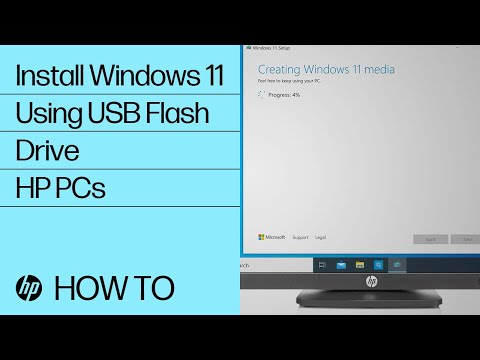
In this video, you will learn how to install Windows 11 on your HP PC using a USB flash drive. We will create a Windows 11 installation media and use it to update Windows on your computer easily. Chapters: 00:00 Introduction 00:32 Before You Update 01:01 Create Windows 11 Installation Media 01:43
Watch this video to know how to recover your computer using the HP Cloud Recovery Tool. We will set up a recovery image on a USB flash drive using the tool and get your computer back up and running easily. Chapters: 00:00 Introduction 00:16 What you will need 01:19 Start recovery process 04:16 ...
† The opinions expressed above are the personal opinions of the authors, not of HP. By using this site, you accept the <a href="https://www8.hp.com/us/en/terms-of-use.html" class="udrlinesmall">Terms of Use</a> and <a href="/t5/custom/page/page-id/hp.rulespage" class="udrlinesmall"> Rules of Participation</a>.