• ×
    Information
    Need Windows 11 help?
    Check documents on compatibility, FAQs, upgrade information and available fixes.
    Windows 11 Support Center.
  • post a message
  • ×
    Information
    Need Windows 11 help?
    Check documents on compatibility, FAQs, upgrade information and available fixes.
    Windows 11 Support Center.
  • post a message
Guidelines
Seize the moment! nominate yourself or a tech enthusiast you admire & join the HP Community Experts!
Check out our WINDOWS 11 Support Center info about: OPTIMIZATION, KNOWN ISSUES, FAQs, VIDEOS AND MORE.
HP Recommended
hp ProBook 444O's
Microsoft Windows 10 (64-bit)

  I am getting a Critical Process  died message when trying to start Windows 10.  All diagnostics on the HW runs good did a extensive search.  I have system restore point but when trying use that, it tells me I must enable system protection on my drive.  How can I do that outside of Windows? Tried pc reset not losing files without success.

The laptop was working fine, the only thing I did before stop working 2 yrs ago I was on system restore & I accidently turned off computer.  Can anybody PLEASE help me as I'm trying to retrieve photos from pc because there's been a death in my & need photos for funeral!!!!! 

1 REPLY 1
HP Recommended

@mgddebi64 


First of all, System Restore does NOT return the PC to a former date -- despite the misinformation you will find about this on the Internet.  All it does is overwrite the current system files with ones that were saved long ago.


Second, System Restore does NOT save any personal data; so it does not restore any of it, either.  IF the files were lost or damaged, System Restore will not help with getting them back.


Your best bet for recovering data now is to do the following:
1) Remove the disk drive from the old PC. If this is a SATA hard drive or a SATA SSD, this is a simple thing to do. If this is an m.2 SSD, that could be either screwed to the motherboard or soldered to the motherboard. If the second, you would need to have a techician remove it for you, or you risk seriously damaging the PC doing it yourself.
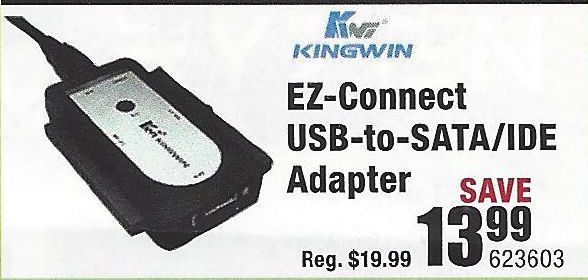
2) If you have a desktop PC with a spare hard drive connector, then connect the old drive to that. If the old drive is a SATA drive, connect both the power cable and the data cable. (This adapter is illustrated below) If the old drive is an m.2 SSD, you will need a USB-to-mSATA cable.
USB-Drive-Adapter.jpg
3) Try to retrieve the files and folders you want to save from the old drive and copy them to the new PC.

If this does not work, then you need to do the following:
1) Download and install this utility on a working PC http://www.majorgeeks.com/news/story/recover_data_in_3_steps_with_minitool_power_data_recovery_free_...
2) Run the data recovery utility to see what can be retrieved from the old drive.

If that tool does not find what you need, an alternative is Recuva http://www.piriform.com/recuva

And, if that does not work well, the best tool out there is this one, but only the demo version is free https://www.runtime.org/data-recovery-software.htm


I am a volunteer and I do not work for, nor represent, HP
† The opinions expressed above are the personal opinions of the authors, not of HP. By using this site, you accept the <a href="https://www8.hp.com/us/en/terms-of-use.html" class="udrlinesmall">Terms of Use</a> and <a href="/t5/custom/page/page-id/hp.rulespage" class="udrlinesmall"> Rules of Participation</a>.