• ×
    Information
    Need Windows 11 help?
    Check documents on compatibility, FAQs, upgrade information and available fixes.
    Windows 11 Support Center.
  • post a message
  • ×
    Information
    Need Windows 11 help?
    Check documents on compatibility, FAQs, upgrade information and available fixes.
    Windows 11 Support Center.
  • post a message
Guidelines
Join the HP Community Solve‑a‑thon | Help Others & Share Your Solutions | Live on Zoom | 2:30 PM to 2:30 AM IST | Every Wednesday Click here to know more
Check out our WINDOWS 11 Support Center info about: OPTIMIZATION, KNOWN ISSUES, FAQs, VIDEOS AND MORE.
HP Recommended
HP LAPTOP 14s-dq1015nl
Microsoft Windows 10 (64-bit)

the fingerprint no longer works after updating windows 10. if I try to set the fingerprint it tells me "impossible to find a fingerprint scanner compatible with the windows hello fingerprint". before the update the fingerprint worked, but now no more. what can I do ?

1 REPLY 1
HP Recommended

@FILO21 


There is a newer fingerprint reader driver you can try:

sp101415.exe


Description / Information Files

sp101415.cva

sp101415.html


Version=3.2.12011.10021
Revision=A
Pass=6


[Devices]
USB\VID_04F3&PID_0C00="ELAN WBF Fingerprint Sensor"
USB\VID_04F3&PID_0C4C="ELAN WBF Fingerprint Sensor"


[Operating Systems]
WT64_1909=OEM


Preparation


Run Windows Updates > Check for Updates

If any updates are installed, Restart the computer even if not indicated that you should do so.


Update your HP Software and Drivers

Exception:  Do not yet update the Fingerprint reader driver

If any updates are installed, Restart the computer even if not indicated that you should do so.


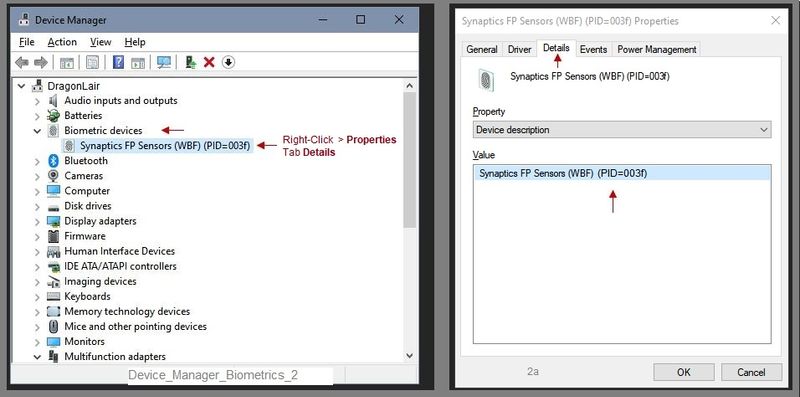
Device Manager - Biometrics Information

  1. Device Manager > View “Devices by type” AND “Show hidden devices”
  2. Open category Biometric devices
  3. Look for and Right-Click on the fingerprint reader device > Properties
  4. Tab Details
  5. Under Property, “Device description

Device_Manager_Biometrics_2Device_Manager_Biometrics_2


Device Manager - Biometrics - Uninstall Driver

  1. Device Manager > View “Devices by type” AND “Show hidden devices”
  2. Open category Biometric devices
  3. Look for and Right-Click on the fingerprint reader device > Properties
  4. Uninstall the driver
  5. Leave the Device Manager


Download-Save-Install Fingerprint Driver


Important: 

Before making changes to the computer, check that you can log into your computer using your Windows password.


  • Download and Save the driver package to your computer
  • Open File Explorer
  • Navigate to the folder in which you saved the installation file  (likely Downloads)
  • Right-Click on the installation package and “Run as Administrator
  • After the software is installed, Restart the computer and log in


Fingerprint Reader Setup


Fingerprint logon is part of Windows Hello Logon.


Next

Preparation - Windows Hello - Fingerprint logon


Recommended / General Information


Create a Backup of your Data


  Create a backup of all your most critical / sensitive files to other than on the computer.  For example, copy your most important folders and files to your Cloud backup. to a USB stick, "Somewhere" you can access the files should the computer become unavailable.


  Create a Restore point before you make changes to your computer's software and setups.


(How to) Create Restore Point


Stop all programs:  Browsers, games, Applications, etc.


Control Panel > icon view > System > System Protection > 

Click (Highlight) your main disk (C) > Select Create a Restore Point

OR

(As available)

Create a restore point now for the drives that have system protection turned on

Create


Windows PIN 


Reminder:  Windows Hello and Fingerprint logon require that you have your Windows PIN set and ready to use.


You may already have a Windows PIN login set up and ready to go.  Should there be a problem with the PIN, in most cases, you will receive a notice from Windows that there is an issue - you can then reset the PIN as needed.


Reference

Microsoft - Fix problems with your PIN


PIN assignment is mandatory to enable fingerprint reader

            Windows key > Settings > Account > Sign-in Options > PIN number


Next

What Else?

The option is a Windows feature.

Microsoft - Learn about Windows Hello and set it up


++++++++++++++++++++++++++++++++++++++++++++++++++++++++++++++

Reference and Resources – Places to find help, solve problems, and learn about your Device

Device Homepage

NOTE:  Content depends on device type and Operating System

Categories:  Warranty Check, HP Drivers / Software and BIOS, How-to Videos, Bulletins/Notices, How-to Documents, Troubleshooting, User Guides / Manuals, Service and Maintenance Guide (Replacement Parts and Procedures), Product Information (Specifications), more

When the website support page opens, Select (as available) a Category > Topic > Subtopic

HP Notebook 14s-dq1015nl


Thank you for participating in the HP Community Forum.

We are a world community of volunteers dedicated to supporting HP technology

Stay Home - Stay Safe - Save Lives - Help a Friend (or Community member) in need!


Dragon-Fur

† The opinions expressed above are the personal opinions of the authors, not of HP. By using this site, you accept the <a href="https://www8.hp.com/us/en/terms-of-use.html" class="udrlinesmall">Terms of Use</a> and <a href="/t5/custom/page/page-id/hp.rulespage" class="udrlinesmall"> Rules of Participation</a>.