-
×InformationNeed Windows 11 help?Check documents on compatibility, FAQs, upgrade information and available fixes.
Windows 11 Support Center. -

-
×InformationNeed Windows 11 help?Check documents on compatibility, FAQs, upgrade information and available fixes.
Windows 11 Support Center. -
- HP Community
- Notebooks
- Notebook Software and How To Questions
- HP BIOS Unable to read BIOS image

Create an account on the HP Community to personalize your profile and ask a question
05-17-2020 11:32 AM
Hi, i have a problem with the BIOS update. My laptop (HP 15-da0021la) stuck in a BIOS bootloop installation, it restarts again and again and never end.
I searched the BIOS from here https://support.hp.com/us-en/drivers/selfservice/hp-15-da0000-laptop-pc/20395828/model/23574471?sku=... and i create an USB with the BIOS, but it doesn't work, just say ''Unable to read BIOS image''.
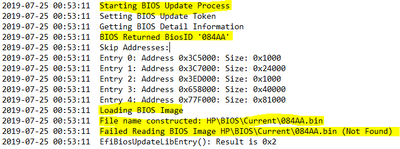
I found the log and say this:
So based on the output It seems to be looking for a file named 84AA.bin, but when I checked the Folders within the USB stick, I don't find any file with this name. The only file I found are named 08532.bin and 08532.s12.
I don't know where to find the correct BIOS to recovery my laptop.
05-27-2020 03:34 PM
@Charlyyk It looks like your device may need a BIOS recovery, a possible interruption, not deliberate, however, a power failure or a slight disconnection from the internet while downloading the BIOS update, could cause such issues, nevertheless, we have a few steps that should help resolve the issue, once and for all:
Click here to perform a hard reset on your device
If the issue persists, after the above steps, try the below:
-
Turn off the notebook.
-
Plug the notebook into a power source using the power adapter.
-
With the notebook off, press and hold the Windows logo key
and the B key at the same time.NOTE:
On some notebook models, it might be necessary to press and hold the Windows logo key
and the V key. -
While pressing those keys, press and hold the Power button on the computer for 2 to 3 seconds, and then release the Power button but continue to hold the Windows logo key
and the B or V key until the HP BIOS update screen displays or you hear a beeping sound (usually 8 beeps).The HP BIOS Update screen displays, and the BIOS update begins automatically. This might take several minutes, and you might hear additional beeping sounds.
-
If the HP BIOS Update screen does not display, repeat the previous steps. If the issue persists after repeating the steps, skip to the next step to Download a replacement BIOS file.
-
If the Power light turns off, the notebook has turned off because the Power button was held too long. Repeat the previous steps, making sure to hold the Power button for 2 to 3 seconds only.
-
CLICK HERE FOR MORE STEPS AND INSTRUCTIONS.
(By the end of this article all the issues should be resolved)
P.S: Welcome to HP Community 😉
Let me know how that pans out,
If you feel I was helpful, simply click on Accept as Solution to help the community grow,
That said, I will have someone follow-up on this to ensure you've been helped,
Just in case you don't get back to us,
have a good day, ahead.
Due to the current global COVID-19 situation, we're seeing an influx of customers coming in for support and we appreciate your patience.
Riddle_Decipher
I am an HP Employee
Learning is a journey, not a destination.
Let's keep asking questions and growing together.