-
×InformationNeed Windows 11 help?Check documents on compatibility, FAQs, upgrade information and available fixes.
Windows 11 Support Center. -

-
×InformationNeed Windows 11 help?Check documents on compatibility, FAQs, upgrade information and available fixes.
Windows 11 Support Center. -
- HP Community
- Notebooks
- Notebook Software and How To Questions
- Re: How to extract/ unzip and/or install Printer Driver file...

Create an account on the HP Community to personalize your profile and ask a question
05-31-2019 09:56 AM - edited 05-31-2019 09:56 AM
What is BIGBLACKBOX? Your desktop? I would guess that the printer is connected by USB or even perhaps parallel port to the desktop and it is using good old Windows file and printer sharing to share the printer with the network. So you need to find the BIGBLACKBOX share on the network (likely WORKGROUP) and the printer will show up as a shared resource inside that shared computer. Once you see it just click on it and it should install and if you need a driver use one of the methods outlined above.
So you are not looking for the printer per se in the network you are looking for BIGBLACKBOX. There are better ways to do this by the way but let's work with the world as it is right now. The way you have it screams "1998!"
We need to duplicate the network settings you have on the older laptop onto the newer laptop except obviously the exact IP address will be different by a digit or 2.
06-01-2019 10:41 AM
I really appreciate your patience, Huffer.
You are correct: BIGBLACKBOX is my desktop to which my HP 4000 is attached with a big ole parallel cable.
It is obviously in shared mode (of some sort) or I wouldn't be able to print with it on my old laptop.
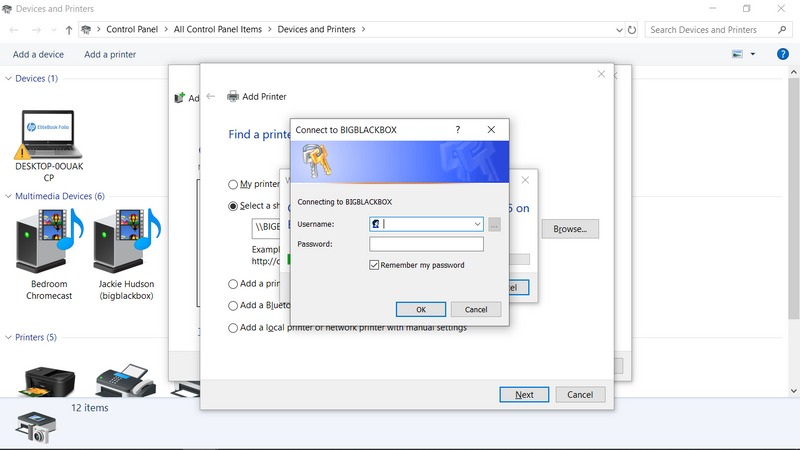
You can see the path/naming convention I used to Add it to the old laptop, based on the "example" printed just below the "Select a shared printer by name" field ...where I have entered \\BIGBLACKBOX\HP LaserJet 4000 Series PCL 5.
Unfortunately, when I enter this same name into the Add printer by name field on the new laptop and click Next, a "progress box" appears saying "Connecting to HP LaserJet 4000 Series PCL 5 on BIGBLACKBOX"......but a second dialog box ALSO appears asking for a Username: and Password in order to "connect to BIGBLACKBOX".
Any idea what and where those details would be? (Man, the nightmare of setting up this printer sharing on the old laptop years ago is "reconvening"....I think it was a three day ordeal!)
I'm willing to switch horses if you think there's a better way to "start clean"!?!
St. Catharines, ON, CANADA
06-01-2019 10:58 AM
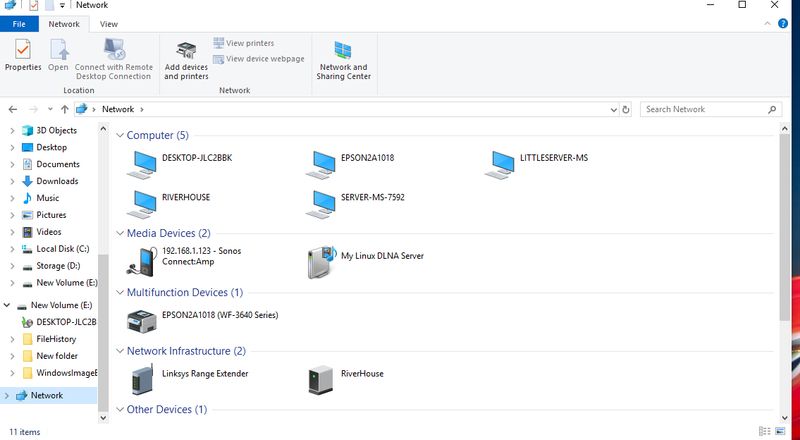
I am not sure if you are not understanding me or what. For a shared printer using Windows printer sharing you do not use the ADD PRINTER dialog. Just open the graphical Network like this:
Network shared computers
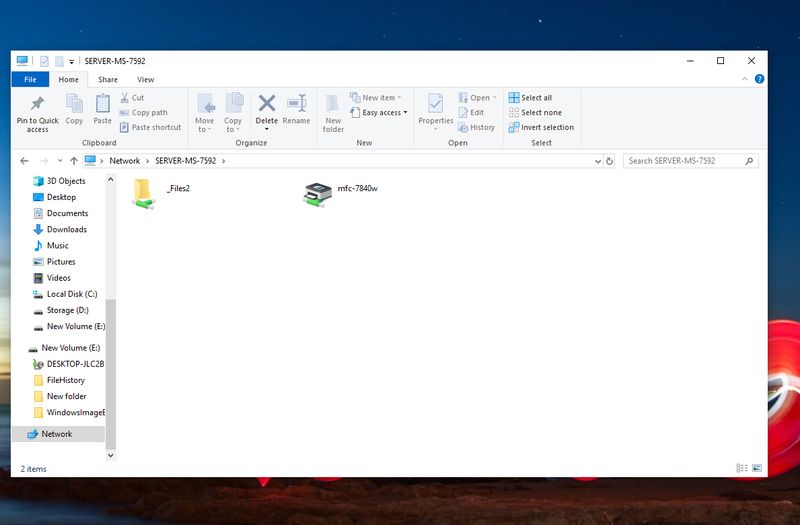
On my network I just click on Server and you see a shared network drive and then a shared printer. Just double click on the shared printer. Your computer will then start trying to find a driver for it and do what I said above.
how shared printer looks to other computers on network
If you cannot see BIGBLACKBOX in your network GUI as above then the laptop you are trying to access it from is not on the same Workgroup.
06-03-2019 04:04 PM
I SEEM to have things working (for now, at least) after fiddling with a combination of...
1. Making sure all computers were on the 2.4 GHz network of my Asus router
2. Changing the name of the Workgroup to be consistent on all pc's
3. Using the Network Reset utility to "freshen" up all 3 computers network adapters
4. Creating a new "User" account on the HP laptop (I MAY be mistaken, I was once before, but does networking only work properly with a USER as opposed to Administrator account?)
5. Last but not least turning off "Password protected sharing" in the Network and Sharing Centre (otherwise, I was being plagued by requests to Enter Network Identification ID and passwords)
I could finally SEE the 4000 on the new laptop; double clicked it; it went and got a driver (somewhere)....and voila! I could print.
Thanks for the inspiration, Huffer. (God these things really DO have a guy looking at Macs again, though!)
Cheers, Michael
St. Catharines, ON, CANADA
06-04-2019 04:41 AM
You might want to provide an accepted solution here since it was a bit of a slog. If you think this would have been easier on a Mac you have not done it on a Mac. User/Admin has nothing to do with whether networking works. Anyway its pretty clear you needed an "Expert", right?
- « Previous
- Next »