-
×InformationNeed Windows 11 help?Check documents on compatibility, FAQs, upgrade information and available fixes.
Windows 11 Support Center. -

-
×InformationNeed Windows 11 help?Check documents on compatibility, FAQs, upgrade information and available fixes.
Windows 11 Support Center. -
- HP Community
- Notebooks
- Notebook Software and How To Questions
- My camera is not on. It is blooked

Create an account on the HP Community to personalize your profile and ask a question
08-17-2026 03:51 PM
Accepted Solutions
08-19-2026 09:56 AM
Hi @PeterTortorello,
Welcome to the HP Support Community.
If Windows 11 reports that your camera is blocked, the most common cause on supported HP notebooks is that the webcam privacy switch or webcam shutter key has been turned off. The HP support document you provided is a valid HP troubleshooting reference, and HP Community posts also direct customers to this guide for camera issues.
1. Locate and toggle the webcam privacy switch or press the webcam shutter key
Some HP notebook models come with a webcam privacy switch or a webcam shutter key that turns the webcam off and on. By default, the webcam is turned on. You might need to turn the webcam on if it has been turned off.
Locate and use the webcam privacy switch
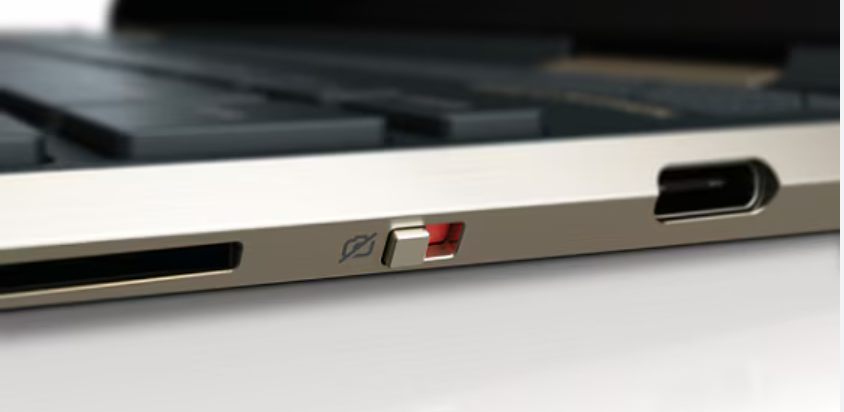
The webcam privacy switch is located on either the right or left side of your computer or next to the camera. To turn off your webcam, slide the webcam privacy switch toward the icon next to the switch. To turn the webcam back on, slide the switch away from the icon.
Your HP notebook might also have a webcam privacy cover. Slide the cover right to uncover the webcam.
Locate and use the webcam shutter key
The webcam shutter key is located on the action key row of your keyboard. To turn off your webcam, press the webcam shutter key. To turn the webcam back on, press the shutter key again. On some computers, you might need to simultaneously press the Fn key and the action key.
If the shutter key has an indicator light, light on means the webcam is off; light off means the webcam is on.
2. Find and use the webcam software that came with your computer
In the search box on the taskbar, search for and open Camera.
- If you can see an image, then you are finished. Your webcam is working.
- If you cannot see an image in the main display window, restart the computer, and then try again. If the problem persists, continue with HP's webcam troubleshooting steps.
3. If the webcam is not listed in Device Manager
- Restart your computer. If the problem persists, continue with these steps.
- In Windows, search for and open Device Manager.
- If there is no Imaging devices category listed, select Action, and then select Scan for hardware changes.
- If Device Manager does not recognize the webcam after the scan and the camera worked previously, use Microsoft System Restore to go back to a time when the webcam was working properly.
If the webcam still is not detected, verify that the webcam privacy switch or webcam shutter key has not disabled the webcam, and run the Webcam Connection Test in HP PC Hardware Diagnostics.
Expected result: Once the privacy switch/shutter is enabled, Windows should allow the Camera app and other applications to access the webcam. HP PCs - "We can't find your camera" error is displayed in Camera app in Windows 10 | HP® Support
Take care and have an amazing day!
I'm an HP Employee.
If this reply helped resolve your issue, please select the Accept as Solution as it helps others in the community quickly find the answer they’re looking for.
And if you found this reply helpful, clicking Yes below is a great way to let us know we’re providing the support you need, as it encourages us to keep improving and sharing helpful guidance.
08-19-2026 09:56 AM
Hi @PeterTortorello,
Welcome to the HP Support Community.
If Windows 11 reports that your camera is blocked, the most common cause on supported HP notebooks is that the webcam privacy switch or webcam shutter key has been turned off. The HP support document you provided is a valid HP troubleshooting reference, and HP Community posts also direct customers to this guide for camera issues.
1. Locate and toggle the webcam privacy switch or press the webcam shutter key
Some HP notebook models come with a webcam privacy switch or a webcam shutter key that turns the webcam off and on. By default, the webcam is turned on. You might need to turn the webcam on if it has been turned off.
Locate and use the webcam privacy switch
The webcam privacy switch is located on either the right or left side of your computer or next to the camera. To turn off your webcam, slide the webcam privacy switch toward the icon next to the switch. To turn the webcam back on, slide the switch away from the icon.
Your HP notebook might also have a webcam privacy cover. Slide the cover right to uncover the webcam.
Locate and use the webcam shutter key
The webcam shutter key is located on the action key row of your keyboard. To turn off your webcam, press the webcam shutter key. To turn the webcam back on, press the shutter key again. On some computers, you might need to simultaneously press the Fn key and the action key.
If the shutter key has an indicator light, light on means the webcam is off; light off means the webcam is on.
2. Find and use the webcam software that came with your computer
In the search box on the taskbar, search for and open Camera.
- If you can see an image, then you are finished. Your webcam is working.
- If you cannot see an image in the main display window, restart the computer, and then try again. If the problem persists, continue with HP's webcam troubleshooting steps.
3. If the webcam is not listed in Device Manager
- Restart your computer. If the problem persists, continue with these steps.
- In Windows, search for and open Device Manager.
- If there is no Imaging devices category listed, select Action, and then select Scan for hardware changes.
- If Device Manager does not recognize the webcam after the scan and the camera worked previously, use Microsoft System Restore to go back to a time when the webcam was working properly.
If the webcam still is not detected, verify that the webcam privacy switch or webcam shutter key has not disabled the webcam, and run the Webcam Connection Test in HP PC Hardware Diagnostics.
Expected result: Once the privacy switch/shutter is enabled, Windows should allow the Camera app and other applications to access the webcam. HP PCs - "We can't find your camera" error is displayed in Camera app in Windows 10 | HP® Support
Take care and have an amazing day!
I'm an HP Employee.
If this reply helped resolve your issue, please select the Accept as Solution as it helps others in the community quickly find the answer they’re looking for.
And if you found this reply helpful, clicking Yes below is a great way to let us know we’re providing the support you need, as it encourages us to keep improving and sharing helpful guidance.