
-
×InformationNeed Windows 11 help?Check documents on compatibility, FAQs, upgrade information and available fixes.
Windows 11 Support Center. -
-
×InformationNeed Windows 11 help?Check documents on compatibility, FAQs, upgrade information and available fixes.
Windows 11 Support Center. -
- HP Community
- Gaming
- Gaming Notebooks
- Re: OMEN COMMAND CENTER DOES NOT HAVE PERFORMANCE BOOSTER OR...

Create an account on the HP Community to personalize your profile and ask a question
Your account also allows you to connect with HP support faster, access a personal dashboard to manage all of your devices in one place, view warranty information, case status and more.

It has been a while since anyone has replied. Simply ask a new question if you would like to start the discussion again.

05-21-2019 03:48 AM
 HP Recommended
Product: HP OMEN 15-dc0082tx
Operating System: Microsoft Windows 10 (64-bit)
Hey, my omen command center does not have features like performance control or clocking feature.
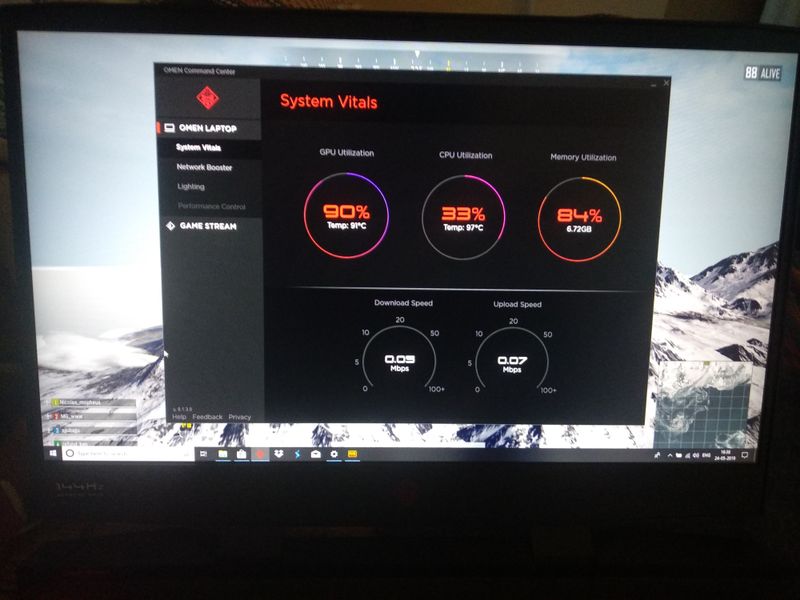
AND, while playing pubg my CPU temp is going over 97 degrees please help me, I have just bought the new laptop.
Solved! Go to Solution.
1 ACCEPTED SOLUTION
Accepted Solutions


05-22-2019 06:18 AM
HP Recommended
Hey there! @MAYANK_11,
I have checked the specifications and the compatibility of Omen command center features on the PC.
And your PC does not support overclocking. However, the PC supports the performance feature in Omen command center.
Update OMEN Command Center by downloading the app from the Windows Store.
-
Click the Windows Store icon in the system tray.
-
Search for OMEN Command Center.
-
Click Update.
Wait while the program downloads and installs.
-
Click Play.
OMEN Command Center opens.
Refer the omen center compatibility guide and features using this link. Click Here
Note: Only if your PC is listed under system vitals, only then you can change the performance settings.
Lastly, try updating the BIOS and graphics driver on the PC to the latest version and check if it helps.
Update the BIOS using this link. Click Here
Update the graphics driver using this link. Click Here
Let me know if this works!
I hope you have a great day! 🙂
Please click “Accept as Solution” if you feel my post solved your issue, it will help others find the solution.
Click the “Kudos, Thumbs Up" on the bottom right to say “Thanks” for helping!
A4Apollo
I am an HP Employee
6 REPLIES 6
05-22-2019 06:18 AM
HP Recommended
Hey there! @MAYANK_11,
I have checked the specifications and the compatibility of Omen command center features on the PC.
And your PC does not support overclocking. However, the PC supports the performance feature in Omen command center.
Update OMEN Command Center by downloading the app from the Windows Store.
-
Click the Windows Store icon in the system tray.
-
Search for OMEN Command Center.
-
Click Update.
Wait while the program downloads and installs.
-
Click Play.
OMEN Command Center opens.
Refer the omen center compatibility guide and features using this link. Click Here
Note: Only if your PC is listed under system vitals, only then you can change the performance settings.
Lastly, try updating the BIOS and graphics driver on the PC to the latest version and check if it helps.
Update the BIOS using this link. Click Here
Update the graphics driver using this link. Click Here
Let me know if this works!
I hope you have a great day! 🙂
Please click “Accept as Solution” if you feel my post solved your issue, it will help others find the solution.
Click the “Kudos, Thumbs Up" on the bottom right to say “Thanks” for helping!
A4Apollo
I am an HP Employee
05-26-2019 11:21 PM
HP Recommended
My first issue of performance booster has been solved, But my second issue of heating is not resolved after doing steps you have given, GPU temp is 97 degree and CPU temp is 97 temp too, please help my laptop is only 10 days old and while playing the game for 10 minutes only it is heating so much.
05-28-2019 06:08 AM
HP Recommended
Hi! @MAYANK_11,
Thanks for writing back to us.
I found a service advisory related to the overheating issue. To solve this issue, please update the HP firmware pack to the latest version.
Update the firmware pack using this link. Click Here
Hope this helps!
Take Care!
A4Apollo
I am an HP Employee
06-01-2019 02:59 AM
HP Recommended
After installing this software my temp goes down to 72 degrees, I was very happy but next day again it goes up to 97 degrees, My laptop is brand new please do not spoil my trust on hp or else, I have no other option then complaining to senior executive.
06-01-2019 08:56 AM
HP Recommended
Hi! @MAYANK_11,
I have brought your issue to the attention of an appropriate team within HP. They will likely request information from you in order to look up your case details or product serial number. Please look for a private message from an identified HP contact. Additionally, keep in mind not to publicly post personal information (serial numbers and case details).
If you are unfamiliar with how the Community's private message capability works, you can learn about that here.
Thank you for visiting the HP Support Community.
Regards
A4Apollo
A4Apollo
I am an HP Employee

Be alert for scammers posting fake support phone numbers and/or email addresses on the community.
If you think you have received a fake HP Support message, please report it to us by clicking on "Flag Post".
† The opinions expressed above are the personal opinions of the authors, not of HP. By using this site, you accept the Terms of Use and Rules of Participation.


Didn't find what you were looking for?
Ask the community
† The opinions expressed above are the personal opinions of the authors, not of HP. By using this site, you accept the <a href="https://www8.hp.com/us/en/terms-of-use.html" class="udrlinesmall">Terms of Use</a> and <a href="/t5/custom/page/page-id/hp.rulespage" class="udrlinesmall"> Rules of Participation</a>.