• ×
    Information
    Need Windows 11 help?
    Check documents on compatibility, FAQs, upgrade information and available fixes.
    Windows 11 Support Center.
  • post a message
  • ×
    Information
    Need Windows 11 help?
    Check documents on compatibility, FAQs, upgrade information and available fixes.
    Windows 11 Support Center.
  • post a message
Guidelines
Seize the moment! nominate yourself or a tech enthusiast you admire & join the HP Community Experts!
HP Recommended
LOT33UA#ABA HP 15-1233wm
Microsoft Windows 10 (64-bit)

Good Evening, Experts!

I am includding three issues in this post.  I hope that is acceptable.

1) My laptop has fuzzy display fonts.  I have attached a screen shot example.  I would like to improve the resoution.

2) My laptop boots slowly and is slow to respond to most commands.  I would like to have my PC respond quickly.

3) If I stop using my PC for several minutes, it closes the browser and goes to sleep.  It will not come to life unless I press the i/O key.  It reopens slowly and then has to reacquire each window or tab that was open previously.  I would like the PC to go to lock screen, but not hibernate.  I would like it to come back to useful state immediately upon a tap on the space bar or any key.

Thank you for your assistance!


-- DavHP 15 Fuzzy Screen Fonts.pngHP 15 Fuzzy Screen Fonts.png

1 REPLY 1
HP Recommended

@DaveW50
Thank you for posting on the HP Support Community.


Use the following steps to resolve a fuzzy, blurry, or stretched display:

Step 1: Restart the computer

  • Some display problems resolve automatically when the computer is restarted.
  • If the image and text quality are corrected after restarting the computer, you are done troubleshooting.
  • If the problem persists, continue to the next step.

Step 2: Adjust the display resolution

Use the steps in one of the following sections, depending on your operating system, to adjust the display resolution:

To adjust the display resolution on a computer running Windows 10, use the following steps:

  1. Click Start, type resolution in the Search field, and then select Change the screen resolution from the search results.

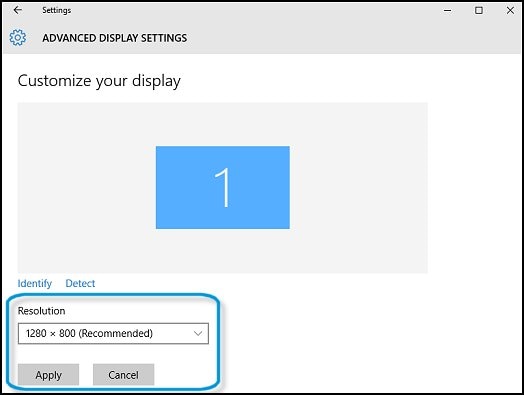
  2. The Advanced Display Settings page opens. Click the arrow next to Resolution to open the list of display resolutions.

  3. Click the Recommended display resolution, then click Apply.

    Figure: Changing the display resolution 

    Changing the display resolution

    If the image and text quality are corrected after adjusting the resolution, you are done troubleshooting.

    If the problem continues, go to the next step.

  4. Next, follow the Article on "Computer Is Slow"

Hope this helps! Keep me posted for further assistance.
Please click “
Accept as Solution” if you feel my post solved your issue, it will help others find the solution.

ECHO_LAKE
I am an HP Employee

† The opinions expressed above are the personal opinions of the authors, not of HP. By using this site, you accept the <a href="https://www8.hp.com/us/en/terms-of-use.html" class="udrlinesmall">Terms of Use</a> and <a href="/t5/custom/page/page-id/hp.rulespage" class="udrlinesmall"> Rules of Participation</a>.