• ×
    Information
    Need Windows 11 help?
    Check documents on compatibility, FAQs, upgrade information and available fixes.
    Windows 11 Support Center.
  • post a message
  • ×
    Information
    Need Windows 11 help?
    Check documents on compatibility, FAQs, upgrade information and available fixes.
    Windows 11 Support Center.
  • post a message
Guidelines
Join the HP Community Solve‑a‑thon | Help Others & Share Your Solutions | Live on Zoom | 2:30 PM to 2:30 AM IST | Every Wednesday Click here to know more
HP Recommended
15-bs192od
Microsoft Windows 10 (64-bit)

15-bs192od display goes blurry, hazy. Sometimes, it shows rainbow colors too. Laptop becomes unresponsive to mouse movements or keyboard inputs.  It comes back to normal when the display is touched few times. The behavior is totally inconsistent. I've upgraded bios and drivers and issue still persist. Has anyone come across this issue? Please help.

3 REPLIES 3
HP Recommended

@PromThanos,


Welcome to the HP Support Community!


I recommend you download and install HP support assistant from the below link and it will automatically download and install all the updates for your computer.


Here is how it is done.


Download link: https://www8.hp.com/in/en/campaigns/hpsupportassistant/hpsupport.html?jumpid=va_r602_in/en/any/psg/p...


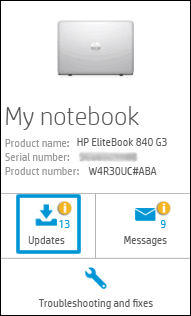
  1. Click My devices in the top menu, and then click Updates in the My PC or My notebook pane.

    Click Updates in the My notebook pane

  2. Click Check for updates and messages to scan for new updates.

     Updates list in HP Support Center

  3. Review the list of updates. Updates with a yellow information icon are recommended. Updates with a blue information icon are optional.

  4. Click the update name for a description, version number, and file size.

  5. Select the box next to any updates you want to install, and then click Download and install.

  6. Perform any other update management actions as needed.

    • Postpone an update: Click Remind me, and then select a time preference.

    • Delete an available update: Click the Delete icon  to remove the update from the list and record it in the action log.

    • Review updates status: Click Action log below the list to view installed, postponed, or deleted updates.

Let me know how it goes and you have a great day!


If you wish to show appreciation for my efforts, mark my post as Accept as Solution. Your feedback counts!


Cheers!

The_Fossette
I am an HP Employee

HP Recommended

Thanks for your response. The system already has the HP Support Assistant and up to date with software.  The problem is still seen after the updates.  Please let me know if any further troubleshooting can be attempted.

HP Recommended

Thank you for replying, @PromThanos,


Have you tried checking with an external monitor does the issue persist?

Does the issue persist on the BIOS page?


If the issue persists on the BIOS page it is a hardware issue with the display.


If the issue does not persist on the BIOS page try updating the graphics, chipset and BIOS on the PC to the latest version.


Uninstall the graphics driver from device manager and install the latest version of BIOS,chipset and graphics drivers on the PC using the HP support assistant.


Refer this article to know more information about using HP support assistant. Click Here


Refer this article to further troubleshoot display issues with the PC. Click Here


Let me know how it goes!


I hope you have a great day! 


Please click “Accept as Solution” if you feel my post solved your issue, it will help others find the solution.

Click the “Kudos, Thumbs Up" on the bottom right to say “Thanks” for helping!

Jeet_Singh
I am an HP Employee

† The opinions expressed above are the personal opinions of the authors, not of HP. By using this site, you accept the <a href="https://www8.hp.com/us/en/terms-of-use.html" class="udrlinesmall">Terms of Use</a> and <a href="/t5/custom/page/page-id/hp.rulespage" class="udrlinesmall"> Rules of Participation</a>.