• ×
    Information
    Need Windows 11 help?
    Check documents on compatibility, FAQs, upgrade information and available fixes.
    Windows 11 Support Center.
  • post a message
  • ×
    Information
    Need Windows 11 help?
    Check documents on compatibility, FAQs, upgrade information and available fixes.
    Windows 11 Support Center.
  • post a message
Guidelines
Seize the moment! nominate yourself or a tech enthusiast you admire & join the HP Community Experts!
HP Recommended
HP Notebook - 15-af108ax( AMD Processor)
Microsoft Windows 10 (64-bit)

Hello after updating to BIOS F29, my HP Notebook is not functioning well, I see vertical lines on the screen and blury images on the screen, The text and images are not clear when I open browser or any other applications. Welcome screen looks with uneven colours with very high brightness, Text and images also looks blury which unable to see clearly, This was happened when I updated my BIOS to new version F29 which shown as update to my hp notebook on hp service support application, Could anyone please help me with solution

Thanks Prasad

1 REPLY 1
HP Recommended

@Prasad39

Thank you for posting on HP Support Community.


Don't worry as I'll be glad to help, I have a few troubleshooting steps we could try to fix the issue:  

Firstly, perform Windows Update and HP Support Assistant: (do not skip any troubleshooting steps if you feel steps are repeating) 

To check for updates now, select the Start button, and then go to Settings  > Update & security  > Windows Update, and select Check for updates.

Install updates from HP Support Assistant: Go to Download HP Support Assistant to install the tool.

  1. To open HP Support Assistant, double-click the HP Support Assistant icon https://support.hp.com/doc-images/932/c05040382.jpg.
  2. Click My devices in the top menu, and then click Updates in the My PC or My notebook pane.
  3. Click Check for updates and messages to scan for new updates.
  4. Review the list of updates. Updates with a yellow information icon are recommended. Updates with a blue information icon are optional.
  5. Click the update name for a description, version number, and file size.
  6. Select the box next to any updates you want to install, and then click Download and install.

If the test passes, continue with these steps:

  1. Turn off the computer, and then connect the power cord.

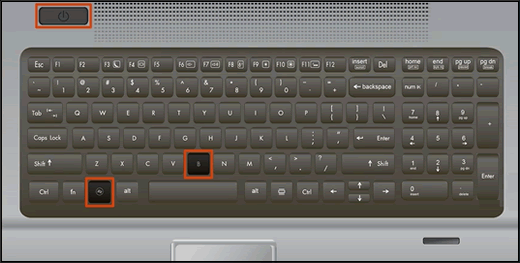
  2. Press and hold the Windows key and the B key at the same time, and then press and hold the Power button for 2 to 3 seconds.

    Keyboard highlighting the key presses for BIOS recovery

  3. Release the Power button but continue pressing the Windows and B keys. You might hear a series of beeps.

    • If the HP BIOS Update screen does not display, repeat the previous steps but press the Windows key and the V key. If the screen still does not display, your computer might not support the feature or there is a hard drive issue. Continue to the next section to Recover the BIOS using a USB recovery drive.

Hope this helps! Keep me posted for further assistance.
Please click “
Accept as Solution” if you feel my post solved your issue, it will help others find the solution.

ECHO_LAKE
I am an HP Employee

† The opinions expressed above are the personal opinions of the authors, not of HP. By using this site, you accept the <a href="https://www8.hp.com/us/en/terms-of-use.html" class="udrlinesmall">Terms of Use</a> and <a href="/t5/custom/page/page-id/hp.rulespage" class="udrlinesmall"> Rules of Participation</a>.