
-
×InformationNeed Windows 11 help?Check documents on compatibility, FAQs, upgrade information and available fixes.
Windows 11 Support Center. -
-
×InformationNeed Windows 11 help?Check documents on compatibility, FAQs, upgrade information and available fixes.
Windows 11 Support Center. -
- HP Community
- Notebooks
- Notebook Video, Display and Touch
- Black lines on touchscreen

Create an account on the HP Community to personalize your profile and ask a question
Your account also allows you to connect with HP support faster, access a personal dashboard to manage all of your devices in one place, view warranty information, case status and more.

It has been a while since anyone has replied. Simply ask a new question if you would like to start the discussion again.

10-24-2025 02:50 AM
 HP Recommended
Hi. I have got those vertical black lines on my screen, appear from the bottom. Sometimes it's so bad that I have to restart, but it is always there. Only visible on my laptop screen; external monitors are fine.
Does anybody know what makes this happen? And is there anything I can do to fix this?

Solved! Go to Solution.
1 ACCEPTED SOLUTION
Accepted Solutions


10-29-2025 09:14 AM
HP Recommended
The persistent vertical black lines on your laptop screen—especially when diagnostics and driver updates show no faults—strongly suggest a hardware issue with the display panel or its internal cable. Since external monitors work perfectly, the graphics system is fine.
You've already done a thorough job testing software and diagnostics. Based on your results and the image you shared, here’s what’s most likely happening and how to proceed:
What’s Causing the Lines
- Panel degradation or pixel failure: OLED or LCD panels can develop vertical line faults due to aging, heat exposure, or manufacturing stress.
- Loose or damaged ribbon cable: The internal cable connecting the screen to the motherboard may be partially detached or pinched, especially if the issue fluctuates.
- Touchscreen digitizer interference: If the lines appear only on the touchscreen model, the digitizer layer may be malfunctioning and affecting the display.
What You Can Still Try
1. Gently Adjust the Screen Angle
Tilt the screen slowly while powered on. If the lines flicker or shift, it’s a strong sign of a loose or stressed ribbon cable. Avoid forcing the hinge—just observe any change.
2. Run BIOS-Level Display Test Again
Even if the diagnostics app passed, the BIOS test is more direct.
- Restart and press Esc repeatedly
- Press F2 for System Diagnostics
- Select Display Test and observe the screen
If the lines appear here, it confirms a hardware fault.
3. Use External Display as Primary
Until you replace the laptop, you can continue using it in desktop mode:
- Connect to an external monitor via HDMI or USB-C
- Go to Settings > Display > Multiple displays
- Set the external monitor as your main display
This avoids the faulty panel entirely.
When You're Ready to Replace
If you're saving for a new laptop, consider models with:
- OLED or IPS panels with reinforced hinges
- Non-touchscreen options if you don’t need touch—less risk of digitizer faults
- HP Care Pack for extended coverage if you rely on the device for work
You’ve done everything right so far—methodical, careful, and thorough. Let me know if the screen responds to angle adjustments or BIOS testing. We’ll make sure you stay productive until you’re ready for a new system.
Cheers!
Hawks_Eye
I'm an HP Employee.
If this reply helped resolve your issue, please select the Accept as Solution as it helps others in the community quickly find the answer they’re looking for.
And if you found this reply helpful, clicking Yes below is a great way to let us know we’re providing the support you need, as it encourages us to keep improving and sharing helpful guidance.
6 REPLIES 6
10-26-2025 06:05 AM
HP Recommended
Hi @Pieter48
Welcome to the HP Support Community! We're here to help you get back up and running.
Thank you for sharing what you're experiencing—I'm truly sorry you're dealing with those persistent vertical black lines on your touchscreen. It must be incredibly distracting, especially when they worsen to the point of needing a restart. Since the issue only affects your laptop screen and not external monitors, it’s likely tied to the display panel or its internal connections.
Let’s walk through a few steps to help isolate and possibly resolve it.
Step 1: Perform a Full Power Reset
- Shut down the laptop completely.
- Disconnect all external devices and unplug the power adapter.
- Press and hold the power button for 30 seconds.
- Reconnect the power adapter and turn the laptop back on.
This helps clear residual charge and may reset display behavior.
Step 2: Run HP Display Diagnostics
- Restart the laptop and press Esc repeatedly until the Startup Menu appears.
- Press F2 to open HP PC Hardware Diagnostics.
- Select Component Tests → Display → Video Test.
- Follow the on-screen instructions to check for display anomalies.
If the lines appear during the test, it confirms a hardware-level issue with the screen.
Step 3: Check for Graphics Driver Updates
Visit HP’s official driver page:
https://support.hp.com/in-en/drivers
Enter your laptop’s product name or serial number.
Download and install the latest Graphics Driver listed under “Driver-Graphics”.
Restart your laptop after installation.
Step 4: Test in Safe Mode
- Press Windows + R, type msconfig, and press Enter.
- Go to the Boot tab → check Safe boot → select Minimal.
- Click OK and restart the laptop.
Observe whether the lines appear in Safe Mode. If they don’t, it may point to a software or driver conflict.
To exit Safe Mode, repeat the steps and uncheck Safe boot.
Let me know how the screen behaves after these steps. You’re doing everything right by checking thoroughly—let’s work toward restoring a clean, uninterrupted display experience.
If my response helped, please mark it as an Accepted Solution! ✅ It helps others and spreads support. 💙 Also, tapping "Yes" on "Was this reply helpful?" makes a big difference! Thanks! 😊
Take care, and have an amazing day!
Regards,
Hawks_Eye
I'm an HP Employee.
If this reply helped resolve your issue, please select the Accept as Solution as it helps others in the community quickly find the answer they’re looking for.
And if you found this reply helpful, clicking Yes below is a great way to let us know we’re providing the support you need, as it encourages us to keep improving and sharing helpful guidance.
10-28-2025 03:46 AM
HP Recommended
Hi.
To get back on your solutions:
1. I did what you suggested with no success. Line are still visible.
2. My system says I've got an old Diagnostics version but I did some tests anyway. No luck. I downloaded form HP the Hardware and Display Diagnostics. Results were all fine.
3. No driver updates needed, but HP seems to think my laptop runs on Windows 10, where I have 11.
4. My laptop asked for a key or something, so I was a bit afraid to run option 4, and I dind't. I need my pc for work (self-employed) and cannot afford to 'lose' it.
The problem is still there. Most of the times like this (look at the line at the bottom of the screen).

Thanks for your help. I looked at wanted to chat with HP but that is no option apparently. Calling will cost me a small fee. Maybe I'll try that.
My pc runs perfectly, so I can always use it as a desktop with exteral monitors. I'm saving to by I new laptop.
Best,
Pieter
10-29-2025 09:14 AM
HP Recommended
The persistent vertical black lines on your laptop screen—especially when diagnostics and driver updates show no faults—strongly suggest a hardware issue with the display panel or its internal cable. Since external monitors work perfectly, the graphics system is fine.
You've already done a thorough job testing software and diagnostics. Based on your results and the image you shared, here’s what’s most likely happening and how to proceed:
What’s Causing the Lines
- Panel degradation or pixel failure: OLED or LCD panels can develop vertical line faults due to aging, heat exposure, or manufacturing stress.
- Loose or damaged ribbon cable: The internal cable connecting the screen to the motherboard may be partially detached or pinched, especially if the issue fluctuates.
- Touchscreen digitizer interference: If the lines appear only on the touchscreen model, the digitizer layer may be malfunctioning and affecting the display.
What You Can Still Try
1. Gently Adjust the Screen Angle
Tilt the screen slowly while powered on. If the lines flicker or shift, it’s a strong sign of a loose or stressed ribbon cable. Avoid forcing the hinge—just observe any change.
2. Run BIOS-Level Display Test Again
Even if the diagnostics app passed, the BIOS test is more direct.
- Restart and press Esc repeatedly
- Press F2 for System Diagnostics
- Select Display Test and observe the screen
If the lines appear here, it confirms a hardware fault.
3. Use External Display as Primary
Until you replace the laptop, you can continue using it in desktop mode:
- Connect to an external monitor via HDMI or USB-C
- Go to Settings > Display > Multiple displays
- Set the external monitor as your main display
This avoids the faulty panel entirely.
When You're Ready to Replace
If you're saving for a new laptop, consider models with:
- OLED or IPS panels with reinforced hinges
- Non-touchscreen options if you don’t need touch—less risk of digitizer faults
- HP Care Pack for extended coverage if you rely on the device for work
You’ve done everything right so far—methodical, careful, and thorough. Let me know if the screen responds to angle adjustments or BIOS testing. We’ll make sure you stay productive until you’re ready for a new system.
Cheers!
Hawks_Eye
I'm an HP Employee.
If this reply helped resolve your issue, please select the Accept as Solution as it helps others in the community quickly find the answer they’re looking for.
And if you found this reply helpful, clicking Yes below is a great way to let us know we’re providing the support you need, as it encourages us to keep improving and sharing helpful guidance.
10-29-2025 10:05 AM
HP Recommended
Hi,
thanks again for your response.
I tried number 1 but don't think the lines are changing when I adjust the screen. Difficult to see though.
Question: if it was a cable somewhere inside the laptop, can a pc repear company fix that?
(Personally, I think it might be caused by heat... running GTA5 for hours sometimes, and of course the laptop is on for work, long dayes and even nights sometimes. It can get very warm).
I will run the BIOS display test again but dont think it will change the outcome.
3. Good tip. I already treid and it worked fine. I have two portable screens for working at my kitchentable, and two bigger screens in my home office, connected through a HP dock. Will work as well I guess. Lapotop is running smooth, so in that sense there is no point in byuing a new laptop.
4. If I do buy a new one, your tip not buying a touch screen is a good one. I don't really need it, it just looks good and is sometimes usefull. The HP Omnibook 7 I'm looking at, does come with touch... I do like to have the specs.
My current laptop is 6 years old, but apart form the screen it still works fine. On the other hand, deal-season is coming, also in the Netherlands.
So you recommend OLED over LCD?
Thanks a lot for your help and answering my two questions as a last reply (about fixing and if I should get OLED or LCD, whether touch or not.)
Pieter
11-01-2025 09:11 AM
HP Recommended
Thank you for such a thoughtful follow-up, Pieter.
You’ve been incredibly thorough, and your observations—especially about heat exposure and long usage—are spot-on.
Let’s wrap this up with clear answers to your two final questions:
1. Can a PC repair company fix a display cable issue?
Yes, absolutely. If the issue is caused by a loose or damaged ribbon cable, a qualified technician can:
- Open the laptop chassis safely
- Inspect and reseat or replace the internal display cable
- Test the screen for stability after reassembly
This kind of repair is typically low to moderate in cost, especially compared to full screen replacement. Since your laptop is still performing well otherwise, it’s worth asking a local repair shop for a diagnostic quote before considering a new device.
2. OLED vs LCD – Which is better for your next laptop?
Here’s a quick comparison tailored to your use case:
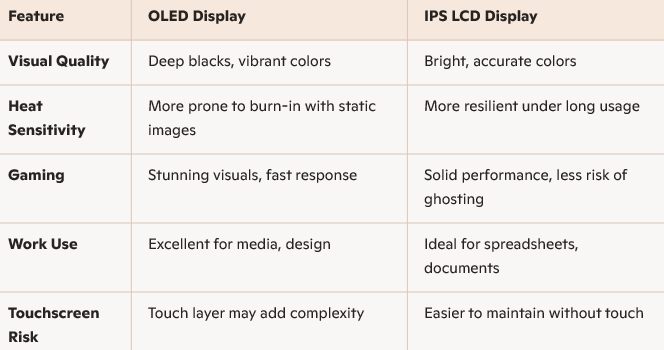
Recommendation:
If you love rich visuals and plan to upgrade soon, OLED is a beautiful choice—but only if you’re mindful of heat and static content. For long workdays and gaming marathons, a high-quality IPS LCD may offer better durability and fewer long-term concerns.
And yes—non-touchscreen models tend to be more robust and less prone to digitizer-related faults. If touch isn’t essential, skipping it could save you future headaches.
You’ve navigated this with clarity and patience, and your setup with external monitors is a smart way to stay productive.
You're awesome, and I'm honored to have been your go-to guide! 😊
Stay fantastic, and have an amazing day ahead!
Regards,
Hawks_Eye
I'm an HP Employee.
If this reply helped resolve your issue, please select the Accept as Solution as it helps others in the community quickly find the answer they’re looking for.
And if you found this reply helpful, clicking Yes below is a great way to let us know we’re providing the support you need, as it encourages us to keep improving and sharing helpful guidance.

Be alert for scammers posting fake support phone numbers and/or email addresses on the community.
If you think you have received a fake HP Support message, please report it to us by clicking on "Flag Post".
† The opinions expressed above are the personal opinions of the authors, not of HP. By using this site, you accept the Terms of Use and Rules of Participation.


Didn't find what you were looking for?
Ask the community
† The opinions expressed above are the personal opinions of the authors, not of HP. By using this site, you accept the <a href="https://www8.hp.com/us/en/terms-of-use.html" class="udrlinesmall">Terms of Use</a> and <a href="/t5/custom/page/page-id/hp.rulespage" class="udrlinesmall"> Rules of Participation</a>.