-
×InformationNeed Windows 11 help?Check documents on compatibility, FAQs, upgrade information and available fixes.
Windows 11 Support Center. -

-
×InformationNeed Windows 11 help?Check documents on compatibility, FAQs, upgrade information and available fixes.
Windows 11 Support Center. -
- HP Community
- Notebooks
- Notebook Video, Display and Touch
- Brightness function key lag

Create an account on the HP Community to personalize your profile and ask a question
03-12-2020 06:38 AM
Hi!
On my laptop, I have these f-keys (function keys) but I think they do not work properly. When my friend press and holds either one of his brightness keys, it works smoothly and goes up or down fast and smooth, when I press and hold those keys, it seems to be lagging and it takes some time to actually go down, it reacts instantly to my press but the animation is lagging and the brightness doesn't turn up or down fast. It really annoys me and i've tried with the need to hold fn before able to use those keys and without the need of usage of fn key.
03-14-2020 01:28 PM
Thank you for posting on the HP Support Community.
Don't worry as I'll be glad to help, however, to provide an accurate resolution, I need a few more details:
- Did this happen after a recent window or software update?
- Have you made any hardware/software changes?
- Did you make any changes to the settings of your PC prior to the issue?
- When was the last time it worked fine?
While you respond to that, let's try these steps:
Firstly, perform Hard Reset: Follow steps from the link: https://hp.care/2GnkMa8. (do not skip any troubleshooting steps even if you feel steps are repeating)
BIOS default:
- Turn off the computer and wait five seconds.
- Press the Power button to start the computer and repeatedly press the F10 key to enter the BIOS setup menu.
- On the BIOS Setup screen, press F9 to select and load the BIOS Setup Default settings.
- Press F10 to Save and Exit.
- Use the arrow keys to select Yes, then press Enter when asked Exit Saving Changes?
- Follow the prompts to restart your computer. If the issue persists, follow the next steps.
Windows Update and HP Support Assistant: (do not skip any troubleshooting steps if you feel steps are repeating)
To check for updates now, select the Start button, and then go to Settings > Update & security > Windows Update, and select Check for updates.
Install updates from HP Support Assistant: Go to Download HP Support Assistant to install the tool.
- To open the HP Support Assistant, double-click the HP Support Assistant icon
. - Click My devices in the top menu, and then click Updates in the My PC or My notebook pane.
- Click Check for updates and messages to scan for new updates.
- Review the list of updates. Updates with a yellow information icon are recommended. Updates with a blue information icon are optional.
- Click the update name for a description, version number, and file size.
- Select the box next to any updates you want to install, and then click Download and install.
And, also run BIOS Update: Follow steps from the link: https://support.hp.com/in-en/document/c00042629
Hope this helps! Keep me posted for further assistance.
Please click “Accept as Solution” if you feel my post solved your issue, it will help others find the solution.
ECHO_LAKE
I am an HP Employee
03-14-2020 01:42 PM
I haven't really noticed this lag before so I can't tell if it has been around for a while or from the 1st day of owning this laptop. I've tried power reset and restarting the computer, nothing. I've even gone through the keyboard settings and nothing seems to fix it, I also tried to search for updates on my HP support assistant but it only finds some 20mb updates that even say that it couldn't been installed, some time ago I got a bios update through it but it said that it couldn't install it or there was some kind of an error. I have like 150gb storage free and my laptop is always plugged in when updating. Randomly that update notification disappeared? Tried to update driver through device manager but it says that I have already the best possible drivers installed, HP support assistant can't find anythin either.
03-15-2020 12:51 PM
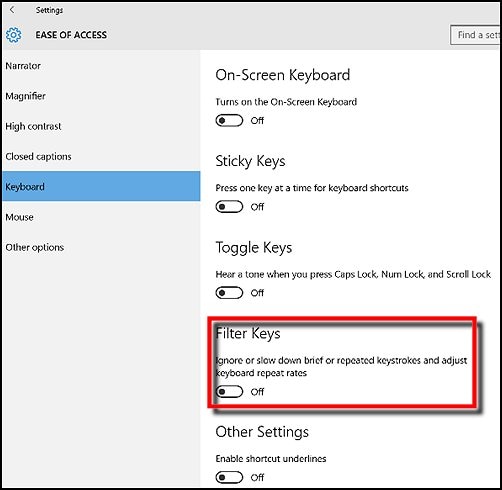
@smashmilla If the issue persists and there is a short delay from the time a key is pressed to the time the character displays on the screen, the Filter Keys function might be activated. The Filter Keys function provides a greater range of key press options to fine-tune key delays and prevent inadvertent key presses. To disable Filter Keys and return to the default keyboard behavior, use the following steps:
-
In Windows, search for and open Settings.
-
In the Settings, click Ease of Access.
-
Under Ease of Access, click Keyboard.
-
Make sure the Filter Keys switch is set to Off.
Figure : Filter Keys setting

The keys should now be more responsive.
If you wish to thank me for my efforts, you could click on "Accept as solution" on my post as the solution should help others too.
Riddle_Decipher
I am an HP Employee
Learning is a journey, not a destination.
Let's keep asking questions and growing together.