• ×
    Information
    Need Windows 11 help?
    Check documents on compatibility, FAQs, upgrade information and available fixes.
    Windows 11 Support Center.
  • post a message
  • ×
    Information
    Need Windows 11 help?
    Check documents on compatibility, FAQs, upgrade information and available fixes.
    Windows 11 Support Center.
  • post a message
Guidelines
Seize the moment! nominate yourself or a tech enthusiast you admire & join the HP Community Experts!
HP Recommended
17-by0062cl
Microsoft Windows 10 (32-bit)

I’m trying to connect a second monitor via hdmi cords. 

My laptop isn’t detecting a second screen. However, I selected to extend the screen to the second monitor, and I now have a blank main screen as well. 

How do I get back to a regular screen when I can’t see a display anywhere? 

2 REPLIES 2
HP Recommended

I panicked so much that I forgot the number one rule of restarting. 

Initial problem solved. I still can’t get my laptop to recognize the second monitor though. Operating windows 10. 

HP Recommended

@Smurfball
Thank you for posting on the HP Support Community


I have a few troubleshooting steps we could try to fix the issue:  

To extend or duplicate the desktop with a second monitor.

  1. Right-click anywhere on the desktop, and then click Display settings (Windows 10) or Screen Resolution (Windows 8).

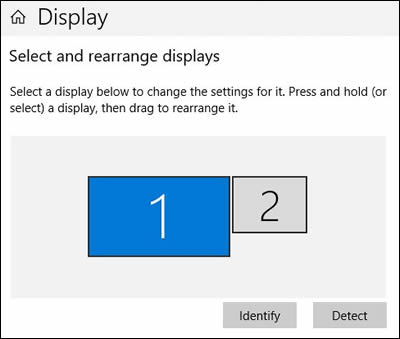
  2. Make sure the correct number of monitors displays.

    Windows 10


    • If all of monitors displayyour , continue with these steps.

      NOTE: Two monitors might display as one, with 1|2 in the center, indicating the same screen duplicated on two monitors. To change to an extended desktop display, continue with these steps.
    • If not all of monitors displayyour , make sure the cables are securely inserted, and then click Detect.

  3. Scroll down to Multiple displays, if necessary, click the drop-down menu, and then select a display option.

    To set up a wireless monitor, click Connect to a wireless display.

    If you cannot change the display options, go to the section to Configure the display with the graphics driver.

  4. Adjust the screen resolution and orientation, as necessary.

  5. Extended desktop only: Match the monitors on the display to how they are physically positioned. To identify the monitors, click Identify. Numbers display on the monitors to help you arrange them.

  6. Windows 10: Click Keep changes, if necessary, to save the new display settings. Also, refer to this link in order to set up Two or More Monitors with One Computer.

Hope this helps! Keep me posted for further assistance.
Please click “Accept as Solution” if you feel my post solved your issue, it will help others find the solution.

ECHO_LAKE
I am an HP Employee

† The opinions expressed above are the personal opinions of the authors, not of HP. By using this site, you accept the <a href="https://www8.hp.com/us/en/terms-of-use.html" class="udrlinesmall">Terms of Use</a> and <a href="/t5/custom/page/page-id/hp.rulespage" class="udrlinesmall"> Rules of Participation</a>.