• ×
    Information
    Need Windows 11 help?
    Check documents on compatibility, FAQs, upgrade information and available fixes.
    Windows 11 Support Center.
  • post a message
  • ×
    Information
    Need Windows 11 help?
    Check documents on compatibility, FAQs, upgrade information and available fixes.
    Windows 11 Support Center.
  • post a message
Guidelines
Join the HP Community Solve‑a‑thon | Help Others & Share Your Solutions | Live on Zoom | 2:30 PM to 2:30 AM IST | Every Wednesday Click here to know more
HP Recommended
HP 15t
Microsoft Windows 10 (64-bit)

My screen keeps auto adjusting the brightness while I am photo editing, but the brightness percentage is staying the same.  I have tried going under the power management advanced settings, but there is no option to enable or disable the auto adjust.  There is also no graphic icon under the control panel.  Help!

1 REPLY 1
HP Recommended

@Cgreens223 Here are 4 easy steps to turning it off, and a bonus step too:


Step 1. Open Power Options Window

You need to firstly access Power Options window. You can follow the operations below.

You can click Start menu, type power options, and click the best match result Power & sleep settings to open it.

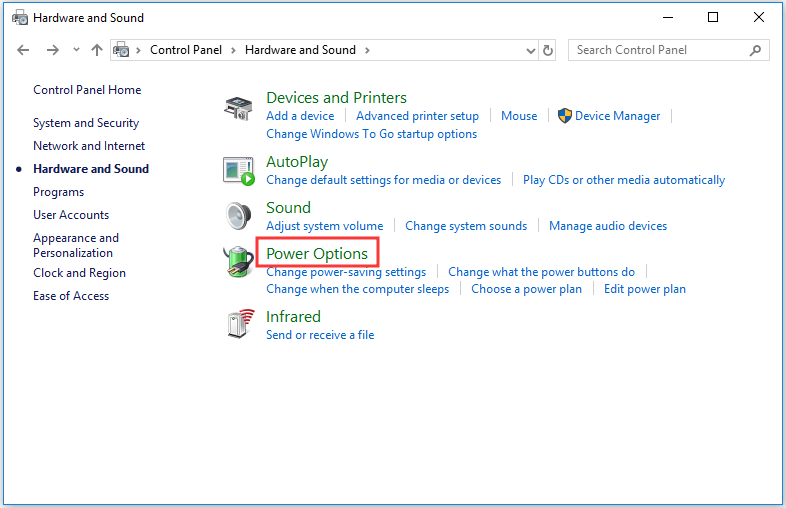
Alternatively, you can open Control Panel Windows 10 at first, then click Hardware and Sound -> Power Options to open it.


open Power Options


Step 2. Open Edit Plan Settings Window

Next you can click Power & sleep in the left pane, and click Additional power settings option under Related settings in the right window.

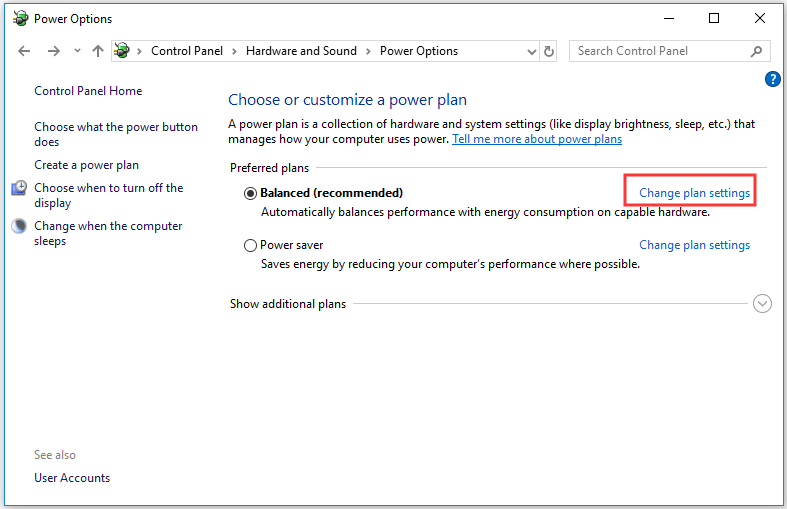
Then you can click Change plan settings link next to your current active power plan to open Edit Plan Settings window.


open Edit Plan settings


Step 3. Access Power Options Advanced Settings Window

You can click Change advanced power settings link to enter into Power Options Advanced settings window.


open Power Options advanced settings


Step 4. Turn Off Automatic Brightness Windows 10

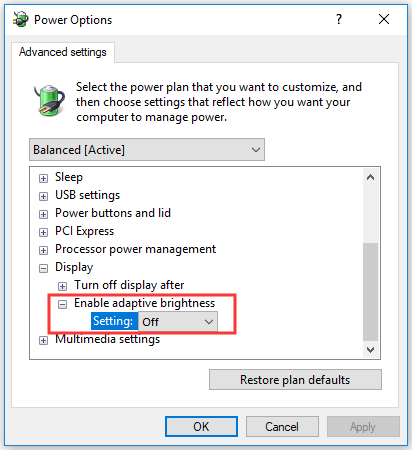
Now you can scroll down to find Display option and expand it.

At last, you can click Enable adaptive brightness option and set its settings status to Off so as to stop Windows auto adjusting brightness. Click OK to save your changes.


turn off adaptive brightness Windows 10


How to Turn Off Auto Brightness Windows 10 from Settings

You can also disable automatic brightness adjustments Windows 10 from Windows Settings.

  • You can press Windows + I, or click Start -> Settings to open Settings
  • Next you can click System, and click Display from the left pane. Turn the Change brightness automatically when lighting changes option status to Off.

However, if you don’t find Change brightness automatically when lighting changes option in Settings, you can try to use the 4 steps above to disable adaptive brightness Windows 10.


P.S: Welcome to HP Community 😉


Keep us posted,

If you would like to thank us for our efforts to help you, 

Give us a virtual high-five by clicking the 'Thumbs Up' icon below, followed by clicking on the "Accept as solution" on this post, 

Have a great day!

Riddle_Decipher
I am an HP Employee


Learning is a journey, not a destination.
Let's keep asking questions and growing together.
† The opinions expressed above are the personal opinions of the authors, not of HP. By using this site, you accept the <a href="https://www8.hp.com/us/en/terms-of-use.html" class="udrlinesmall">Terms of Use</a> and <a href="/t5/custom/page/page-id/hp.rulespage" class="udrlinesmall"> Rules of Participation</a>.