-
×InformationNeed Windows 11 help?Check documents on compatibility, FAQs, upgrade information and available fixes.
Windows 11 Support Center. -

-
×InformationNeed Windows 11 help?Check documents on compatibility, FAQs, upgrade information and available fixes.
Windows 11 Support Center. -
- HP Community
- Notebooks
- Notebook Video, Display and Touch
- HP spectre folio -13 - touchscreen top half stopped respondi...

Create an account on the HP Community to personalize your profile and ask a question
10-04-2020 08:18 PM
On this HP Spectre Folio 13in bought Sep of last year, I started to have two issues since July.
1. lose touch control on the top of the screen
2. sound recorded with the mic is very 'tiny' sound and video conference doesn't work well
O thought it was drivers issue, as that was when new Windows 10 was upgraded. After multiple rounds of driver re-install and running diagnostics, it is still not working for 1st issue.
The 2nd issue, now has slightly higher volume heard through the mic, after playing with the options in HP Audio Control and HP Noise Reduction option, but it hasn't improved sufficiently yet.
I see some other forum questions on 'bands of touchscreen area' unresponsive. Unfortunately, I didn't realize that my warranty has expired (~20 days back now) and I didn't reach out earlier. So, hoping folks hear might have some solution for these two issues.
Thank you.
10-07-2020 09:01 AM
Welcome to HP Community
I have gone through your Post and would like to help
First let's ensure the Touchscreen issue is not a Hardware problem
Run a Touchscreen test from F2 Diagnostic
-
Connect the AC adapter to the computer.
-
Press the Power button for at least five seconds to turn off the computer.
-
Turn on the computer and immediately press Esc repeatedly, about once every second. When the Startup menu appears, press F2.
-
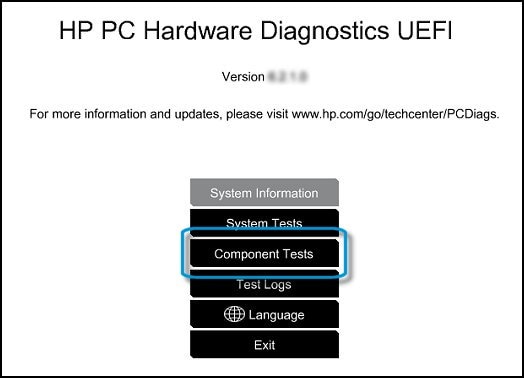
When the HP PC Hardware Diagnostics screen displays, click Component Tests.

-
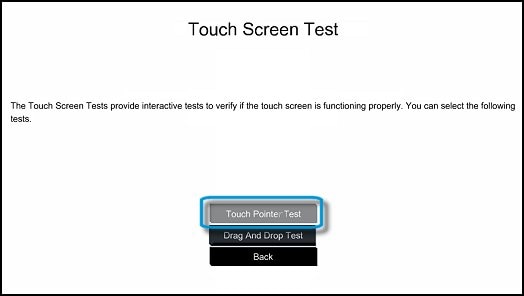
Click Touch Screen.
-
There are two interactive touch screen hardware tests. Click Touch Pointer Test first.

-
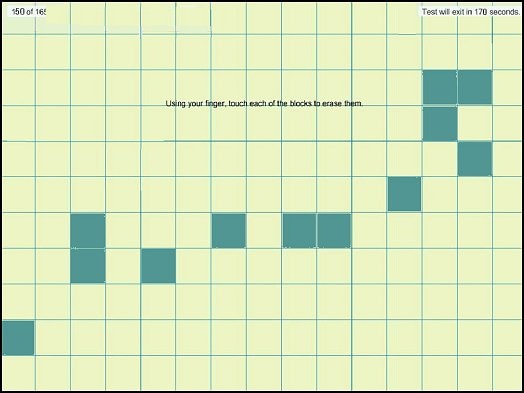
Read the on-screen instructions, and then click Run once.
-
Touch each of the blocks on the screen to erase them. The test ends after you erase all the blocks or after three minutes have passed, and the results display.

-
Click Main menu to return to the main screen.
-
Click Component Tests, and then click Touch Screen.
-
Click Drag And Drop Test.

-
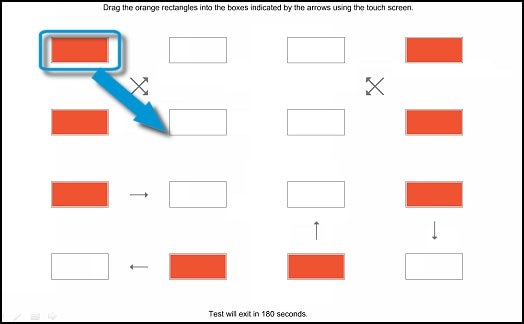
Read the on-screen instructions, and then click Run once.
-
Drag each orange rectangle to the box indicated by the arrows with a finger or a stylus. The test ends after you reposition all the blocks or after three minutes, and the results display.

Link: https://support.hp.com/us-en/document/c03488148
Keep me posted
If the information I've provided was helpful, give us some reinforcement by clicking the "Solution Accepted" on this Post and it will also help other community members with similar issue.
KrazyToad
I Am An HP Employee
10-08-2020 08:44 PM - edited 10-08-2020 10:01 PM
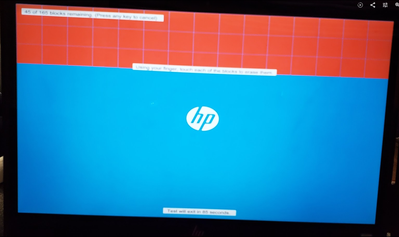
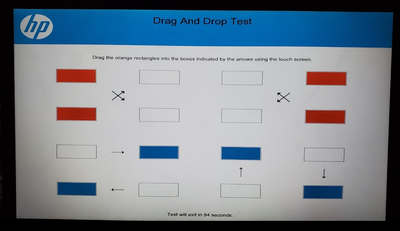
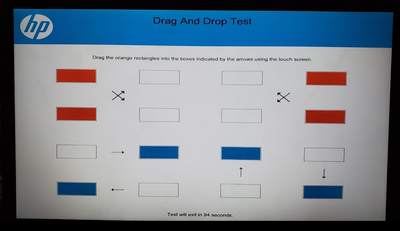
Thank you @KrazyToad for your quick and detailed testing guidance. Your test suggestion helped me figure out if it is hardware issue or not. Please see photos of the screen. The top 3 rows couldn't be clicked and in the drag/drop, the top-4 blocks couldn't be moved.
Does this mean, the top of the touchscreen has hardware issue?
top 3 rows can't touch
top 4 drag and drop didn't work
10-09-2020 12:49 PM
This looks like a hardware issue.
Please reach out to the HP Support in your region regarding the service options for your computer
Hope this helps!
Please click “Accepted Solution” if you feel my post solved your issue, it will help others find the solution. Click the “Kudos/Thumbs Up" on the bottom right to say “Thanks” for helping!
TEJ1602
I am an HP Employee