• ×
    Information
    Need Windows 11 help?
    Check documents on compatibility, FAQs, upgrade information and available fixes.
    Windows 11 Support Center.
  • post a message
  • ×
    Information
    Need Windows 11 help?
    Check documents on compatibility, FAQs, upgrade information and available fixes.
    Windows 11 Support Center.
  • post a message
Guidelines
Join the HP Community Solve‑a‑thon | Help Others & Share Your Solutions | Live on Zoom | 2:30 PM to 2:30 AM IST | Every Wednesday Click here to know more
HP Recommended
HP spector 360
Microsoft Windows 10 (64-bit)

My hp spector 360 is 2 years old and has not had a massive amount of use, but I do use it for moderate to light gaming, and now after a few minutes running a game where the fans are needed the screen flashes black and has horizontal white lines around the centre of the screen, it happens intermittently and after waiting for 30 seconds or so it kind of stops, but might start again if I don't quit the app, I have done all the updates for my gpu and display adapter, the only thing I haven't done but I'm doing now is install a Windows feature update version 1909,but I've read that won't help


I've also moved my screen around as the flicker happens to see if it's effected by movement, it is not


I unfortunately don't have another pc screen to test on, I could attach a hdmi TV If that would help


Any help would be greatly appreciated thanks

1 REPLY 1
HP Recommended

@Sqweeky_badger


I have gone through your post


I suggest you download and run the HP Support Assistant from this Link: https://www8.hp.com/us/en/campaigns/hpsupportassistant/hpsupport.html?jumpid=va_r602_us/en/any/psg/p...


HPSA will automatically search for all the latest drivers for your Notebook


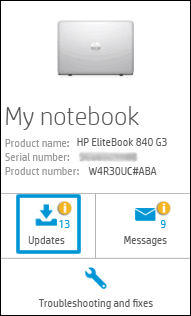
  1. Click My devices in the top menu, and then click Updates in the My PC or My notebook pane.

    Click Updates in the My notebook pane

  2. Click Check for updates and messages to scan for new updates.

     Updates list in HP Support Center

  3. Review the list of updates. Updates with a yellow information icon are recommended. Updates with a blue information icon are optional.

  4. Click the update name for a description, version number, and file size.

  5. Select the box next to any updates you want to install, and then click Download and install.

Also ensure Windows is up to date.


Select the Start  button, and then go to Settings  > Update & security  > Windows Update , and select Check for updates. If Windows Update says your device is up to date, you have all the updates that are currently available


Keep me posted how it goes


Thank you and have a wonderful day 😊


If the information I've provided was helpful, give us some reinforcement by clicking the "Solution Accepted" on this Post and it will also help other community members with similar issue.

KrazyToad
I Am An HP Employee

† The opinions expressed above are the personal opinions of the authors, not of HP. By using this site, you accept the <a href="https://www8.hp.com/us/en/terms-of-use.html" class="udrlinesmall">Terms of Use</a> and <a href="/t5/custom/page/page-id/hp.rulespage" class="udrlinesmall"> Rules of Participation</a>.