
-
×InformationNeed Windows 11 help?Check documents on compatibility, FAQs, upgrade information and available fixes.
Windows 11 Support Center. -
-
×InformationNeed Windows 11 help?Check documents on compatibility, FAQs, upgrade information and available fixes.
Windows 11 Support Center. -
- HP Community
- Notebooks
- Notebook Video, Display and Touch
- Lost video via HDMI cable

Create an account on the HP Community to personalize your profile and ask a question
Your account also allows you to connect with HP support faster, access a personal dashboard to manage all of your devices in one place, view warranty information, case status and more.

It has been a while since anyone has replied. Simply ask a new question if you would like to start the discussion again.

09-26-2019 04:16 AM
 HP Recommended
Product: Pavilion 14-ce1011ur
Operating System: Microsoft Windows 10 (64-bit)
Hi, All!
I have HP Pavilion 14-ce1011ur and monitor AOC U2777PQU. OS Windows 10 1903. Notebook have two videocards - Intel(R) UHD Graphics and 620 NVIDIA GeForce MX150, both last driver. Monitor connected via HDMI cable, resolution 3940x2160. Sometimes image is lost, just black screen (1-2 sec), then image restored. It's not depend on CPU or graphic load, or program usage. I've test another HDMI cable, but no changes. What can I do else to fix it?
Solved! Go to Solution.
1 ACCEPTED SOLUTION
Accepted Solutions


09-28-2019 05:28 PM
HP Recommended
Thank you for posting on the HP Support Community.
- Did you make any changes to the settings of your PC prior to the issue?
- Did this happen after a recent window or software update?
I have a few troubleshooting steps we could try to fix the issue:
Change the Windows display settings to match the resolution of the display. By using the graphics card software, you can adjust the display and the HDMI signal to create a better viewing experience on your display.
NOTE: Connect the display to the computer before you open the graphics card software.
-
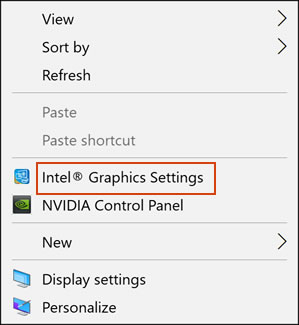
To open the graphics card software, right-click an empty area of the computer desktop, and then click the graphics settings or control panel in the menu, such as Graphics Settings, Graphics Properties, NVIDIA Control Panel, or ATI Catalyst Control Center.
-
Use the graphics software to adjust resolution, colour quality, refresh rate, and rotation as needed.
For more information, click Help in the graphics software toolbar.
And, also update the system software driver using Windows Update and HP Support Assistant:
To check for updates now, select the Start button, and then go to Settings > Update & security > Windows Update, and select Check for updates.
Install updates from HP Support Assistant: Go to Download HP Support Assistant to install the tool.
- To open HP Support Assistant, double-click the HP Support Assistant icon
 .
. - Click My devices in the top menu, and then click Updates in the My PC or My notebook pane.
- Click Check for updates and messages to scan for new updates.
- Review the list of updates. Updates with a yellow information icon are recommended. Updates with a blue information icon are optional.
- Click the update name for a description, version number, and file size.
- Select the box next to any updates you want to install, and then click Download and install.
Next run BIOS Update: Follow steps from the link: https://support.hp.com/in-en/document/c00042629
if the issue persists, try this link Advanced HDMI Display and Sound Troubleshooting Windows:https://support.hp.com/in-en/document/c03327635 By the end the article you will be able to fix the issue.
Hope this helps! Keep me posted for further assistance.
Please click “Accept as Solution” if you feel my post solved your issue, it will help others find the solution.
ECHO_LAKE
I am an HP Employee
3 REPLIES 3
09-28-2019 05:28 PM
HP Recommended
Thank you for posting on the HP Support Community.
- Did you make any changes to the settings of your PC prior to the issue?
- Did this happen after a recent window or software update?
I have a few troubleshooting steps we could try to fix the issue:
Change the Windows display settings to match the resolution of the display. By using the graphics card software, you can adjust the display and the HDMI signal to create a better viewing experience on your display.
NOTE: Connect the display to the computer before you open the graphics card software.
-
To open the graphics card software, right-click an empty area of the computer desktop, and then click the graphics settings or control panel in the menu, such as Graphics Settings, Graphics Properties, NVIDIA Control Panel, or ATI Catalyst Control Center.
-
Use the graphics software to adjust resolution, colour quality, refresh rate, and rotation as needed.
For more information, click Help in the graphics software toolbar.
And, also update the system software driver using Windows Update and HP Support Assistant:
To check for updates now, select the Start button, and then go to Settings > Update & security > Windows Update, and select Check for updates.
Install updates from HP Support Assistant: Go to Download HP Support Assistant to install the tool.
- To open HP Support Assistant, double-click the HP Support Assistant icon .
- Click My devices in the top menu, and then click Updates in the My PC or My notebook pane.
- Click Check for updates and messages to scan for new updates.
- Review the list of updates. Updates with a yellow information icon are recommended. Updates with a blue information icon are optional.
- Click the update name for a description, version number, and file size.
- Select the box next to any updates you want to install, and then click Download and install.
Next run BIOS Update: Follow steps from the link: https://support.hp.com/in-en/document/c00042629
if the issue persists, try this link Advanced HDMI Display and Sound Troubleshooting Windows:https://support.hp.com/in-en/document/c03327635 By the end the article you will be able to fix the issue.
Hope this helps! Keep me posted for further assistance.
Please click “Accept as Solution” if you feel my post solved your issue, it will help others find the solution.
ECHO_LAKE
I am an HP Employee


10-01-2019 04:19 PM
HP Recommended
@max_woody_ru Thank you for the update,
I appreciate your time and efforts,
I'm glad I could contribute to identifying and leading you towards the solution.
Thanks for honoring us by accepting our post as the solution, as it helps the community grow.
You can always click the "Thumbs Up" button to give me a Kudos,
Take care and have an awesome week ahead.
Riddle_Decipher
I am an HP Employee
Learning is a journey, not a destination.
Let's keep asking questions and growing together.

Be alert for scammers posting fake support phone numbers and/or email addresses on the community.
If you think you have received a fake HP Support message, please report it to us by clicking on "Flag Post".
† The opinions expressed above are the personal opinions of the authors, not of HP. By using this site, you accept the Terms of Use and Rules of Participation.


Didn't find what you were looking for?
Ask the community
† The opinions expressed above are the personal opinions of the authors, not of HP. By using this site, you accept the <a href="https://www8.hp.com/us/en/terms-of-use.html" class="udrlinesmall">Terms of Use</a> and <a href="/t5/custom/page/page-id/hp.rulespage" class="udrlinesmall"> Rules of Participation</a>.