• ×
    Information
    Need Windows 11 help?
    Check documents on compatibility, FAQs, upgrade information and available fixes.
    Windows 11 Support Center.
  • post a message
  • ×
    Information
    Need Windows 11 help?
    Check documents on compatibility, FAQs, upgrade information and available fixes.
    Windows 11 Support Center.
  • post a message
Guidelines
Join the HP Community Solve‑a‑thon | Help Others & Share Your Solutions | Live on Zoom | 2:30 PM to 2:30 AM IST | Every Wednesday Click here to know more
HP Recommended
HP Spectre x360
Microsoft Windows 10 (64-bit)

I'm using my HP Spectre x360 laptop plugged into a HP Envy 4k Monitor via HDMI. The resolution is fine when I first plug the HDMI cable and it looks amazing.


However, whenever my laptop falls asleep and I return to my desk to awake my laptop, the HP Envy display comes on but now has a lower quality resolution. I then have to unplug the HDMI cable and plug it back in at which point it restores the 4k resolution.


Any idea why this happens and how to prevent it?


Thanks

1 REPLY 1
HP Recommended

@Jagstyles


Thanks for reaching out to us on HP Support Forums. 🙂 I came across your post and would like to assist.


I understand that you have an HP Spectre x360 series laptop. I read that you have connected an HP Envy 4k Monitor via HDMI. The display seems fine until the laptop goes to sleep mode. The display quality is low when the laptop resumes from the sleep mode. If the HDMI cable is unplugged and reconnected, the display seems to be alright. 


Seems like an issue with the display driver. The resolution seems to go low if the laptop falls asleep. 


Please let me know the exact product model no. This link will help you to find the model no: http://hp.care/2bygf7l


I recommend you to perform the following steps to isolate the issue and arrive at a fix: 


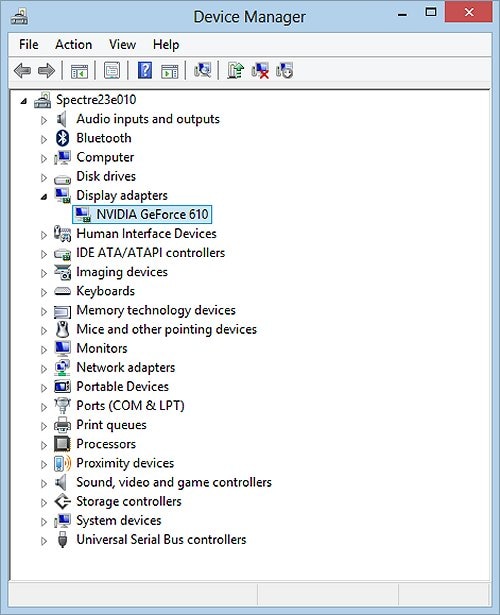
Figure :  Example of  the display adapters in the device manager.

Device Manager with display adapter selected


  • Expand "Display adapters". Right click on the display drivers and select uninstall. 
  • Close the device manager and restart the laptop.
  • You may download and install the display drivers from this HP link: www.hp.com/drivers

I sincerely hope this fixes the issue. Let me know how it goes. Cheers! 🙂

† The opinions expressed above are the personal opinions of the authors, not of HP. By using this site, you accept the <a href="https://www8.hp.com/us/en/terms-of-use.html" class="udrlinesmall">Terms of Use</a> and <a href="/t5/custom/page/page-id/hp.rulespage" class="udrlinesmall"> Rules of Participation</a>.