• ×
    Information
    Need Windows 11 help?
    Check documents on compatibility, FAQs, upgrade information and available fixes.
    Windows 11 Support Center.
  • post a message
  • ×
    Information
    Need Windows 11 help?
    Check documents on compatibility, FAQs, upgrade information and available fixes.
    Windows 11 Support Center.
  • post a message
Guidelines
Seize the moment! nominate yourself or a tech enthusiast you admire & join the HP Community Experts!
HP Recommended
HP 14-dk0736ms
Microsoft Windows 10 (32-bit)

Webcam was working then suddenly stopped. It says it can’t be detected. I tried all of the virtual assistant stuff and still no webcam showing up in device manager. It’s like it just disappeared. Help.

3 REPLIES 3
HP Recommended

@Phillfam10

Thank you for posting on HP Support Community.


Don't worry as I'll be glad to help, I have a few troubleshooting steps we could try to fix the issue:  

Use these basic steps to troubleshoot the webcam.

Step 1: Locate and toggle the webcam privacy switch or press the webcam shutter key

Select HP notebook models come with a webcam privacy switch or a webcam shutter key that turns the webcam off and on. By default, the webcam is turned on.

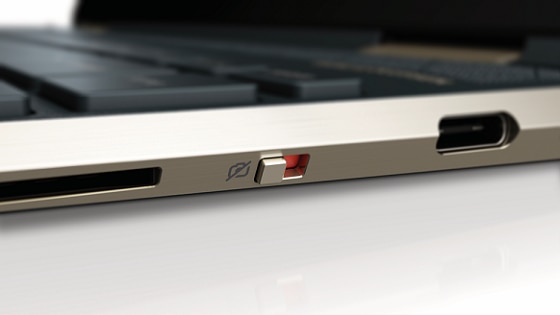
Webcam privacy switch

The webcam privacy switch is located on the side of your computer. To turn off your webcam, slide the webcam privacy switch toward the icon next to the switch. To turn the webcam back on, slide the switch away from the icon.

Locating the webcam privacy switch

Webcam shutter key

The webcam shutter key is located on the action key row of your keyboard. To turn off your webcam, press the webcam shutter key. To turn the webcam back on, press the shutter key again.

Webcam shutter LED

Webcam status

Webcam shutter key (light on)

LED on: The webcam is off.

Webcam shutter key (light off)

LED off: The webcam is on.

Figure : Webcam shutter key location

Webcam shutter key location

Step 2: Configure your antivirus software

You might need to adjust your firewall settings to include the webcam software as an allowed application. See your antivirus software documentation for more information.

Step 3: Verify that your app can use the webcam (Windows 10 only)

Use these steps to make sure your app can access your webcam.

  1. From the Start menu, click SettingsPrivacy, and then click Camera.

  2. In the Allow apps to access your camera section of the menu, choose the setting that is most applicable for your webcam.

  3. Under Choose which apps can access your camera, select your preferred individual settings to On or Off.

Hope this helps! Keep me posted for further assistance.
Please click “
Accept as Solution” if you feel my post solved your issue, it will help others find the solution.

ECHO_LAKE
I am an HP Employee

HP Recommended

These are steps that the Virtual Asst. has you do. I did all of those steps. Still having schizophrenic camera issues. It seems the camera will work if I reboot the laptop and then go in and set the camera functions. But it will only work for awhile and then decides not to work again...saying no camera available. 

Any other ideas?

HP Recommended

@Phillfam10

Thank you for posting back.


I appreciate your efforts to try and resolve the issue. I would suggest performing system factory reset will put the computer back to the original factory settings in this way all corrupted and outdated software will be removed. 


While doing the recovery there is an option to backup your personal files. If you have not previously done one now is a good time. 


Restoring Files that were Backed Up Using HP Recovery Manager (Windows )You can also contact HP support for assistance. They can remotely access your system to help alleviate difficulties: www.hp.com/contacthp/


The HP Cloud Recovery Tool allows you to download recovery software to a USB drive. You can use the downloaded recovery image file in order to install the Windows operating system. 

Hope this helps! Keep me posted for further assistance.
Please click “
Accept as Solution” if you feel my post solved your issue, it will help others find the solution.

ECHO_LAKE
I am an HP Employee

† The opinions expressed above are the personal opinions of the authors, not of HP. By using this site, you accept the <a href="https://www8.hp.com/us/en/terms-of-use.html" class="udrlinesmall">Terms of Use</a> and <a href="/t5/custom/page/page-id/hp.rulespage" class="udrlinesmall"> Rules of Participation</a>.