• ×
    Information
    Need Windows 11 help?
    Check documents on compatibility, FAQs, upgrade information and available fixes.
    Windows 11 Support Center.
  • post a message
  • ×
    Information
    Need Windows 11 help?
    Check documents on compatibility, FAQs, upgrade information and available fixes.
    Windows 11 Support Center.
  • post a message
Guidelines
Join the HP Community Solve‑a‑thon | Help Others & Share Your Solutions | Live on Zoom | 2:30 PM to 2:30 AM IST | Every Wednesday Click here to know more
HP Recommended
HP Pavilion 15-p045TX Notebook
Microsoft Windows 10 (64-bit)

The graphics in the control panel of nvidiais not showing properly. And the software runnig on this graphic cards are not working properly. It happens only when Nvidia card is enabled, it does not happens when it is disabled. Here are some photos of how it looksIMG_20181212_014722_1.jpgIMG_20181212_020358.jpg

1 REPLY 1
HP Recommended

@HIndurkar,


Welcome to the HP Forums!


It is a great way to engage, post questions and find resolutions by working with specialists in the HP community.


I’d love to help!


In order that I may provide you with an accurate solution, I will need a few more details.

  • When was the last time the computer was working fine?
  • Have you made any software or hardware changes on the computer?

While you respond to that, I recommend you update the graphics driver and the BIOS from the below link and check whether the issue is resolved.


https://support.hp.com/in-en/drivers


If you continue facing the issue, I recommend you download and install HP support assistant and install all the updates.


http://www8.hp.com/in/en/campaigns/hpsupportassistant/hpsupport.html?jumpid=va_r602_in/en/any/psg/pl...


Here is how it is done.


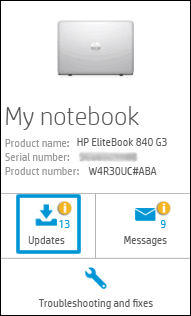
  1. Click My devices in the top menu, and then click Updates in the My PC or My notebook pane.

    Click Updates in the My notebook pane

  2. Click Check for updates and messages to scan for new updates.

     Updates list in HP Support Center

  3. Review the list of updates. Updates with a yellow information icon are recommended. Updates with a blue information icon are optional.

  4. Click the update name for a description, version number, and file size.

  5. Select the box next to any updates you want to install, and then click Download and install.

  6. Perform any other update management actions as needed.

    • Postpone an update: Click Remind me, and then select a time preference.

    • Delete an available update: Click the Delete icon  to remove the update from the list and record it in the action log.

    • Review updates status: Click Action log below the list to view installed, postponed, or deleted updates.


Let me know how it goes and you have a good day ahead.


If you wish to show appreciation for my efforts, mark my post as Accept as Solution. Your feedback counts!


Take care.


Cheers!

The_Fossette
I am an HP Employee

† The opinions expressed above are the personal opinions of the authors, not of HP. By using this site, you accept the <a href="https://www8.hp.com/us/en/terms-of-use.html" class="udrlinesmall">Terms of Use</a> and <a href="/t5/custom/page/page-id/hp.rulespage" class="udrlinesmall"> Rules of Participation</a>.
-->