• ×
    Information
    Need Windows 11 help?
    Check documents on compatibility, FAQs, upgrade information and available fixes.
    Windows 11 Support Center.
  • post a message
  • ×
    Information
    Need Windows 11 help?
    Check documents on compatibility, FAQs, upgrade information and available fixes.
    Windows 11 Support Center.
  • post a message
Guidelines
Join the HP Community Solve‑a‑thon | Help Others & Share Your Solutions | Live on Zoom | 2:30 PM to 2:30 AM IST | Every Wednesday Click here to know more
HP Recommended
Pavilion cc129tx
Microsoft Windows 10 (64-bit)

MY LAPTOP DOES NOT WAKE UP FROM SLEEP MODE THIS PROBLEM OCCURS QUITE A NUMBER OF TIMES ESPECIALLY WHEN LAPTOP IS PLUGGED IN .EVERY TIME I HAS TO GO FOR A HARD SHUTDOWN KINDLY RESOLVE THIS ISSUE.

1 REPLY 1
HP Recommended

@HeadCzar

Thank you for posting on the HP Support Community.


If you have a notebook computer that cannot return from sleep mode, first make sure it is connected to an AC power source and the power light is on.

  • Did this happen after a recent window or software update?
  • Have you made any hardware/software changes?

While you respond to that, let's try these steps: 

Step 1: Restart the computer

Restarting your computer erases all information in the computer memory, which might restore functionality.

If the issue persists after restarting the computer, continue to the next step.

Step 2: Enable the keyboard to wake the computer

Enabling your keyboard to wake your computer from sleep mode might resolve the issue.

  1. In Windows, search for and open the Device Manager.

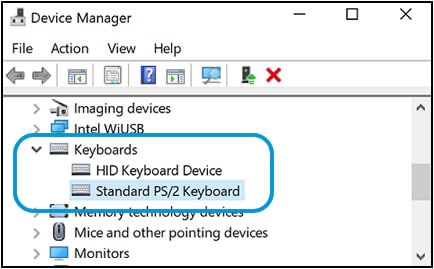
  2. Click the arrow next to Keyboards, and then double-click the name of your keyboard.

    Keyboards selection in the Device Manager window

  3. Click the Power Management tab.

    If the Power Management tab is not available, click the Change Settings button. The same Keyboard Properties window opens with the Power Management tab available.

    If you are prompted for an administrator password or confirmation, type the password or provide confirmation.

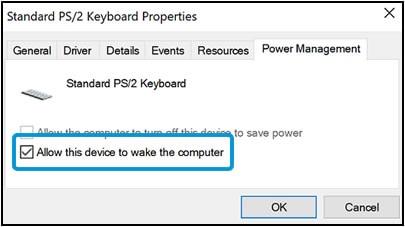
  4. Select the box next to Allow this device to wake the computer.

    Allow this device to wake the computer selection in the Power Management tab

  5. Click OK.

If the issue persists after setting the keyboard to wake the computer from sleep mode, continue to the next step.


Check for updatesTo check for updates now, select the Start button, and then go to Settings  > Update & security  > Windows Update, and select Check for updates. Install updates from HP Support Assistant: Go to Download HP Support Assistant to install the tool.

  1. To open HP Support Assistant, double-click the HP Support Assistant icon https://support.hp.com/doc-images/932/c05040382.jpg.
  2. Click My devices in the top menu, and then click Updates in the My PC or My notebook pane.
  3. Click Check for updates and messages to scan for new updates.
  4. Review the list of updates. Updates with a yellow information icon are recommended. Updates with a blue information icon are optional.
  5. Click the update name for a description, version number, and file size.
  6. Select the box next to any updates you want to install, and then click Download and install.

Hope this helps! Keep me posted for further assistance.
Please click “
Accept as Solution” if you feel my post solved your issue, it will help others find the solution.

ECHO_LAKE
I am an HP Employee

† The opinions expressed above are the personal opinions of the authors, not of HP. By using this site, you accept the <a href="https://www8.hp.com/us/en/terms-of-use.html" class="udrlinesmall">Terms of Use</a> and <a href="/t5/custom/page/page-id/hp.rulespage" class="udrlinesmall"> Rules of Participation</a>.