• ×
    Information
    Need Windows 11 help?
    Check documents on compatibility, FAQs, upgrade information and available fixes.
    Windows 11 Support Center.
  • post a message
  • ×
    Information
    Need Windows 11 help?
    Check documents on compatibility, FAQs, upgrade information and available fixes.
    Windows 11 Support Center.
  • post a message
Guidelines
Join the HP Community Solve‑a‑thon | Help Others & Share Your Solutions | Live on Zoom | 2:30 PM to 2:30 AM IST | Every Wednesday Click here to know more
HP Recommended
HP Envy dv7 Notebook PC
Microsoft Windows 10 (64-bit)

After a Windows 10 update recently, that took several attempts to get auto-installed, when my computer wakes up from sleep mode, restart, or shutdown, the screen is dimmed - to the point where you can barely see anything.  However, as soon as I unplugged the computer momentarily, the screen brightens to normal...and stays bright after I plug it back in.  Interestingly, when I select display settings, there's no dim/bright slider anymore.  I also updated the graphics driver, which did not resolve the issue.

3 REPLIES 3
HP Recommended

@MRGST


Welcome to HP Community


I have gone through your Post and would like to help


I suggest you download and run the HP Support Assistant from this Link: https://www8.hp.com/us/en/campaigns/hpsupportassistant/hpsupport.html?jumpid=va_r602_us/en/any/psg/p...


HPSA will automatically search for all the latest drivers for your Notebook


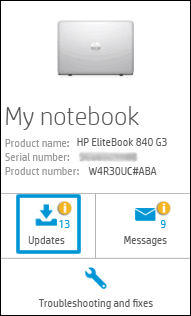
  1. Click My devices in the top menu, and then click Updates in the My PC or My notebook pane.

    Click Updates in the My notebook pane

  2. Click Check for updates and messages to scan for new updates.

     Updates list in HP Support Center

  3. Review the list of updates. Updates with a yellow information icon are recommended. Updates with a blue information icon are optional.

  4. Click the update name for a description, version number, and file size.

  5. Select the box next to any updates you want to install, and then click Download and install.

Also ensure Windows is up to date.


Select the Start  button, and then go to Settings  > Update & security  > Windows Update , and select Check for updates. If Windows Update says your device is up to date, you have all the updates that are currently available


Keep me posted how it goes


If the information I've provided was helpful, give us some reinforcement by clicking the "Solution Accepted" on this Post and it will also help other community members with similar issue

KrazyToad
I Am An HP Employee

HP Recommended

I ran the support assistant.  It said "no updates available".  I checked for Windows updates - all up to date.  I put the computer to sleep and checked it.  Same result - screen dim until the power cord is unplugged.

HP Recommended

@MRGST


Thanks for keeping me posted


At this point I suggest you perform a Reset and then run the HPSA once again


Link: https://support.hp.com/in-en/document/c04742289

KrazyToad
I Am An HP Employee

† The opinions expressed above are the personal opinions of the authors, not of HP. By using this site, you accept the <a href="https://www8.hp.com/us/en/terms-of-use.html" class="udrlinesmall">Terms of Use</a> and <a href="/t5/custom/page/page-id/hp.rulespage" class="udrlinesmall"> Rules of Participation</a>.