• ×
    Information
    Need Windows 11 help?
    Check documents on compatibility, FAQs, upgrade information and available fixes.
    Windows 11 Support Center.
  • post a message
  • ×
    Information
    Need Windows 11 help?
    Check documents on compatibility, FAQs, upgrade information and available fixes.
    Windows 11 Support Center.
  • post a message
Guidelines
Join the HP Community Solve‑a‑thon | Help Others & Share Your Solutions | Live on Zoom | 2:30 PM to 2:30 AM IST | Every Wednesday Click here to know more
HP Recommended

Screen turns on but picture is messed up

1 REPLY 1
HP Recommended

Hi  @SimoneHooker612,
 
Welcome to the HP Support Community!

Thanks for reaching out!


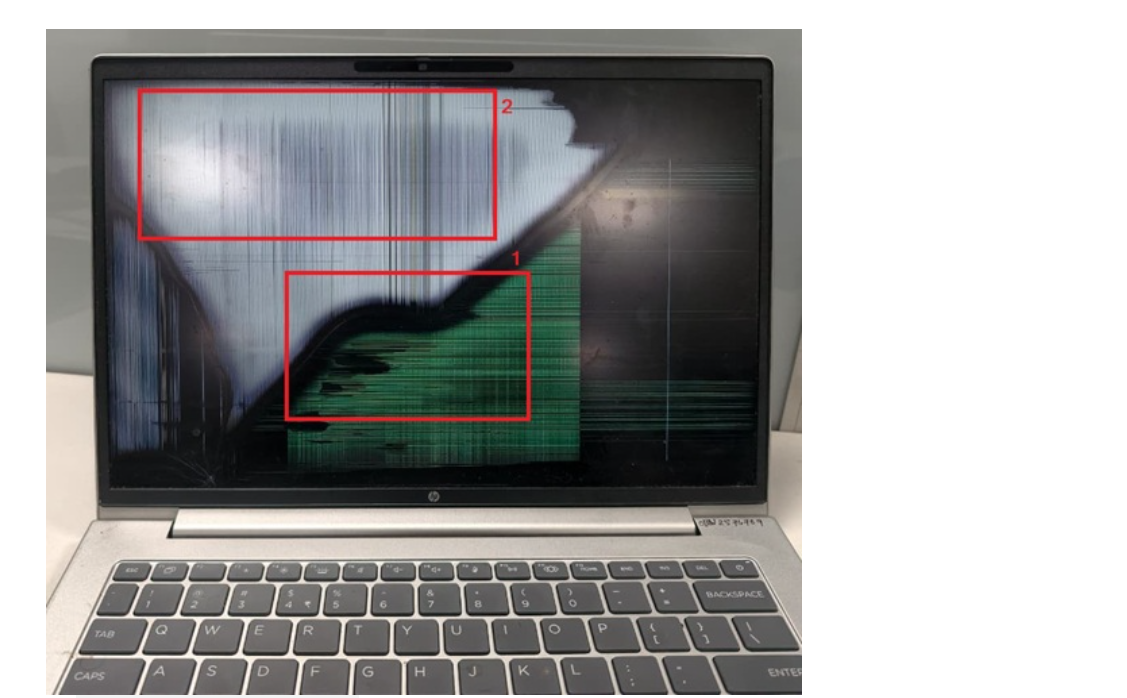
I hear concern about the cracked screen and distorted display. Based on the symptoms you've described, this may be consistent with physical damage to the LCD panel. When a screen is cracked internally, the display can remain powered on, but the image may appear distorted, show colored lines, ink-like blotches, black spots, or sections of the screen that are unreadable.


The image below is a good example of how a cracked LCD panel can appear. Even when the exterior glass damage is not obvious, internal panel damage can result in symptoms similar to those shown, including vertical lines, dark patches, and image distortion.


As this is a hardware-related concern, I recommend reaching out to HP Phone Support for further assistance. The support team can help verify your warranty status, discuss available repair options, and arrange service if needed.


In the meantime, if the system is still powering on and functioning, you may be able to use an external monitor, TV, or projector by connecting it through the available HDMI, DisplayPort, or USB-C video output. This can serve as a temporary workaround to access your files, back up important data, and continue using the computer until the screen is repaired.


Supportive document : Click here 
 

We recommend taking the conversation to our phone support team. They'll work with you one-on-one to get the issue sorted, possibly with some remote assistance magic.


1) Click on this link—    https://support.hp.com/contact

2) Add or select the product, and change/select your region.

3) Enter the serial number of your device or select Let HP detect your product option.

4) Choose "other" option from the list

5) Select continue to contact option


You should see the HP phone support number or Chat option listed.

They will guide you further.


Or, You may also visit the nearest HP authorized service center, the service team will check and assist you.

Kindly follow this link to locate the nearest HP service center:    https://support.hp.com/us-en/help/service-center

(Select the country from the dropdown menu and enter the city name or pincode)

Have a wonderful day!


Did we resolve the issue? If yes, Please consider marking this post as "Accepted Solution" and click "Yes" to give us a helpful vote - your feedback keeps us going!


Regards,

Deep_World 


I'm an HP Employee.


If this reply helped resolve your issue, please select the Accept as Solution as it helps others in the community quickly find the answer they’re looking for.


And if you found this reply helpful, clicking Yes below is a great way to let us know we’re providing the support you need, as it encourages us to keep improving and sharing helpful guidance.

† The opinions expressed above are the personal opinions of the authors, not of HP. By using this site, you accept the <a href="https://www8.hp.com/us/en/terms-of-use.html" class="udrlinesmall">Terms of Use</a> and <a href="/t5/custom/page/page-id/hp.rulespage" class="udrlinesmall"> Rules of Participation</a>.
-->