-
×InformationNeed Windows 11 help?Check documents on compatibility, FAQs, upgrade information and available fixes.
Windows 11 Support Center. -

-
×InformationNeed Windows 11 help?Check documents on compatibility, FAQs, upgrade information and available fixes.
Windows 11 Support Center. -
- HP Community
- Notebooks
- Notebook Video, Display and Touch
- Scrolling on touchpad randomly stops working

Create an account on the HP Community to personalize your profile and ask a question
10-02-2017 07:45 AM
Hi all,
My new laptop has been doing this thing where the scroll function on my trackpad stops working. I can point, click, etc but scrolling is a no go. It only fixes itself after a restart.
I can scroll if I use the touchscreen however.
Why is this happening?
10-03-2017 03:58 PM
Thanks for reaching out to us on HP Support Forums. 🙂 I came across your post and would like to assist.
I understand that you have an HP Spectre x360 - 15-bl001nalaptop. I read that the scroll function on the touchpad stops working. You have to restart the laptop to make it to work again. Other touchpad featured like point, click, etc. work fine. Not worry, I'll do my best to help you.
I recommend you to perform the following steps to isolate the issue and arrive at a fix:
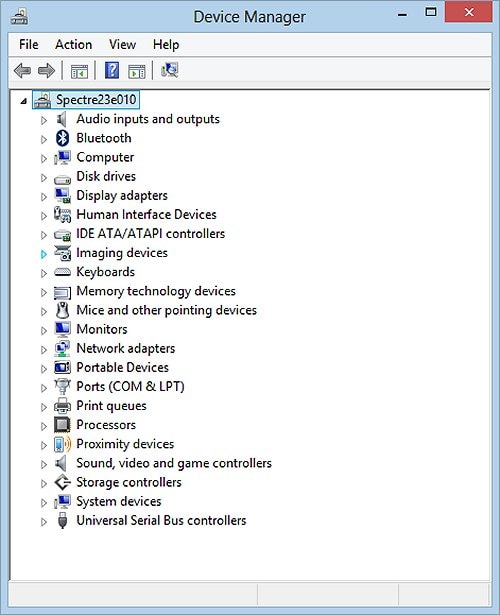
- Please open the device manager.
Figure : Example of Device Manager:

- Expand "Mice and other pointing devices". Right click on the touchpad drives in it and select uninstall.
- Close the device manager and restart the laptop.
- After the laptop restarts, please download and install the touchpad drivers.
If the issue persists then let us run the hardware test on the touchpad. The following steps will help:
- Shut down the laptop.
-
Turn on the computer and immediately press Esc repeatedly, about once every second. When the menu appears, press the F2 key.
-
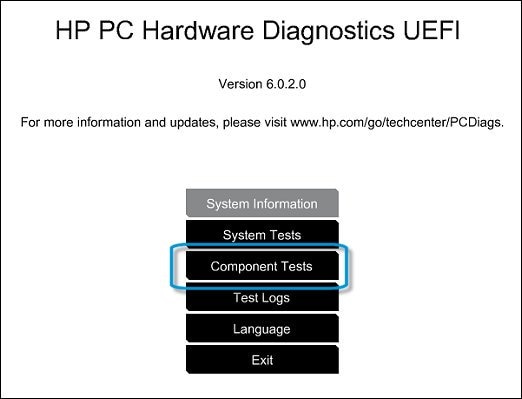
On the main menu, click Component Tests.
Figure : Selecting Component Tests from the main menu

-
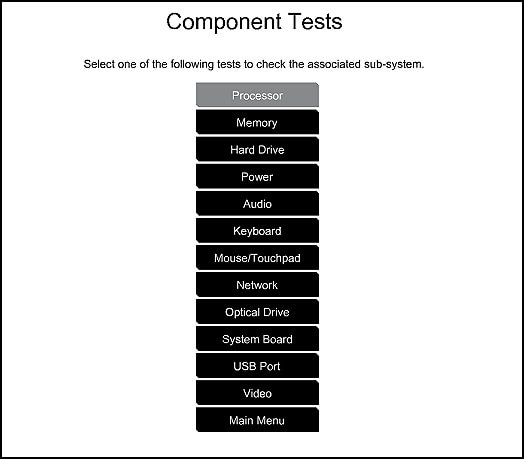
The Component Tests menu displays. Your Component Tests menu might be different, depending on the components installed on your computer.
Figure : Sample list of Component Tests

- Please initiate the Mouse/Touchpad Tests - There are two mouse tests to determine if the mouse is functioning correctly - the Pointer Test and the Drag and Drop Test.
To run the tests, click Mouse/Touchpad. Select the test you want to run, and then click Run once. Follow the instructions to complete the test.
If the touchpad test fails then please contact our HP phone support team to explore the hardware service options for your HP laptop.
I sincerely hope this fixes the issue. Feel free to keep me posted. All the best! 🙂