• ×
    Information
    Need Windows 11 help?
    Check documents on compatibility, FAQs, upgrade information and available fixes.
    Windows 11 Support Center.
  • post a message
  • ×
    Information
    Need Windows 11 help?
    Check documents on compatibility, FAQs, upgrade information and available fixes.
    Windows 11 Support Center.
  • post a message
Guidelines
Seize the moment! nominate yourself or a tech enthusiast you admire & join the HP Community Experts!
HP Recommended
HP Spectre X360 15"
Microsoft Windows 10 (64-bit)

HP Spectre x360 15t Convertible 2-in-1 Laptop (Intel 8th Gen i7-8705G 3.1 GHz, 32GB RAM, 1TB PCIe SSD, 15.6" UHD 4K Touch 3840x2160, Radeon RX Vega, Fingerprint, TPM, Thunderbolt, HP Pen, Win 10 Pro)


Purchased March 1, 2019: Started about a month ago but getting worse. The screen is "ghosting" (See screen shot). You'll need to open the .jpg file to see it clearly.


Ghosting.jpg

1 REPLY 1
HP Recommended

@JZ_5


Welcome to HP Community


I have gone through your Post and would like to help


Please run a Touchscreen Test and let em know if the issue persists


  1. Connect the AC adapter to the computer.

  2. Press the Power button for at least five seconds to turn off the computer.

  3. Turn on the computer and immediately press Esc repeatedly, about once every second. When the Startup menu appears, press F2.

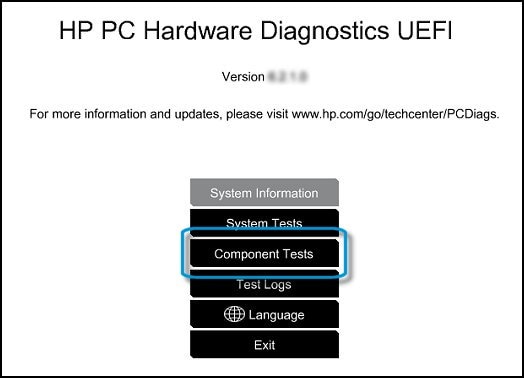
  4. When the HP PC Hardware Diagnostics screen displays, click Component Tests.

    Component Tests in HP PC Hardware Diagnostic UEFI

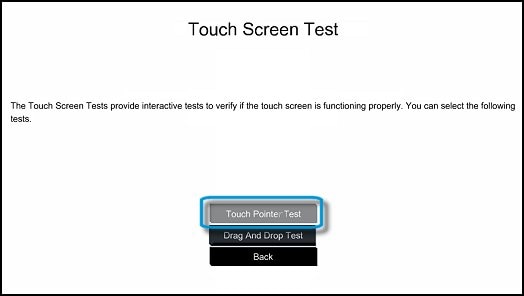
  5. Click Touch Screen.

  6. There are two interactive touch screen hardware tests. Click Touch Pointer Test first.

    Touch Pointer Test in UEFI

  7. Read the on-screen instructions, and then click Run once.

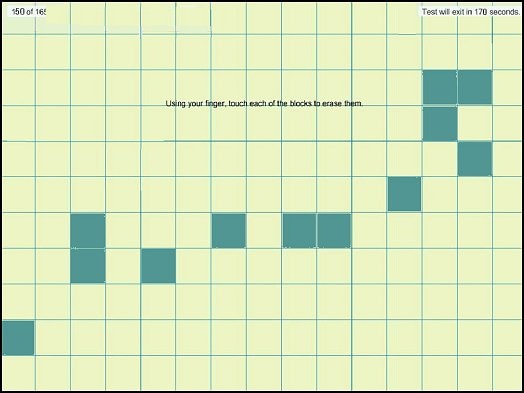
  8. Touch each of the blocks on the screen to erase them. The test ends after you erase all the blocks or after three minutes have passed, and the results display.

    Touch the blocks to erase them

  9. Click Main menu to return to the main screen.

  10. Click Component Tests, and then click Touch Screen.

  11. Click Drag And Drop Test.

    Drag and Drop Test in UEFI

  12. Read the on-screen instructions, and then click Run once.

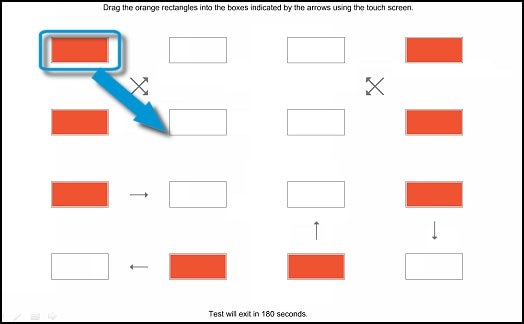
  13. Drag each orange rectangle to the box indicated by the arrows with a finger or a stylus. The test ends after you reposition all the blocks or after three minutes, and the results display.

    Drag the blocks to the correct empty box

Link: https://support.hp.com/in-en/document/c03488148


Thank you


If the information I've provided was helpful, give us some reinforcement by clicking the "Solution Accepted" on this Post and it will also help other community members with similar issue.


KrazyToad
I Am An HP Employee

† The opinions expressed above are the personal opinions of the authors, not of HP. By using this site, you accept the <a href="https://www8.hp.com/us/en/terms-of-use.html" class="udrlinesmall">Terms of Use</a> and <a href="/t5/custom/page/page-id/hp.rulespage" class="udrlinesmall"> Rules of Participation</a>.