
-
×InformationNeed Windows 11 help?Check documents on compatibility, FAQs, upgrade information and available fixes.
Windows 11 Support Center. -
-
×InformationNeed Windows 11 help?Check documents on compatibility, FAQs, upgrade information and available fixes.
Windows 11 Support Center. -
- HP Community
- Notebooks
- Notebook Video, Display and Touch
- Spectre x360 Sensor

Create an account on the HP Community to personalize your profile and ask a question
Your account also allows you to connect with HP support faster, access a personal dashboard to manage all of your devices in one place, view warranty information, case status and more.

It has been a while since anyone has replied. Simply ask a new question if you would like to start the discussion again.

04-07-2018 02:55 AM
 HP Recommended
Product: 13-4105no
Operating System: Microsoft Windows 10 (64-bit)
Hello.
I recently got hold of a older version of the Spectre x360 laptop(i5 6200u) and quickly noticed that keyboard and trackpad still worked in 'tablet mode' and the screen didnt rotate, windows is fully updated and iv'e installed and updated all drivers via HP support assistant but nothing.
Looking in the device manager I cannot see any sensor devices, so my question is basically did this model not come with a orientation sensor? or do I have another problem?
model nr: 13-4105no.
Any info is appriciated
/Kim.
Solved! Go to Solution.
1 ACCEPTED SOLUTION
Accepted Solutions


04-09-2018 02:14 PM
HP Recommended
Thank you for responding,
It's great to have you back 😉
Well, that was my next suggestion,
I'm glad you brought it up as this would be the last resort,
Please use this article for steps to perform a factory reset: https://hp.care/2t2d0IY
If you would like to thank me for my efforts to help you,
feel free to give me a virtual high-five by clicking the 'Thumbs Up' icon below,
Followed by clicking on the "Accept as solution" button.
Have a great day!
Riddle_Decipher
I am an HP Employee
Learning is a journey, not a destination.
Let's keep asking questions and growing together.
7 REPLIES 7
04-08-2018 10:08 AM
HP Recommended
Thank you for joining HP Forums.
I'll be glad to help you 🙂
As I understand you need information on the auto-rotation sensor on your HP laptop,
No worries, as I'll be glad to help you, that said, I'll need a few more details to dissect your concern & provide an accurate solution:
Have you checked if the feature was disabled?
While you respond to that, here's what you need to know:
To rotate the display, follow the steps below.
-
Hold down the ctrl and alt keys at the same time and then press the up arrow key while you are still holding down the ctrl + alt keys.
-
Click the Intel® Graphics Media Accelerator icon in the system tray.
-
Select Graphics Properties.

-
Click Display Settings.

-
Select the check box labeled Enable Rotation and then click Apply.

-
Click OK to confirm the change.

The rotation feature is now enabled.
You can disable the hot keys to prevent the display from rotating unexpectedly in the future (if need be)
To disable the hot keys, follow the steps below.
-
Click the Intel® Graphics Media Accelerator icon in the system tray, select Graphic Properties from the menu, and then click Hot Keys.
-
Uncheck the box labeled Enable Hot Keys, click Apply, and then OK.
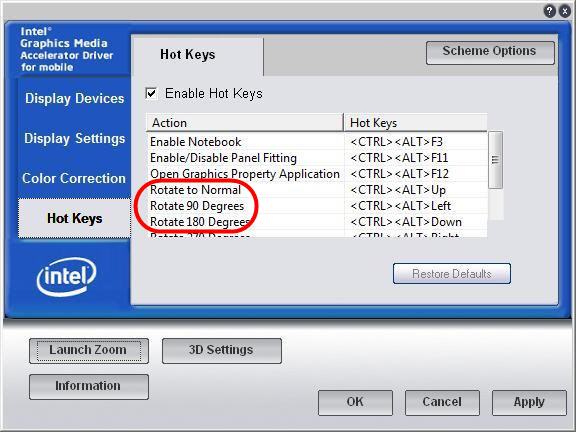
The hot keys feature is now disabled.
Do get back to me as I have a few more tricks up my sleeve,
As I will follow up to ensure your concern is resolved,
That said, If I have helped you resolve the issue,
feel free to give me a virtual high-five by clicking the 'Thumbs Up' icon
followed by clicking on 'Accepted as Solution'
And Have a great day Ahead!
Riddle_Decipher
I am an HP Employee
Learning is a journey, not a destination.
Let's keep asking questions and growing together.
04-08-2018 11:59 AM
HP Recommended
I find no mention of the feature on my computer, not in windows 10 nor in Intel Graphics Settings.
The only mention i can find of autorotation is in the windows registry at: "Computer\HKEY_LOCAL_MACHINE\SOFTWARE\Microsoft\Windows\CurrentVersion\AutoRotation"
And that one is enabled.
If there were functional sensors shouldn't they show up in device manager?, does my device even support this feature? or is my device defective?
model nr: 13-4105no
04-08-2018 03:10 PM
HP Recommended
Thank you for responding,
It's great to have you back 😉
I looked up your query and to let you know, every HP X360 series goes with a auto-rotation & touchscreen feature,
If the one on your device isn't working though you've performed the suggested steps, I recommend you go into the HP PC Hardware Diagnostics UEFI (tap the F2 key on startup) enter the Firmware Management section and rollback the BIOS to the previous version.
Also, try this related post that seems to have helped others: https://hp.care/2GHOkjJ
Let me know how that pans out
feel free to give me a virtual high-five by clicking the 'Thumbs Up' icon,
followed by clicking on 'Accepted as Solution' as it would help the community gain more knowledge,
And Have a great day Ahead!
Riddle_Decipher
I am an HP Employee
Learning is a journey, not a destination.
Let's keep asking questions and growing together.
04-09-2018 02:14 PM
HP Recommended
Thank you for responding,
It's great to have you back 😉
Well, that was my next suggestion,
I'm glad you brought it up as this would be the last resort,
Please use this article for steps to perform a factory reset: https://hp.care/2t2d0IY
If you would like to thank me for my efforts to help you,
feel free to give me a virtual high-five by clicking the 'Thumbs Up' icon below,
Followed by clicking on the "Accept as solution" button.
Have a great day!
Riddle_Decipher
I am an HP Employee
Learning is a journey, not a destination.
Let's keep asking questions and growing together.
04-21-2018 07:31 AM
HP Recommended
Thank you for the update, that's awesome!
I appreciate your time and efforts,
I'm glad I could contribute towards identifying and leading you towards the solution for this concern.
Thanks for taking the time to let the community know that you accept my suggestions,
You've been great to work with and it has been a genuine pleasure interacting with you.
I hope both you and your product works great and remain healthy for a long time 😉
To simply say thanks for my efforts to assist you, please click the "Thumbs Up" button to give me a Kudos.
Take care now and do have a fabulous week ahead. 🙂
Riddle_Decipher
I am an HP Employee
Learning is a journey, not a destination.
Let's keep asking questions and growing together.

Be alert for scammers posting fake support phone numbers and/or email addresses on the community.
If you think you have received a fake HP Support message, please report it to us by clicking on "Flag Post".
† The opinions expressed above are the personal opinions of the authors, not of HP. By using this site, you accept the Terms of Use and Rules of Participation.


Didn't find what you were looking for?
Ask the community
† The opinions expressed above are the personal opinions of the authors, not of HP. By using this site, you accept the <a href="https://www8.hp.com/us/en/terms-of-use.html" class="udrlinesmall">Terms of Use</a> and <a href="/t5/custom/page/page-id/hp.rulespage" class="udrlinesmall"> Rules of Participation</a>.