
-
×InformationNeed Windows 11 help?Check documents on compatibility, FAQs, upgrade information and available fixes.
Windows 11 Support Center. -
-
×InformationNeed Windows 11 help?Check documents on compatibility, FAQs, upgrade information and available fixes.
Windows 11 Support Center. -
- HP Community
- Notebooks
- Notebook Video, Display and Touch
- Re: Switchable graphics

Create an account on the HP Community to personalize your profile and ask a question
Your account also allows you to connect with HP support faster, access a personal dashboard to manage all of your devices in one place, view warranty information, case status and more.

It has been a while since anyone has replied. Simply ask a new question if you would like to start the discussion again.

6 REPLIES 6


12-18-2018 03:14 PM
 HP Recommended
Welcome to HP Forums,
This is a great place to get support, find answers and tips,
Thank you for posting your query, I'll be more than glad to help you out 🙂
I see that your experiencing issue with switchable graphics,
Don't worry as I'll be glad to help, however, to provide an accurate resolution, I need a few more details:
- What is the product number of your device? Use this link to find it: http://support.hp.com/us-en/document/c03754824 (Ensure you do not share any of your personal information such as serial, phone number, email ID, etc...).
- When was the last time it worked fine?
- Before updating bios was their switchable options seen?
While you respond to that, I recommend you to perform the following steps to isolate the issue and arrive at a fix:
Here is the overview of Switchable Graphics. See the section "Determine if your computer has switchable graphics" and let me know if it indicates that you have switchable graphics: Overview of Switchable Graphics or Dual GPUs
Let's try this steps: Go into the BIOS menu (press ESC and then F10 the moment you turn on your computer before the windows logo appears), search for the switchable graphics option and set it to "Fixed". Exit and save changes.
When windows are already initiated, right-click anywhere and click switchable graphics. Choose the ATI Radeon (high performance) as default.
Hope this helps! Keep me posted for further assistance.
If I have helped you resolve the issue, feel free to give me a virtual high-five by clicking the 'Thumbs Up' icon below,
Followed by clicking on "Accept as solution" from the drop-down menu on the upper right corner,
Thank you for posting in the HP Support Forum. Have a great day!
ECHO_LAKE
I am an HP Employee
12-19-2018 03:13 PM
HP Recommended
Thank you for posting back.
I appreciate your efforts to try and resolve the issue.
For better clarity and to assist you better I would require more information regarding this:
- What happens when the computer is started?
- Is computer booting to windows desktop?
- Are you getting any error message or code while system startup?
Also, we can perform bios roll back and check for the graphics setting: Click Here
Hope this helps! Keep me posted for further assistance.
ECHO_LAKE
I am an HP Employee
12-19-2018 05:20 PM
HP Recommended
@Echo_Lake
Everything is ok when I turned it on. And there's no error message. But when I open any application it going very slow, such as AutoCAD, Adobe Illustrator, Corel Draw, even when I play PES 2017 in low setting. I think maybe there's problem. Because I ever read any discussion that it caused by the switchable graphics option. Thank you very much
12-20-2018 11:21 AM
HP Recommended
Thank you for posting back.
Even due to lack of driver update this could have happened,
Let's try updating the system software and driver using HP support assistance.
First, Installing the HPSA
Go to Download HP Support Assistant to install the tool.
Next:
Use HP Support Assistant to automatically install computer updates, such as updated drivers, system updates, and useful utilities.
-
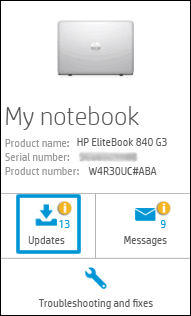
Click My devices in the top menu, and then click Updates in the My PC or My notebook pane.
-
Click Check for updates and messages to scan for new updates.

-
Review the list of updates. Updates with a yellow information icon are recommended. Updates with a blue information icon are optional.
-
Click the update name for a description, version number, and file size.
-
Select the box next to any updates you want to install, and then click Download and install.
-
Perform any other update management actions as needed.
Hope this helps! Keep me posted for further assistance.
ECHO_LAKE
I am an HP Employee

Be alert for scammers posting fake support phone numbers and/or email addresses on the community.
If you think you have received a fake HP Support message, please report it to us by clicking on "Flag Post".
† The opinions expressed above are the personal opinions of the authors, not of HP. By using this site, you accept the Terms of Use and Rules of Participation.


Didn't find what you were looking for?
Ask the community
† The opinions expressed above are the personal opinions of the authors, not of HP. By using this site, you accept the <a href="https://www8.hp.com/us/en/terms-of-use.html" class="udrlinesmall">Terms of Use</a> and <a href="/t5/custom/page/page-id/hp.rulespage" class="udrlinesmall"> Rules of Participation</a>.