• ×
    Information
    Need Windows 11 help?
    Check documents on compatibility, FAQs, upgrade information and available fixes.
    Windows 11 Support Center.
  • post a message
  • ×
    Information
    Need Windows 11 help?
    Check documents on compatibility, FAQs, upgrade information and available fixes.
    Windows 11 Support Center.
  • post a message
Guidelines
Join the HP Community Solve‑a‑thon | Help Others & Share Your Solutions | Live on Zoom | 2:30 PM to 2:30 AM IST | Every Wednesday Click here to know more
HP Recommended
x360 convertible
Microsoft Windows 10 (64-bit)

I wish someone could tell me how to turn off this touchpad.  It really interferes with my typing.

1 REPLY 1
HP Recommended

@JTMMNM


Welcome to the support community.


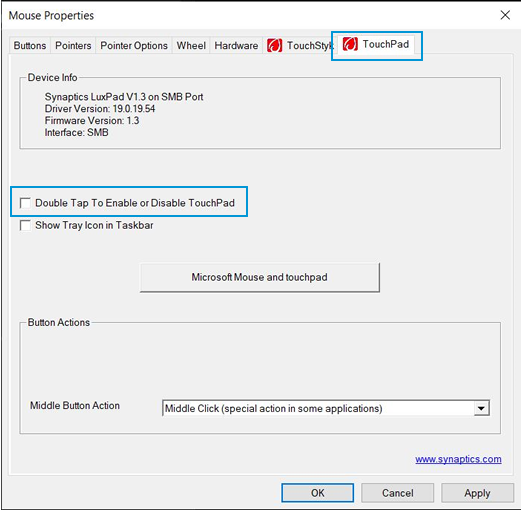
To disable the Double Tap to Enable or Disable TouchPad feature, open the TouchPad tab in Mouse Properties.

  1. Click Start , and then type mouse in the search field.
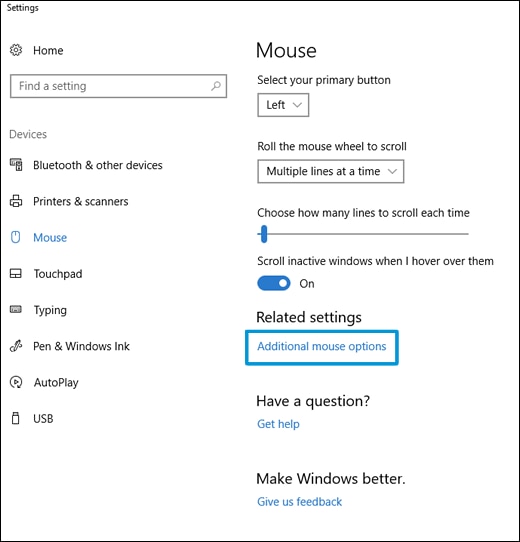
  2. Click Change your mouse settings.

  3. Click Additional mouse options.

    Clicking on Additional mouse options

  4. In Mouse Properties, click the TouchPad tab.

    NOTE: 

    Some HP notebooks have an HP Control Zone tab. If your notebook has this tab, open it and click HP Control Zone Disable.


    If the properties window does not have a TouchPad option, then the TouchPad functionality is not available.

  5. Uncheck Double Tap to Enable or Disable TouchPad.

    NOTE: 

    If the option is not available on the Mouse Properties window, click Settings to open the Synaptics Control Panel. On the Click tab, uncheck Double Tap to Enable or Disable TouchPad.

  6. Click Apply, and then click OK.

You can refer this HP document for more assistance:- Click here


I hope that helps.

To thank me for my efforts to help you, please mark my post as an accepted solution so that it benefits several others.

Cheers.

Sandytechy20
I am an HP Employee

† The opinions expressed above are the personal opinions of the authors, not of HP. By using this site, you accept the <a href="https://www8.hp.com/us/en/terms-of-use.html" class="udrlinesmall">Terms of Use</a> and <a href="/t5/custom/page/page-id/hp.rulespage" class="udrlinesmall"> Rules of Participation</a>.


