-
×InformationNeed Windows 11 help?Check documents on compatibility, FAQs, upgrade information and available fixes.
Windows 11 Support Center. -

-
×InformationNeed Windows 11 help?Check documents on compatibility, FAQs, upgrade information and available fixes.
Windows 11 Support Center. -
- HP Community
- Notebooks
- Notebook Video, Display and Touch
- Video playback issue

Create an account on the HP Community to personalize your profile and ask a question
04-06-2019 02:23 PM
My laptop is just 5 months old right from the beginning it's running very slow even 10 year old laptop is ruining fast ,the main issue is that it can't even play a video it gets strucked in the middle and colours starts to distort I have invested 73k and it can't even play a video
04-07-2019 06:09 PM
Welcome to HP support community.
Install Windows updates
-
Connect to the Internet.
-
In Windows, search for and open Windows Update.
-
If updates are available to download, click Install now. If no updates are currently listed, click Check for updates, and then click Install now after Windows detects available updates.
-
After Windows Update installs the selected updates, you might need to restart your computer to apply the updates.
Update the BIOS and graphics drivers
-
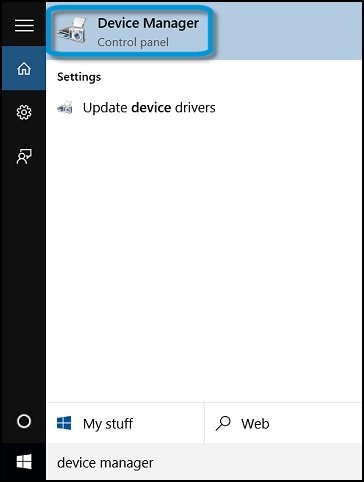
In Windows, search for and open Device Manager.
Figure : The Run menu with the Device Manager option

-
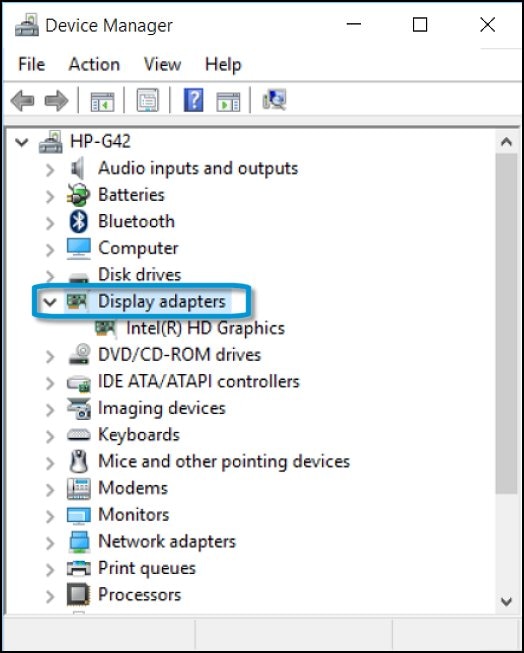
In the list of devices, expand Display adapters.
Figure : Device Manager with list of devices

-
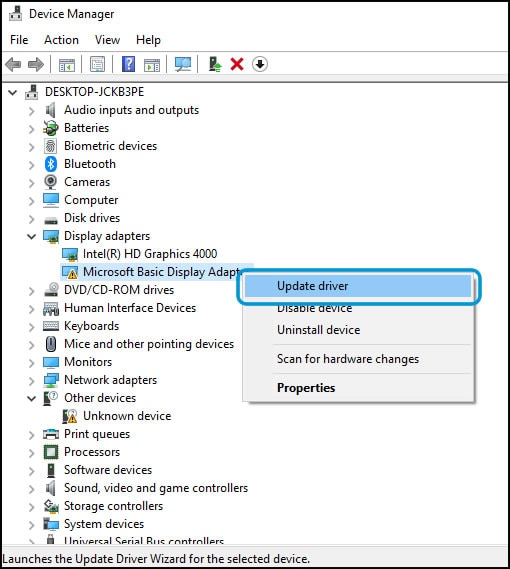
Right-click the driver and select Update driver.
Figure : Device Manager with the Update driver option

-
Click Search automatically for updated driver software.
Figure : The Update Driver Software window with the Search automatically for updated driver software option

-
Follow the onscreen instructions to install the updated driver.
Refer this HP document for more assistance :- Click here
Let me know how it goes.
To thank me for my efforts to help you, please mark my post as an accepted solution so that it benefits several others.
Cheers.
Sandytechy20
I am an HP Employee
04-09-2019 07:22 PM
Uninstall and reinstall the Adobe Flash Player and Shockwave Player plug-ins
-
In Windows, search for and open Apps & features.
-
Under Apps & features, look for and select the program Adobe Shockwave Player.
-
Click Uninstall.
-
If the program Shockwave Player is not listed, continue with step 6 listed below.
-
-
Read and respond to any messages that might open while the software is being removed from your computer.
-
After uninstalling the program, go to www.adobe.com (in English) and type Install Shockwave Player in the search field to find and download the current program for Windows to reinstall the player.
-
Check for functionality.
-
If the issue has not been resolved, continue with the next step.
-
-
Go to www.adobe.com (in English) website and type Flash player uninstaller in the search field to find and download the current uninstaller tool for Windows.
-
Close all open browser windows.
-
Open and run the uninstaller and follow the onscreen instructions to uninstall the Flash Player.
-
Restart your computer.
-
To reinstall Adobe Flash Player, go to www.adobe.com (in English).
-
Click the search tool and type update Flash, then follow the onscreen instructions to download and install the latest version of the Flash plug-in.
If the issue persists, perform system reset
Refer this HP document for the steps to perform system reset:- Click here
Let me know if that helps.
To thank me for my efforts to help you, please mark my post as an accepted solution so that it benefits several others.
Cheers.
Sandytechy20
I am an HP Employee