• ×
    Information
    Need Windows 11 help?
    Check documents on compatibility, FAQs, upgrade information and available fixes.
    Windows 11 Support Center.
  • post a message
  • ×
    Information
    Need Windows 11 help?
    Check documents on compatibility, FAQs, upgrade information and available fixes.
    Windows 11 Support Center.
  • post a message
Guidelines
Troubleshooting black screen issues on HP Notebooks: Click here to view the instructions!
HP Recommended
HP Pavilion 14AL061NR
Microsoft Windows 10 (64-bit)

The laptop continually freezes for about 3 seconds and then appears to recover.  The Windows system logs indicate the error "Display driver igfx stopped responding and has successfully recovered."  I've tried uninstalling the video driver, but this doesn't resolve the issue. 

3 REPLIES 3
HP Recommended

@DavidM69


Welcome to HP support community.


Install Windows updates

  1. Connect to the Internet.

  2. In Windows, search for and open Windows Update settings.

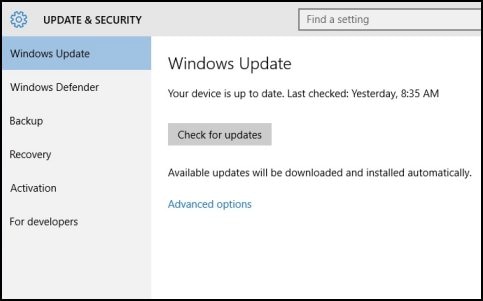
  3. If updates are not listed in the Windows Update window, a Your device is up to date message displays, along with the date that Windows last checked for updates. If you want to see if any updates became available since Windows last checked, click Check for updates.

    Clicking Check for updates button

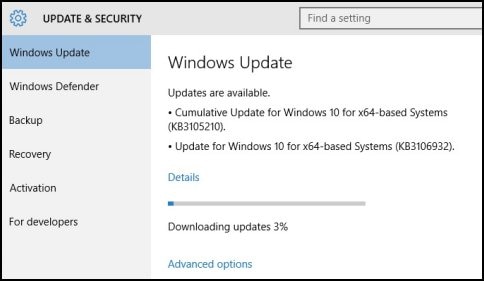
  4. If updates are available, the Windows Update windows lists the updates, downloads them, and shows the progress.

    Windows Update window

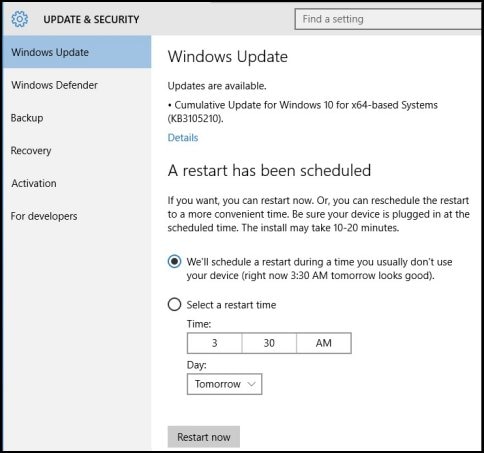
    When the downloads are complete, your computer might need to be restarted. You can schedule a restart time in the Windows Update window, or you can click Restart now to restart your computer now.

    NOTE: 

    Make sure your computer is plugged in at the scheduled time.

    Clicking Restart now

Adjust visual effects in Windows

  1. From Windows, search for and open View advanced system settings.

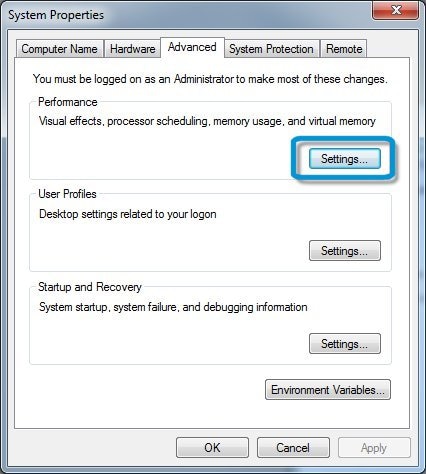
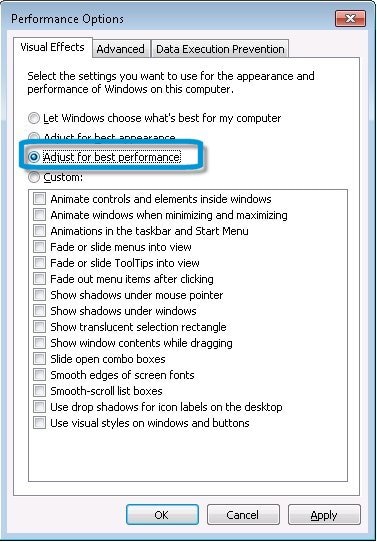
  2. Under Performance, click Settings.

    System Properties

  3. Select Adjust for best performance.

    Adjust for best performance

  4. Click Apply, and then click OK.

  5. Perform the action that you were doing when the error first occurred, for example, playing a game or watching a movie, to test if the error reoccurs.

You can refer this HP document for more assistance:- Click here


Let me know how it goes.

To thank me for my efforts to help you, please mark my post as an accepted solution so that it benefits several others.

Cheers.

Sandytechy20
I am an HP Employee

HP Recommended

Instructions followed, Win10 updated, performance settings changed to recommended except for "smooth fonts" option.  Freeze ups continue. 

HP Recommended

@DavidM69


Run the extensive test to find out any hardware issue.

The Extensive Test takes 2 or more hours to complete, depending on the system configuration. You can cancel at any time by pressing the Escape key (Esc).

1. Hold the power button for at least five seconds to turn off the computer.

2. Turn on the computer and immediately press Esc repeatedly, about once every second. When the menu appears, press the F2 key.

3. On the main menu, click System Tests, then click Extensive Test.

4. Click Run once, or Loop until error.

5. If a component fails a test, write down the failure ID (24-digit code).


If the test passes, perform a system recovery.

Refer this HP document for steps to perform system recovery:- Click here


Let me know if that helps.

To thank me for my efforts to help you, please mark my post as an accepted solution so that it benefits several others.

Cheers.

Sandytechy20
I am an HP Employee

† The opinions expressed above are the personal opinions of the authors, not of HP. By using this site, you accept the <a href="https://www8.hp.com/us/en/terms-of-use.html" class="udrlinesmall">Terms of Use</a> and <a href="/t5/custom/page/page-id/hp.rulespage" class="udrlinesmall"> Rules of Participation</a>.