• ×
    Information
    Need Windows 11 help?
    Check documents on compatibility, FAQs, upgrade information and available fixes.
    Windows 11 Support Center.
  • post a message
  • ×
    Information
    Need Windows 11 help?
    Check documents on compatibility, FAQs, upgrade information and available fixes.
    Windows 11 Support Center.
  • post a message
Guidelines
Troubleshooting black screen issues on HP Notebooks: Click here to view the instructions!
HP Recommended
HP Pavilion - 14-ce0988nl
Microsoft Windows 10 (64-bit)

Hello everyone,
I have a problem with face recognition,  It's about 1 month Face recognition has stopped working , I tried all solutions here
but my issue is not fixed yet.  

If I go Settings>>Sign-in options>>Face Recognition   I see "We couldn't find a camera compatible with Windows Hello"
And It's not possible because I used Face Recognition for more than 1 year 🤔

Can you help me please?

Windows 10 Home 19041.329 Build

3 REPLIES 3
HP Recommended

@Odiami

Thank you for posting on HP Support Community.


Don't worry as I'll be glad to help, I have a few troubleshooting steps we could try to fix the issue:  

Step 1: Uninstall and reinstall the IR camera driver

Reinstalling the IR camera driver might resolve the issue. Uninstall the driver in Device Manager, and then reinstall the driver from HP Customer Support.

  1. Using the search box on the taskbar, search for and open Device Manager.

  2. In the Device Manager window, double-click Imaging devices, right-click the name of the IR camera, and then select Uninstall device.

    Uninstalling the IR camera

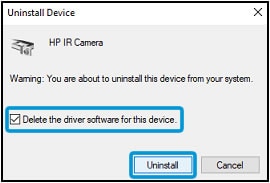
  3. Select Delete the driver software for this device, and then click Uninstall.

    Selecting Delete the driver software for this device and clicking Uninstall

  4. Go to HP Customer Support, and then enter your PC model number.

  5. On the Software and driver results page for your PC model, download and install the driver for the IR camera.

Restart your PC by shutting it down and then manually turning it on to see if Windows Hello Face Recognition works. If the issue persists, continue to the next step.

Step 2: Remove the Face Recognition and PIN sign-in settings

In Settings, remove your Face Recognition and PIN settings from the sign-in options.

  1. Click Start , and then click Settings .

  2. Click Accounts.

    Settings window with Accounts selected

  3. On the Settings menu, click Sign-in options.

    Accounts sign-in options

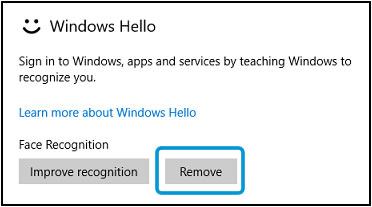
  4. In the Windows Hello area under Face Recognition, click Remove.

    Removing Face Recognition

  5. In the PIN area, click Remove, and then click Remove again to confirm.

    Removing the PIN

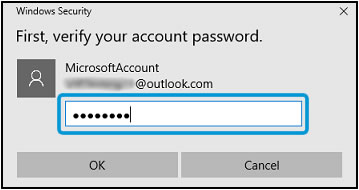
  6. Type your password in the Password field, and then click OK.

    Verifying your account password before the PIN is removed

Hope this helps! Keep me posted for further assistance.
Please click “
Accept as Solution” if you feel my post solved your issue, it will help others find the solution.

ECHO_LAKE
I am an HP Employee

HP Recommended

As I said these steps not fixed my issue, any solutions? 😞

HP Recommended

@Odiami

Thank you for posting back.


System Restore returns your computer to the files and settings from the restore point. Your personal files and documents are not affected.

You can also undo a System Restore if the restore does not resolve the issue or if the issue becomes worse.

Click here: https://support.hp.com/in-en/document/c03327545


Hope this helps! Keep me posted for further assistance.
Please click “
Accept as Solution” if you feel my post solved your issue, it will help others find the solution.

ECHO_LAKE
I am an HP Employee

† The opinions expressed above are the personal opinions of the authors, not of HP. By using this site, you accept the <a href="https://www8.hp.com/us/en/terms-of-use.html" class="udrlinesmall">Terms of Use</a> and <a href="/t5/custom/page/page-id/hp.rulespage" class="udrlinesmall"> Rules of Participation</a>.