-
×InformationNeed Windows 11 help?Check documents on compatibility, FAQs, upgrade information and available fixes.
Windows 11 Support Center. -

-
×InformationNeed Windows 11 help?Check documents on compatibility, FAQs, upgrade information and available fixes.
Windows 11 Support Center. -
- HP Community
- Notebooks
- Notebook Video, Display and Touch
- face recognition

Create an account on the HP Community to personalize your profile and ask a question
07-30-2019 02:47 PM
I have installed a camera software update numerous times. It works, i.e. logs me in to my computer by scanning my eyes after installation and works for a couple of months. After a couple of months the software seems to stop working, the eye scanning log on stops working and the computer significantly slows. I then reinstall the software direct from the HP site and everything works fine for a couple of months.
Does anyone know what is going on and if there is a fix?
08-01-2019 04:04 PM
@Jasperangel Welcome to HP Forums Community!
Did you install any windows update recently, before this issue occurred? If yes, here's what you need to do:
Method 1: Update Drivers
It is possible that facial recognition isn’t working because the corresponding drivers are outdated. Follow the procedure below to fix this issue by updating drivers.
Step 1: Launch Device Manager by pressing the Windows button and X key simultaneously and select Device Manager.
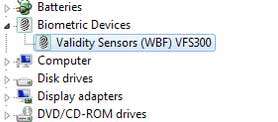
Step 2: Click Biometric Devices, right-click the device and select Uninstall.

Step 3: Click the “Action” menu in the top bar and select “Scan for hardware changes”.
Windows will find and update the camera drivers.
If the issue persists, please try the below steps:
Step 1: Launch Device Manager by right-clicking the Start menu and selecting it.
Step 2: Click System Devices > Surface Camera Windows Hello.
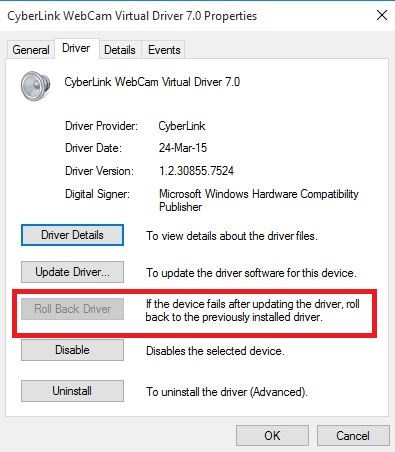
Step 3: Click the “Driver” tab then click the” Roll Back Driver” button.

Step 4: Select the driver that worked previously.
Step 5: Apply and save the changes then reboot the computer.
Last but not least, Reset Facial Recognition Settings
Step 1: Launch the Settings app by clicking the Start Menu then the gear icon, or by simultaneously pressing Windows + I.
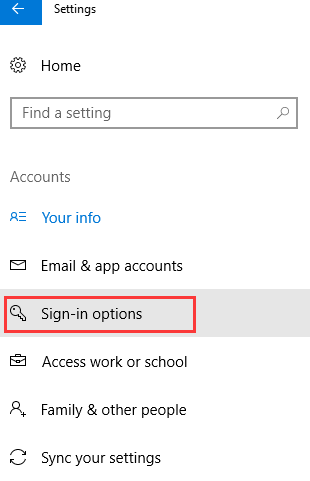
Step 2: Click Accounts > Sign-in Options.

Step 3: Navigate to Facial Recognition and click “Remove”.
Step 4: Click “Get Started” and follow the prompts to reset the feature.
Step 5: Restart your computer.
Let me know how that pans out,
If you feel I was helpful, simply click on Accept as Solution to help the community grow,
That said, I will have someone follow-up on this to ensure you've been helped,
Just in case you don't get back to us within 24 - 48hrs, and have a good day, ahead.
Riddle_Decipher
I am an HP Employee
Learning is a journey, not a destination.
Let's keep asking questions and growing together.