
-
×InformationNeed Windows 11 help?Check documents on compatibility, FAQs, upgrade information and available fixes.
Windows 11 Support Center. -
-
×InformationNeed Windows 11 help?Check documents on compatibility, FAQs, upgrade information and available fixes.
Windows 11 Support Center. -
- HP Community
- Notebooks
- Notebook Video, Display and Touch
- Re: keyboard and touch pad doesn't work

Create an account on the HP Community to personalize your profile and ask a question
Your account also allows you to connect with HP support faster, access a personal dashboard to manage all of your devices in one place, view warranty information, case status and more.

It has been a while since anyone has replied. Simply ask a new question if you would like to start the discussion again.

03-02-2020 10:17 AM - edited 03-03-2020 06:24 AM
 HP Recommended
Product: HP 15 NOTEBOOK PC
Operating System: Microsoft Windows 10 (64-bit)
I have recently re-installed WIN 10 to my HP 15 Notebook PC, after a hard drive replacement. After downloading drivers, my keyboard and touch pad are not working. I have downloaded drivers from HP site but it isn't giving me the keyboard touch pad drivers I have run diagnostics and it tells me that I need to check my USB keyboard connections. my keyboard is not a USB added devise. its a laptop. How do I get the correct drivers for my keyboard and touch pad? (I have been able to use a wireless mouse and an on-screen keyboard in order to contact this site) Please help. thank you
6 REPLIES 6


03-04-2020 05:37 PM
HP Recommended
Welcome to HP support community.
I suggest you follow the below steps to resolve the issue:
- Go to the Control Panel (large icon view) then > click Mouse > Device Settings tab > Settings.
- Under the Synaptics Settings, go to Pointing > Sensitivity > Palmcheck and set the palm sensitivity to the minimum and test the game.
If the issue persists, update bios and chipset drivers from the below link and test:
click here to access the website.
If that doesn't help, try the below steps:
Turning off Smart Sense is not enough. I had to also make a Registry change.
Go to the key HKEY_LOCAL_MACHINE\SOFTWARE\Synaptics\SynTP\Defaults
Change the value of the first 3 string entries of PalmKms to 0.
I recommend creating a backup of your registry, if you not comfortable making changes
Also, You may reinstall the keyboard and mouse drivers and check if that brings back the panel.
Let me know how it goes.
To thank me for my efforts to help you, please mark my post as an accepted solution so that it benefits several others.
Cheers.
Sandytechy20
I am an HP Employee
03-07-2020 11:26 AM
HP Recommended
HELLO Sandy, thank you for responding. I am using a wireless mouse and an on screen keyboard. Let me give a little background, i have replaced my hard drive and re-installed windows using a downloaded copy as instructed, and have tried to download drivers but at the HP Support sire for drivers, there is never an option for keyboard or TouchPad . the only option I am given is a wireless mouse. I have been in device Mgr says I have 2 keyboards but my keyboard still doesn't work have un-installed, that has no effect. I don't have a Smart ? that I know of. in my devices there are no options for TouchPad only wireless mouse. I am sorry maybe I am missing something, just don't know what to do. sorry this long, when I ran diagnostics it said INTEL TRUSTED EXECUTION ENGINE HAS A DRIVER PROBLEM, It then says it will fix I restart and it has same error message. What do I do now? please help
03-09-2020 06:14 PM
HP Recommended
I followed your instructions, however, I went to control panel then to mouse then devise settings , there are no Synaptic settings what it pulls up are the properties of my wireless mouse its listed as HID-mouse .

03-11-2020 03:14 PM
HP Recommended
I suggest you download and run the HP Support Assistant from this Link: https://www8.hp.com/us/en/campaigns/hpsupportassistant/hpsupport.html?jumpid=va_r602_us/en/any/psg/p...
HPSA will automatically search for all the latest drivers for your Notebook
-
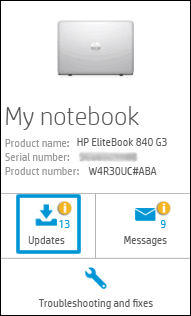
Click My devices in the top menu, and then click Updates in the My PC or My notebook pane.
-
Click Check for updates and messages to scan for new updates.

-
Review the list of updates. Updates with a yellow information icon are recommended. Updates with a blue information icon are optional.
-
Click the update name for a description, version number, and file size.
-
Select the box next to any updates you want to install, and then click Download and install.
Also ensure Windows is up to date.
Select the Start button, and then go to Settings > Update & security > Windows Update , and select Check for updates. If Windows Update says your device is up to date, you have all the updates that are currently available
Keep me posted how it goes
Thank you and have a wonderful day 😊
If the information I've provided was helpful, give us some reinforcement by clicking the "Solution Accepted" on this Post and it will also help other community members with similar issue.
KrazyToad
I Am An HP Employee
03-14-2020 08:12 AM - edited 03-14-2020 08:15 AM
HP Recommended
May I know how did you reinstall Windows?
I suggest you reinstall Windows using the HP Recovery Media.
The HP Cloud Recovery Tool allows you to download recovery software to a USB drive. You can use the downloaded recovery image file inorder to install Windows operating system. Click here: https://support.hp.com/in-en/document/c06162205 to Use the HP Cloud Recovery Tool (Windows 10, 7)
Click here: https://support.hp.com/in-en/document/c04758961#AbT3 to perform a System Recovery (Windows 10)
If the issue persists please contact HP Support to order the Recovery Media
Click on this link - www.hp.com/contacthp/ and select your Country to get the Contact details for HP Support
Thank you
If the information I've provided was helpful, give us some reinforcement by clicking the "Solution Accepted" on this Post and it will also help other community members with similar issue.
KrazyToad
I Am An HP Employee

Be alert for scammers posting fake support phone numbers and/or email addresses on the community.
If you think you have received a fake HP Support message, please report it to us by clicking on "Flag Post".
† The opinions expressed above are the personal opinions of the authors, not of HP. By using this site, you accept the Terms of Use and Rules of Participation.


Didn't find what you were looking for?
Ask the community
† The opinions expressed above are the personal opinions of the authors, not of HP. By using this site, you accept the <a href="https://www8.hp.com/us/en/terms-of-use.html" class="udrlinesmall">Terms of Use</a> and <a href="/t5/custom/page/page-id/hp.rulespage" class="udrlinesmall"> Rules of Participation</a>.