-
×InformationNeed Windows 11 help?Check documents on compatibility, FAQs, upgrade information and available fixes.
Windows 11 Support Center. -

-
×InformationNeed Windows 11 help?Check documents on compatibility, FAQs, upgrade information and available fixes.
Windows 11 Support Center. -
- HP Community
- Notebooks
- Notebook Video, Display and Touch
- keyboard backlight wont stay on

Create an account on the HP Community to personalize your profile and ask a question
05-03-2020 05:05 PM
My notebook 17-ca1017cy keyboard backlight wont stay on but like 30 seconds and it will shut off, I can turn it back on hitting the f5 or any other key.... all other setting I can control...
Solved! Go to Solution.
Accepted Solutions
05-11-2020 01:54 AM
Welcome to HP Community
I have gone through your Post and would like to help
If the blacklight stays on for only a few seconds, the backlight timeout setting might need configuring in the BIOS.
NOTE: If there is not a setting for the backlight timing in the BIOS, this behavior might not be supported on the notebook.
Your BIOS version and screens might vary.
-
Restart the notebook, and then immediately press the F10 repeatedly until the BIOS opens.
-
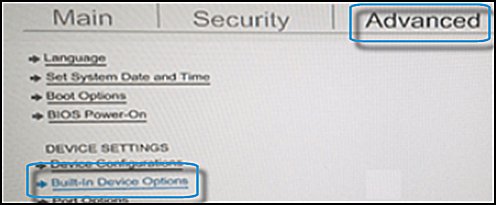
When the BIOS opens, use the arrow keys to navigate to the Advanced tab.
-
Navigate to Built-in Device Options, and then press Enter.

-
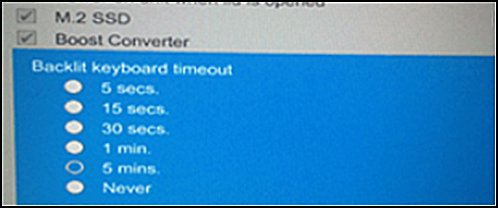
In the Built-in Device Options, select Backlit keyboard timeout.
-
Press the spacebar to open the keyboard backlight settings, and then select the timeout setting you want.
NOTE: If you select Never, the backlight remains on which could quickly drain the notebook battery power.

Link: https://support.hp.com/in-en/document/c01612362
Keep me posted
If the information I've provided was helpful, give us some reinforcement by clicking the "Solution Accepted" on this Post and it will also help other community members with similar issue.
KrazyToad
I Am An HP Employee
05-11-2020 01:54 AM
Welcome to HP Community
I have gone through your Post and would like to help
If the blacklight stays on for only a few seconds, the backlight timeout setting might need configuring in the BIOS.
NOTE: If there is not a setting for the backlight timing in the BIOS, this behavior might not be supported on the notebook.
Your BIOS version and screens might vary.
-
Restart the notebook, and then immediately press the F10 repeatedly until the BIOS opens.
-
When the BIOS opens, use the arrow keys to navigate to the Advanced tab.
-
Navigate to Built-in Device Options, and then press Enter.

-
In the Built-in Device Options, select Backlit keyboard timeout.
-
Press the spacebar to open the keyboard backlight settings, and then select the timeout setting you want.
NOTE: If you select Never, the backlight remains on which could quickly drain the notebook battery power.

Link: https://support.hp.com/in-en/document/c01612362
Keep me posted
If the information I've provided was helpful, give us some reinforcement by clicking the "Solution Accepted" on this Post and it will also help other community members with similar issue.
KrazyToad
I Am An HP Employee