• ×
    Information
    Need Windows 11 help?
    Check documents on compatibility, FAQs, upgrade information and available fixes.
    Windows 11 Support Center.
  • post a message
  • ×
    Information
    Need Windows 11 help?
    Check documents on compatibility, FAQs, upgrade information and available fixes.
    Windows 11 Support Center.
  • post a message
Guidelines
Seize the moment! nominate yourself or a tech enthusiast you admire & join the HP Community Experts!
HP Recommended
Spectre x360 13
Microsoft Windows 10 (64-bit)

The multi finger gestures on both my touchpad and touchscreen are often not working when starting the computer (roughly every 5th time of starging the laptop). In these cases a restart is needed to get it working again. 

Checked the drivers several times and these are all up to date.

3 REPLIES 3
HP Recommended

@Stevengr,


Welcome to the HP Support Community!


I recommend you follow the below steps and check if it helps.


MultiFinger gestures provide shortcuts to frequently used applications or easy navigation within an application. To customize these gestures from the Mouse Properties page, click the Arrow icon , to the left of the MultiFinger Gestures checkbox to open the MultiFinger options. If the checkbox next to MultiFinger Gestures does not contain a check mark, click the checkbox until a check mark displays.
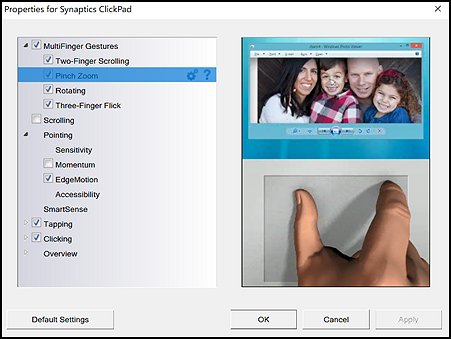
Enabling Pinch Zoom

Zooming in and out is available within many applications. Click to highlight Pinch Zoom. If the checkbox next to Pinch Zoomdoes not contain a check mark, click the checkbox until a check mark displays to enable pinch zooming.

Pinch Zoom on the properties page

Clicking the Settings icon  opens a window that allows you to control response to pinch zooming.
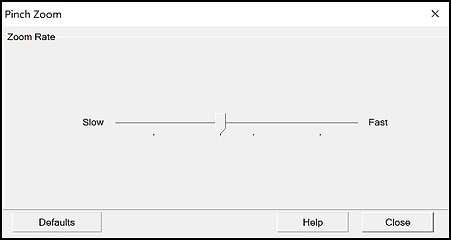
Pinch Zoom settings window

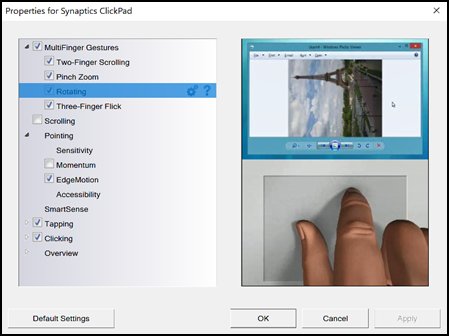
Enabling Rotating

Rotating is available for some objects and for photos. Click to highlight Rotating. If the checkbox next to Rotating does not contain a check mark, click the checkbox until a check mark displays to enable rotate gestures.

Rotating on the properties page

Clicking the Settings icon  opens a window that allows you to select rotating options. TwistRotate allows you to turn items like photos using two fingers in a motion similar to turning a knob. Rotate turns items in 90-degree increments.

Rotating settings window

Navigating within applications using Three-Finger Flick

Both Two-Finger Scrolling and Three-Finger Flick can be configured to navigate within applications. Enabling and customizing Two-Finger Scrolling is described in the Adjust Two-Finger Scrolling section of this document. Three-Finger Flick is used to browse the Internet or scroll through photos. Use the following the steps to enable Three-Finger Flick.

  1. Open the properties page. For more information on opening the properties page go to the TouchPad or ClickPad propertiessection of this document.

  2. Three-Finger Flick is located under MultiFinger Gestures. If you do not see Three-Finger Flick, click the Arrow icon , to the left of the MultiFinger Gestures checkbox.

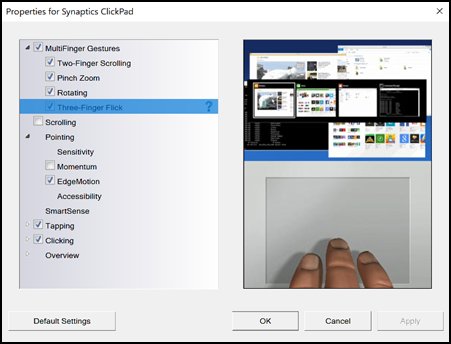
  3. Click to highlight Three-Finger Flick. If the checkbox next to Three-Finger Flick does not contain a check mark, click the checkbox until a check mark displays to enable flicking.

    Three-Finger Flick on the properties page

  4. For more information about Three-Finger Flick, click the Help icon  next to Three-Finger Flick.

Opening and switching applications using the TouchPad or ClickPad

Three-Finger Press, Four-Finger Flick, and Edge Swipes can be used to navigate between applications. Three-Finger Press opens identified applications when enabled. Four-Finger Flick can be used to switch between applications, minimize a window, or restore a window. Enable Edge Swipes allow you to switch applications or navigate on the Start screen.

NOTE: 

Depending on your computer model and its configuration, the options in this section might be available. If they are, the screens vary slightly. but the procedures are the same.

Use the following steps to enable and customize Three-Finger Press.

  1. Three-Finger Press is located under MultiFinger Gestures. Open MultiFinger Gestures by clicking the Arrow icon  to the left of the MultiFinger Gestures checkbox.

  2. Click to highlight Three-Finger Press. If the checkbox next to

    Three-Finger Press does not contain a check mark, click the checkbox until a check mark displays.

    Three-Finger Press on the properties page

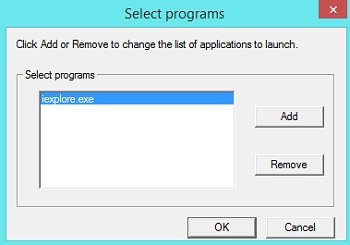
  3. Click the Settings icon  to select programs that open when you use Three-Finger Press.

    Three-Finger Press Select programs window

Use the following steps to enable and customize Four-Finger Flick.

  1. Four-Finger Flick is located under MultiFinger Gestures. Open MultiFinger Gestures by clicking the Arrow icon  to the left of the MultiFinger Gestures checkbox.

  2. Click to highlight Four-Finger Flick. If the checkbox next to Four-Finger Flick does not contain a check mark, click the checkbox until a check mark displays.

    Four-Finger Flick on the properties page

  3. Click the Settings icon  to choose Four-Finger Flick options. Enable or disable either horizontal or vertical flicks. When enabled:

    • A Four-Finger Horizontal Flick to the right opens the applications switcher.

    • A Four-Finger Horizontal Flick to the left opens the previously used application.

    • A Four-Finger Vertical Flick downward minimizes or restores the window on your desktop.

    • A Four-Finger Vertical Flick upward opens the application switcher.

    Four-Finger Flick settings window

    For more information about Four-Finger Flicks, click the Help Button on the Four-Finger Flick settings page.

To enable Edge Swipe, click the checkbox next to Enable Edge Swipe until a check mark is displayed. Once enabled, a swipe toward the center of the TouchPad does the following:

  • From the left edge, switches to the previously open application.

  • From the right edge, opens or closes the Charms bar.

  • From the top edge, opens or closes the application bar.


Let me know how it goes and you have a great day!


If you wish to show appreciation for my efforts, mark my post as Accept as Solution. Your feedback counts!


Cheers!

The_Fossette
I am an HP Employee

HP Recommended

The settings are not the issue. As mentioned, it generally works fine, but every few times starting the laptop the multi finger gesture does not function at all. Restarging solves this issue, but as it is rather frequent, I would like a more permanent solution.

HP Recommended

@Stevengr,


I recommend you uninstall the touchpad driver from device manager and then download and install it from the below link.


https://support.hp.com/in-en/drivers


Here is how it is done.

  1. Start Control Panel, click Hardware and Sound, and then click Device Manager.
  2. Expand the node that represents the type of device that you want to uninstall, right-click the device entry, and click Uninstall.
  3. On the Confirm Device Removal dialog box, click OK to start the uninstall process.
  4. When the uninstall process is complete, remove the device.

NOTE: On the Confirm Device Removal dialog box, click the Delete the driver software for this device option to delete the driver package that was used for the device.


If you wish to show appreciation for my efforts, mark my post as Accept as Solution. Your feedback counts!


Cheers!

The_Fossette
I am an HP Employee

† The opinions expressed above are the personal opinions of the authors, not of HP. By using this site, you accept the <a href="https://www8.hp.com/us/en/terms-of-use.html" class="udrlinesmall">Terms of Use</a> and <a href="/t5/custom/page/page-id/hp.rulespage" class="udrlinesmall"> Rules of Participation</a>.