-
×InformationNeed Windows 11 help?Check documents on compatibility, FAQs, upgrade information and available fixes.
Windows 11 Support Center. -

-
×InformationNeed Windows 11 help?Check documents on compatibility, FAQs, upgrade information and available fixes.
Windows 11 Support Center. -
- HP Community
- Notebooks
- Notebook Wireless and Networking
- Bluetooth Radio Not Fixed

Create an account on the HP Community to personalize your profile and ask a question
05-23-2020 03:28 PM
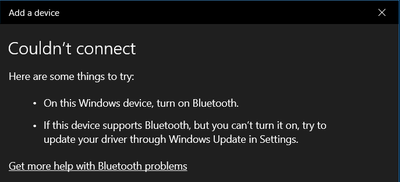
As you can see above, even when my Bluetooth appears on in both Settings and the Notification Center, my devices cannot connect. This problem has persisted for a while now, initially popping up on my 2016 HP Pavilion 17t a few months ago and now on this laptop, an HP Spectre x360 13-ap0xxx. When using the Bluetooth Troubleshooter, it says 'Bluetooth Radio - Not Fixed'. There have been other users with this problem but after reinstalling drivers, they fixed it, meanwhile my laptop still cannot add other Bluetooth devices even after reinstalling drivers. There's one other problem too, my System Restore. I tried seeing if this was a problem I could fix by restoring my system, but my OneDrive folder 'cannot be extracted' from the system restore point and therefore won't restore. I tried going into Registry Editor and changing FilesNotToSnapshot and FilesNotToBackup to include my OneDrive location but it still doesn't work. Any help on either one of these problems is greatly appreciated.
05-24-2020 03:49 AM
Hi
https://support.hp.com/gb-en/product/hp-spectre-13-ap0000-x360-convertible-pc/23238155/manuals
20.110.1.1 Rev.A 6.9 MB Jan 4, 2019 Download
From 2016 onwards there is a possible recovery option via the cloud...
HP Consumer PCs - Using the HP Cloud Recovery Tool (Windows 7 & 10)
https://support.hp.com/us-en/document/c06162205
OR
Turn off the computer.
Disconnect all connected devices and cables, Media Drives, USB drives, printers, & faxes.
Remove media from internal drives, and remove any recently added internal hardware.
Do not disconnect the monitor, keyboard, mouse, or power cord.
WARNING - ONE WAY ONLY, WIPES ALL DATA - NON-RECOVERABLE
Turn on the computer and repeatedly press the F11 key, about once every second,
until the Choose an option screen is displayed, and then continue.
On the Choose an Option screen, click Troubleshoot, and work your way through the screens.
OR
This may require another PC. Find and Download your .iso from…
https://www.microsoft.com/en-us/software-download/windows10
Expand/Extract/Burn the iso Image onto a DVD/USB as needed.
Microsoft’s Creator Tool will make the required DVD or USB.