-
×InformationNeed Windows 11 help?Check documents on compatibility, FAQs, upgrade information and available fixes.
Windows 11 Support Center. -
-
×InformationNeed Windows 11 help?Check documents on compatibility, FAQs, upgrade information and available fixes.
Windows 11 Support Center. -
- HP Community
- Notebooks
- Notebook Wireless and Networking
- Bluetooth pairing

Create an account on the HP Community to personalize your profile and ask a question
05-19-2020 04:25 PM
@altafc Note: Please ensure the complete product name/number for a quicker response from the community, as we need to know what we are dealing with to provide an accurate solution: Click here for steps on finding the information we need!
Remember: Do not share any of your personal information such as serial, phone number, email ID, etc.
Meanwhile, here's everything you need to know about:
How to turn on and connect a Bluetooth device to an HP computer
Use the Bluetooth settings to establish a connection with your device.
NOTE:The following steps are for Windows 10. If you have a different version of Windows, the steps should be similar.
-
Make sure the device you want to connect to is discoverable and within range of your computer.
For example, if the device is a headset, make sure it is on and set to Bluetooth. If the device is an Apple iOS or Android mobile device, go to the Settings menu and make sure Bluetooth is enabled and discoverable.
-
In Windows, search for and open Bluetooth and other devices settings.
NOTE:
If Bluetooth & other devices does not return in the search, your computer might not support Bluetooth.
-
To turn on Bluetooth, on the Bluetooth & other devices tab, toggle the Bluetooth setting to On.

-
Click Add Bluetooth or other device to start searching for the device.

-
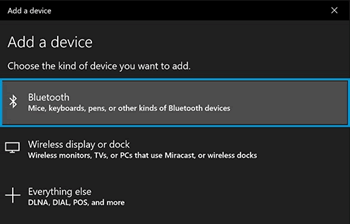
Click Bluetooth as the kind of device you want to add.

-
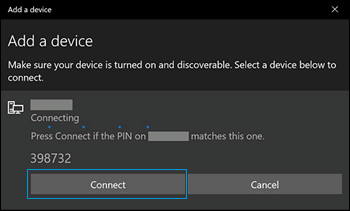
Select the Bluetooth device you want to add from the list.
-
If prompted, enter the PIN, and then click Connect. If a PIN does not display, enter 0000, a commonly used default PIN for many Bluetooth devices.

-
Immediately check for an authorization message on the device you are connecting to and confirm the message or allow access.

-
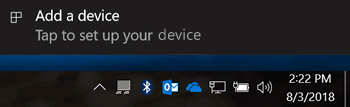
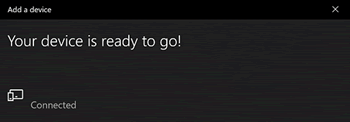
Follow the on-screen instructions on the computer and the device to complete the pairing process. A confirmation message displays when the devices are paired.
NOTE:
If an authentication error displays, too much time has lapsed. Move the devices closer, and then try to pair them again.

For more information about Bluetooth, see the following HP support documents:
P.S: Welcome to HP Community 😉
Let me know how that pans out,
If you feel I was helpful, simply click on Accept as Solution to help the community grow,
That said, I will have someone follow-up on this to ensure you've been helped,
Just in case you don't get back to us,
have a good day, ahead.
Riddle_Decipher
I am an HP Employee
Learning is a journey, not a destination.
Let's keep asking questions and growing together.