• ×
    Information
    Need Windows 11 help?
    Check documents on compatibility, FAQs, upgrade information and available fixes.
    Windows 11 Support Center.
  • post a message
  • ×
    Information
    Need Windows 11 help?
    Check documents on compatibility, FAQs, upgrade information and available fixes.
    Windows 11 Support Center.
  • post a message
Guidelines
Join the HP Community Solve‑a‑thon | Help Others & Share Your Solutions | Live on Zoom | 2:30 PM to 2:30 AM IST | Every Wednesday Click here to know more
Check out our WINDOWS 11 Support Center info about: OPTIMIZATION, KNOWN ISSUES, FAQs, VIDEOS AND MORE.
HP Recommended
G60-535DX

All runs fine but every day/overnight audio stops so I have to reboot for sound everyday.

5 REPLIES 5
HP Recommended

@1189pas


Welcome to the HP Support Community.


What is the Operating System installed on your Computer?


Meanwhile, let's try these steps:


1) In the search box on the taskbar, type Device Manager, and then select Device Manager from the list of results.

2) In Device Manager, expand Sound, video and game controllers.

3) Right-click on the drivers one by one, and then select Uninstall device > Delete the driver software for this device check box > Uninstall.

4) Restart the computer it should automatically reinstall the drivers.


Let me know if this helps.


If the information I've provided was helpful, give us some reinforcement by clicking the Accepted Solution button, that'll help us and others see that we've got the answers!


Thanks! 


I am an HP Employee

HP Recommended

Restart audio services:


Follow these steps to restart audio services.

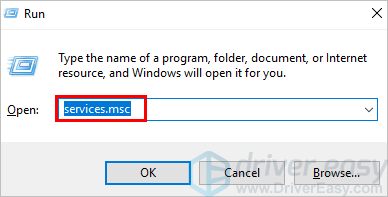
1) On your keyboard, press the Win+R (the windows logo key and the R key) at the same time to revoke the run box.

2) Type services.msc in the run box.


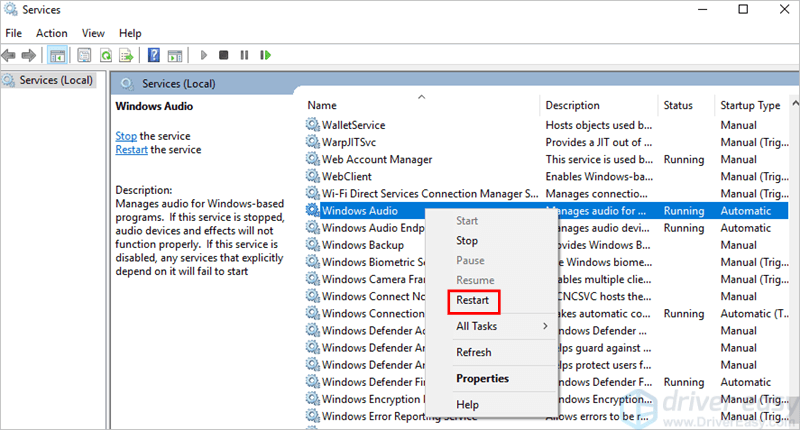
3) Right-click on Windows Audio service and select Restart.

4) Restart your computer and check to see if the problem is resolved.


Let me know if this helps.


If the information I've provided was helpful, give us some reinforcement by clicking the Accepted Solution button, that'll help us and others see that we've got the answers!


Thanks!


I am an HP Employee

HP Recommended

Same thing.  Your solution worked for a while but not long term.

I had to reboot this morning for sound.

Thanks,

Phill

HP Recommended

Let's perform Step 2 and 3 from here: https://support.hp.com/in-en/document/c04973149


Let me know if this helps.


If the information I've provided was helpful, give us some reinforcement by clicking the Accepted Solution button, that'll help us and others see that we've got the answers!


I am an HP Employee

HP Recommended

Let's try this:


Press Win logo and R hotkey together to launch Run dialogue box.

Step 3: Here, type msconfig in the void then hit Enter to proceed further.

Step 4: Tap Services tab and activate the checkbox Hide all Microsoft services henceforth hit Disable all button.

Step 5: Now choose the Startup tab followed by Open Task Manager option.

Step 6: Again, select the particular program which is supposed to create nuisance then hit Disable button. Repeat this step till all of the running programs are closed.

Step 7: Once the task is finished, close Task Manager and hit OK on system Configuration window.

Restart your device and most probably the error won’t be there on your System.


If this doesn't work, perform a system reset: https://support.hp.com/my-en/document/c04742289


Let me know if this helps.


If the information I've provided was helpful, give us some reinforcement by clicking the Accepted Solution button, that'll help us and others see that we've got the answers!


Thanks!

Have a great day!


I am an HP Employee

† The opinions expressed above are the personal opinions of the authors, not of HP. By using this site, you accept the <a href="https://www8.hp.com/us/en/terms-of-use.html" class="udrlinesmall">Terms of Use</a> and <a href="/t5/custom/page/page-id/hp.rulespage" class="udrlinesmall"> Rules of Participation</a>.