• ×
    Information
    Need Windows 11 help?
    Check documents on compatibility, FAQs, upgrade information and available fixes.
    Windows 11 Support Center.
  • post a message
  • ×
    Information
    Need Windows 11 help?
    Check documents on compatibility, FAQs, upgrade information and available fixes.
    Windows 11 Support Center.
  • post a message
Guidelines
Here is the solution to resolve the Realtek 8852BE-V Choya WiFi Disconnection Issue Click here to view the instructions!
Check out our WINDOWS 11 Support Center info about: OPTIMIZATION, KNOWN ISSUES, FAQs, VIDEOS AND MORE.
HP Recommended
HP Deskjet 3700
iOS 11 - 11.4.1

I need help with my printer password on my iPhone.


thank you,

Jo Anna

2 REPLIES 2
HP Recommended

@Jovra, welcome to HP Support Community!


There are two ways of printing from your iPhone.


1) Printing with AirPrint

Connect both the printer and your iPhone to the same network 

Print documents, photos, and webpages using AirPrint.

  1. Make sure the printer is turned on, ink cartridges are installed, and plain paper is loaded in the main tray.

  2. Open the item you want to print, and then tap the Share icon  or  .

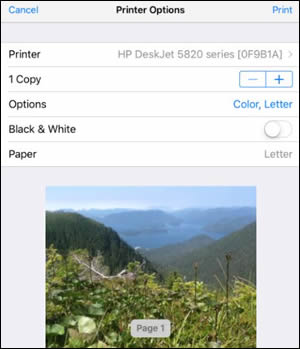
  3. Tap Print or the Print icon  to open Printer Options.

  4. Tap Select Printer to select your printer.

  5. Change any of the following print job settings. Available settings vary depending on the app you are printing from, the print job type, and your printer.

    • Paper: Make any paper size changes on the printer. AirPrint automatically detects the paper size loaded in the printer or the size selected on the printer control panel. If the detected size is different than the paper in the tray, an error might display asking to confirm the size.

    • Number of copies: Select how many copies you want to print.

    • Black & White: Select to print in grayscale. This option only displays for color printers.

    • Double-sided printing: Print on both sides of the paper for certain file types.

    • Page range: Select specific pages within a document or webpage to print.

    Printer Options screen

2) Printing with Wi-Fi Direct

Connect and print from an Apple iPhone or iPad using Wi-Fi Direct.

NOTE: 

The following steps temporarily disconnect your Apple device from the Internet. If you are printing web-based content such as emails, web pages, or cloud-based documents, open them before proceeding.

  1. Confirm the printer is turned on, cartridges are installed, and plain paper is loaded in the main tray.

  2. On the Apple device, open Settings, tap Wi-Fi and then tap the printer with DIRECT in the name (Example: DIRECT-72-HP Officejet Pro 6970) from the list of available networks.

  3. If prompted for a password, type 12345678. This is the default password to log in.

  4. Open the item you want to print, and then tap Print from the app or action menu.

  5. Select your printer from the list of available printers, and then tap Print.

  6. Reconnect to your local Wi-Fi network after the print job completes.

Let me know if this helps.

Cheers 🙂


Please click “Accept as Solution” if you feel my post solved your issue, it will help others find the solution. Click the “Kudos/Thumbs Up" on the bottom right to say “Thanks” for helping!

TEJ1602
I am an HP Employee

HP Recommended

@Jovra


This post is with reference to the thread you had created at your friendly neighborhood (HP Support Community),


I would like to know if the resolution we had provided worked for you?


If you have any other queries, feel free to reply at any time,

And thank you for being a valuable member of our HP Family.


If you would like to thank us for our efforts to help you, go to the public post & give us a virtual high-five by clicking the "Thumbs Up" icon below, followed by clicking on the "Accept as solution" on the post you feel, helped you the most, Have a great day!

TEJ1602
I am an HP Employee

† The opinions expressed above are the personal opinions of the authors, not of HP. By using this site, you accept the <a href="https://www8.hp.com/us/en/terms-of-use.html" class="udrlinesmall">Terms of Use</a> and <a href="/t5/custom/page/page-id/hp.rulespage" class="udrlinesmall"> Rules of Participation</a>.