-
×InformationNeed Windows 11 help?Check documents on compatibility, FAQs, upgrade information and available fixes.
Windows 11 Support Center. -
-
×InformationNeed Windows 11 help?Check documents on compatibility, FAQs, upgrade information and available fixes.
Windows 11 Support Center. -
- HP Community
- Notebooks
- Notebook Wireless and Networking
- WiFi Option not available

Create an account on the HP Community to personalize your profile and ask a question
03-28-2020 12:39 PM
Hello,
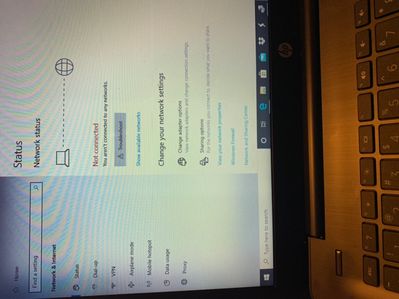
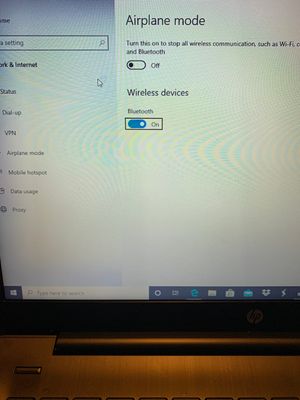
For some reason the wifi option is not showing on my laptop. As a result, I haven’t been able to connect to the internet. I have tried almost every possible option (including calling HP) and no luck. Can someone help me? I’ll post pictures of my problem.
04-02-2020 02:46 PM
I reviewed your post and I understand that you are facing issues with the wireless connection.
Don’t worry, I assure you I will try my best to get this sorted.
What is the operating system you are using?
When was the last time the wireless was working fine?
Meanwhile, I recommend you follow the below steps and check if it helps.
Disable the Power Off option for the adapter:
1. Open Device Manager. (Win Key+R > type devmgmt.msc > OK)
2. Expand the Network adapters.
3. Right click on the Ethernet/Wireless Adapter and click Properties.
4. Click the Power Management tab.
5. Remove the check mark beside Allow the computer to turn off this device to save power.
6. Click OK.
7. Test.
Reset the TCP/IP settings on your PC:
1. Go to your start screen/menu and type CMD.
2. Right click on the command prompt icon and chose Run as administrator.
3. In the window that opens type "netsh int ip reset resetlog.txt" without quotes, and press enter.
4. Restart your PC and test.
It may also help to reset the winsock catalogue:
1. Go to your start screen/menu and type CMD.
2. Right click on the command prompt icon and chose Run as administrator.
3. In the window that opens type "netsh winsock reset" without quotes, and press enter.
4. Restart your PC and test.
Reinstall the network adapter drivers:
1. Download the drivers from here but do not run them yet.
2. Go to your start screen/menu and type Device Manager.
3. Expand Network adapters.
4. Right click on the wireless adapter and choose Uninstall.
5. Run the downloaded drivers from step 1.
6. Restart your PC and test.
Let me know how it goes and you have a great day!
P.S: Welcome to the HP Support Community 😊
If you wish to show appreciation for my efforts, mark my post as Accept as Solution. Your feedback counts!
Cheers!
The_Fossette
I am an HP Employee