-
×InformationNeed Windows 11 help?Check documents on compatibility, FAQs, upgrade information and available fixes.
Windows 11 Support Center. -

-
×InformationNeed Windows 11 help?Check documents on compatibility, FAQs, upgrade information and available fixes.
Windows 11 Support Center. -
- HP Community
- Notebooks
- Notebook Wireless and Networking
- WiFi and Internet

Create an account on the HP Community to personalize your profile and ask a question
04-13-2020
10:14 AM
- last edited on
04-13-2020
12:21 PM
by
Cheron-Z
No internet secured show when connect to WiFi
And the dependency service or group failed to start show in network and sharing center
And change adapter setting folder found empty
04-16-2020 03:49 AM
Welcome to HP Community
I have gone through your Post and would like to help
Are you connected to your Home WiFi, Public network or Mobile Hotspot?
Please try these steps
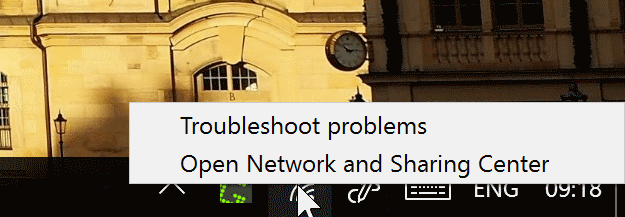
Step 1:open network and sharing center

Right-click on the network icon in the Windows system tray, and select Open Network and Sharing Center from the context menu that opens up. Note: the icon may not be displayed all the time. Click on the arrow icon in the system tray area then to display it.
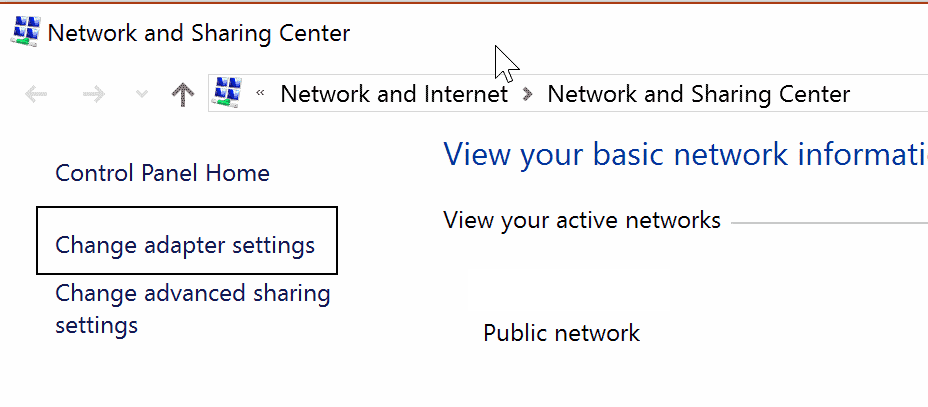
Step 2: Change Adapter Settings

Select the change adapter settings option when the Network and Sharing Center window opens. You find it on the left side there.
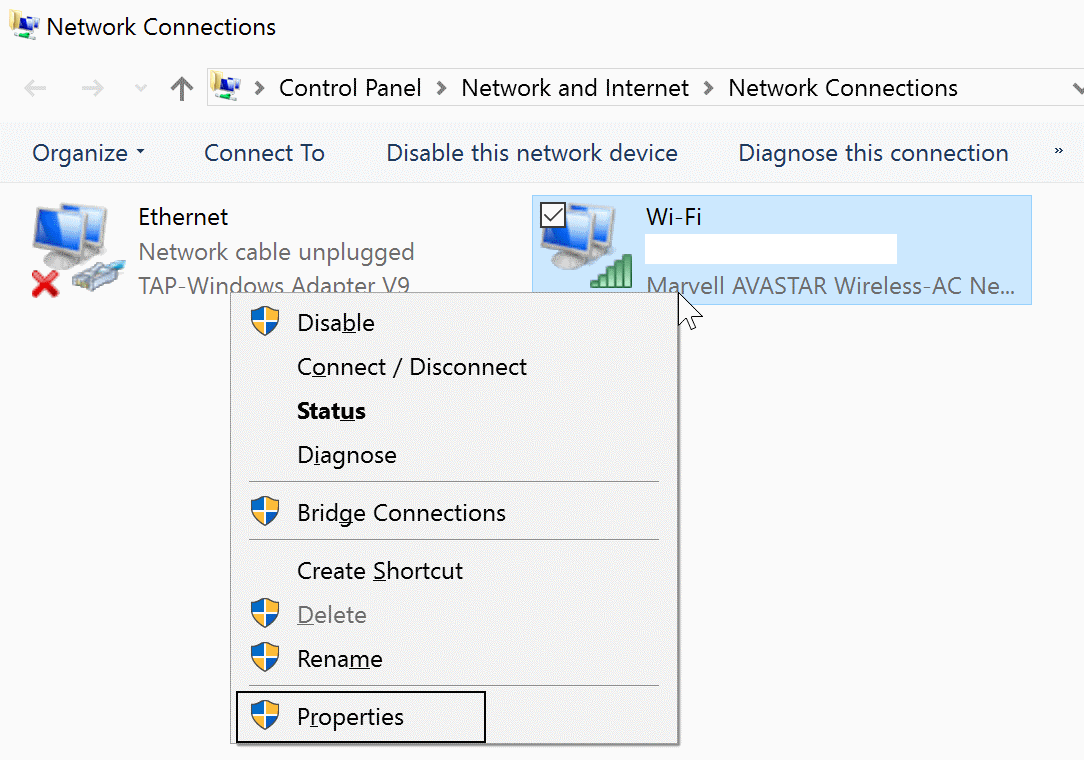
Step 3: Open the properties of the network adapter

Locate the network adapter that you are using at this point in time. It should highlight that it is a wireless adapter.
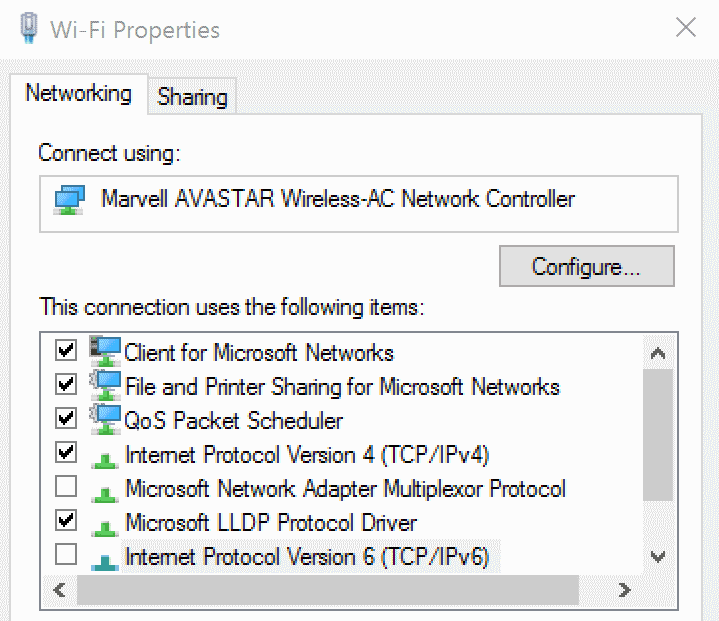
Step 4: Disable IPv6

Locate the Internet Protocol Version 6 (TCP/IPv6) on the list of items that opens, and uncheck it to disable IPv6. Click on ok, and restart the computer afterwards.
Keep me posted
If the information I've provided was helpful, give us some reinforcement by clicking the "Solution Accepted" on this Post and it will also help other community members with similar issue.
KrazyToad
I Am An HP Employee
04-18-2020 10:16 AM
Try reinstalling the driver from Device Manager
- Select the Start button, type Device Manager, and select it from the list of results.
- Look for Network Adapters and expand the List
- Look for Wireless driver then right-click it, and select Update Driver.
- Select Search automatically for updated driver software.
- If these steps don't work, try reinstalling the driver: Open Device Manager, right-click the wireless driver and select Uninstall. Restart your PC and Windows will attempt to reinstall the driver.
KrazyToad
I Am An HP Employee