• ×
    Information
    Need Windows 11 help?
    Check documents on compatibility, FAQs, upgrade information and available fixes.
    Windows 11 Support Center.
  • post a message
  • ×
    Information
    Need Windows 11 help?
    Check documents on compatibility, FAQs, upgrade information and available fixes.
    Windows 11 Support Center.
  • post a message
Guidelines
Join the HP Community Solve‑a‑thon | Help Others & Share Your Solutions | Live on Zoom | 2:30 PM to 2:30 AM IST | Every Wednesday Click here to know more
Archived This topic has been archived. Information and links in this thread may no longer be available or relevant. If you have a question create a new topic by clicking here and select the appropriate board.

HP Recommended
Pavilion Power 15
Microsoft Windows 10 (64-bit)

I have a problem on my HP Pavilion Power Laptop 15-cb0xx. The integrated webcam doesn't appear to be connected. (Windows is installed in Swedish by the way, so some words in my upcoming translation may not be the exact same ones as in the English version.) In Device Manager, I only find my webcam device when i mark "Show hidden devices". Under "cameras", I find "HP Wide Vision HD Camera" grey-marked, which I assume is the driver for my built-in webcam. Right-clicking the device displays "This hardware device is not connected to the computer. (Code 45)". I've tried updating the driver for the device and restarted my computer. I've also tried to download and install a webcam software from your website. What I've found is "HP IR-kameradrivrutin (Windows 10 v1709)" (filename: sp82570.exe). I've installed it and restarted my computer but it doesn't seem to do anything. This is the point where I ask for further assistance. Thanks in advance!

3 REPLIES 3
HP Recommended

@davidsundquist


Welcome to HP Support Community


I suggest you download and run the HP Support Assistant from this Link: https://www8.hp.com/us/en/campaigns/hpsupportassistant/hpsupport.html?jumpid=va_r602_us/en/any/psg/p...


HPSA will automatically search for all the latest drivers for your Notebook


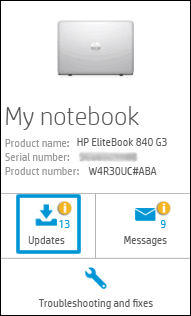
  1. Click My devices in the top menu, and then click Updates in the My PC or My notebook pane.

    Click Updates in the My notebook pane

  2. Click Check for updates and messages to scan for new updates.

     Updates list in HP Support Center

  3. Review the list of updates. Updates with a yellow information icon are recommended. Updates with a blue information icon are optional.

  4. Click the update name for a description, version number, and file size.

  5. Select the box next to any updates you want to install, and then click Download and install.

Also ensure Windows is up to date.


Select the Start  button, and then go to Settings  > Update & security  > Windows Update , and select Check for updates. If Windows Update says your device is up to date, you have all the updates that are currently available


Keep me posted how it goes


Thank you and have a wonderful day 😊


If the information I've provided was helpful, give us some reinforcement by clicking the "Solution Accepted" on this Post and it will also help other community members with similar issue.

KrazyToad
I Am An HP Employee

HP Recommended

@KrazyToad


Thank you for your response!

I've followed your steps but the problem still remain and I haven't noticed any difference unfortunantly.

HP Recommended

@davidsundquist


At this point I suggest you perform a Reset. Please follow the instructions in this Link: https://support.hp.com/in-en/document/c04742289


You can also check if the Webcam test is available.


- Hold the power button for at least five seconds to turn off the computer.
- Turn on the computer and immediately press Esc repeatedly, about once every second. 
- When the menu appears, press the F2 key.
- On the main menu, click Component Tests and Webcam
 

Thank you


If the information I've provided was helpful, give us some reinforcement by clicking the "Solution Accepted" on this Post and it will also help other community members with similar issue.

KrazyToad
I Am An HP Employee

Archived This topic has been archived. Information and links in this thread may no longer be available or relevant. If you have a question create a new topic by clicking here and select the appropriate board.
† The opinions expressed above are the personal opinions of the authors, not of HP. By using this site, you accept the <a href="https://www8.hp.com/us/en/terms-of-use.html" class="udrlinesmall">Terms of Use</a> and <a href="/t5/custom/page/page-id/hp.rulespage" class="udrlinesmall"> Rules of Participation</a>.