• ×
    Information
    Need Windows 11 help?
    Check documents on compatibility, FAQs, upgrade information and available fixes.
    Windows 11 Support Center.
  • post a message
  • ×
    Information
    Need Windows 11 help?
    Check documents on compatibility, FAQs, upgrade information and available fixes.
    Windows 11 Support Center.
  • post a message
Guidelines
Join the HP Community Solve‑a‑thon | Help Others & Share Your Solutions | Live on Zoom | 2:30 PM to 2:30 AM IST | Every Wednesday Click here to know more
Archived This topic has been archived. Information and links in this thread may no longer be available or relevant. If you have a question create a new topic by clicking here and select the appropriate board.

HP Recommended
Microsoft Windows 10 (32-bit)

My mouse cursor is disappeared from the screen so what can I do sir please tell me

1 REPLY 1
HP Recommended

Hello,


Welcome to the HP Support forum. Thank you for posting.


The mouse cursor is an essential part of all Windows systems ever and it's hard for it to disappear.


1. Try hard restart/hard reset.


Press the power on-button on your PC and hold it for about 5-10 seconds until your computer powers off completely.

Remove and unplug any external periferals and accessories.

Press once the power-on button to turn on the PC and wait if it will start now. Wait...


If it still fails to load properly, go ahead with the next steps


2. Perform some basic hardware checks to rule out hardware problem


- Please, shutdown the computer using the power button (pressed and hold for a few seconds until PC powers off)

- Power the computer back on.

As soon as you press the power-on button, immediately begin hitting the Esc button (like tap-tap-tap) before any logo appears. This should open a HP Startup Menu


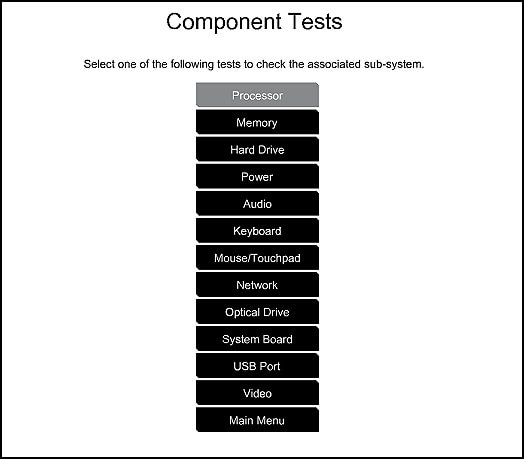
- Choose F2 to open System Diagnostics. Follow the on-screen instructions to perform Component test and test your mouse/pointing device/touchpad.


Let me know the test results. If the tests pass without issues, continue. If not, please, let me know


3. Repeat steps 1-2 above but when HP Startup menu opens, please choose F11 for System Recovery options.

The computer should boot from it's recovery partition to open you various recovery options. Note, that F11 option will only work if the recovery partition is there (not deleted) and intact. From there, you have prenty of options to choose from. Every HP computer comes with recovery partition present to assist in tough moments.


Please, perform "System Restore" first in an attempt to fix the issue. Please, restore back to previous days (restore point) where the issue was not present. Here is more info:

>> http://support.hp.com/us-en/document/c03327545#AbT5

>> https://www.tenforums.com/tutorials/4588-system-restore-windows-10-a.html


Hope this helps. Let me know how it goes. Provide your feedback/reply.

Your FEEDBACK is important. Use the interactive buttons below and let me know if the post helps ;
*** HP employee *** I express personal opinion only *** Joined the Community in 2013
Archived This topic has been archived. Information and links in this thread may no longer be available or relevant. If you have a question create a new topic by clicking here and select the appropriate board.
† The opinions expressed above are the personal opinions of the authors, not of HP. By using this site, you accept the <a href="https://www8.hp.com/us/en/terms-of-use.html" class="udrlinesmall">Terms of Use</a> and <a href="/t5/custom/page/page-id/hp.rulespage" class="udrlinesmall"> Rules of Participation</a>.