• ×
    Information
    Need Windows 11 help?
    Check documents on compatibility, FAQs, upgrade information and available fixes.
    Windows 11 Support Center.
  • post a message
  • ×
    Information
    Need Windows 11 help?
    Check documents on compatibility, FAQs, upgrade information and available fixes.
    Windows 11 Support Center.
  • post a message
Guidelines
Join the HP Community Solve‑a‑thon | Help Others & Share Your Solutions | Live on Zoom | 2:30 PM to 2:30 AM IST | Every Wednesday Click here to know more
Archived This topic has been archived. Information and links in this thread may no longer be available or relevant. If you have a question create a new topic by clicking here and select the appropriate board.

HP Recommended
Pavilion Y1N95UA#ABA
Microsoft Windows 10 (64-bit)

The volume control icon on the task bar is not working or responding when I click on it with my mouse or touch it on the screen. All other taskbar icons are working. I can control the volume if I go into system settings and move the audio level up or down (what a pain). When I hover the mouse over the  icon, it will tell me what % the volume is, but right click or left click doesn't bring the bar up to slide the volume bar up or down. Help!

1 REPLY 1
HP Recommended

@queenmama1, Welcome to the HP Support Community!


Let us try these steps:


Reset Audio Service

  1. Go to Search, type services.msc, and go to Services.
  2. Find Windows Audio, right click on it, and go to Properties.
  3. First, make sure that Startup type is set to Automatic.
  4. Then, click on Stop, and wait for the process to stop.
  5. Now, click to Start again.
  6. Restart your computer, and check if the issue is resolved.

Run Windows troubleshooter:

  1. In Windows, type find and fix audio into Search, or right-click the speaker icon  on the taskbar and select Troubleshoot sound problems.

  2. Select Find and fix audio playback problems or Find and fix audio recording problems from the Search results.

  3. Click Next.

  4. Select the device you want to troubleshoot, and then click Next.

Install updates using HP Support Assistant

  1. In the search box, type and open HP Support Assistant. 
  2. Check for updates. 
  3. If the updates are available, click on install and restart the computer.  

Note: If you do not have HP Support Assistant installed, Click here to download the same.


Also, check for any pending windows update. Reboot the computer and check.


If the issue persists, 

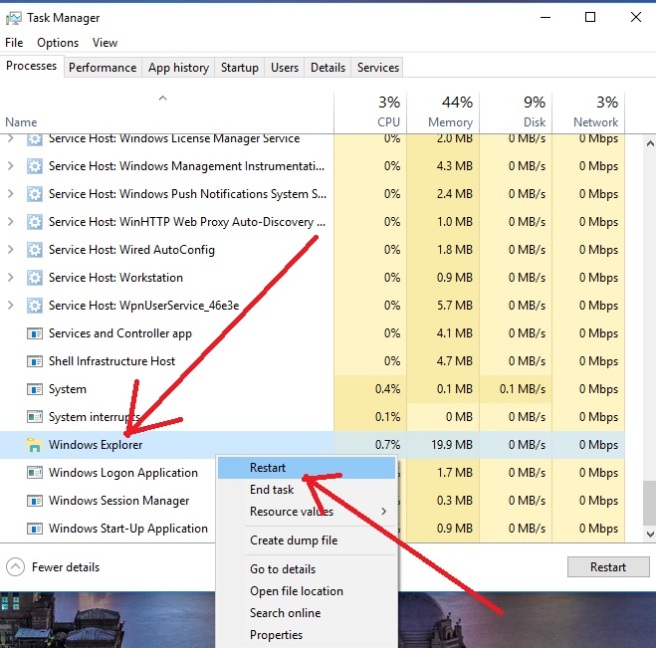
Right-click empty space on taskbar and select “Task Manager” from the options

Under the “Processes” tab, go all the way at bottom and Right-click “Windows Explorer”. Select “Restart” from the options as below:

2


Hope this helps! Keep me posted. 


Please click “Accept as Solution” if you feel my post solved your issue, it will help others find the solution.

Click the “Kudos, Thumbs Up" on the bottom right to say “Thanks” for helping!

Have a great day! 

KUMAR0307
I am an HP Employee

Archived This topic has been archived. Information and links in this thread may no longer be available or relevant. If you have a question create a new topic by clicking here and select the appropriate board.
† The opinions expressed above are the personal opinions of the authors, not of HP. By using this site, you accept the <a href="https://www8.hp.com/us/en/terms-of-use.html" class="udrlinesmall">Terms of Use</a> and <a href="/t5/custom/page/page-id/hp.rulespage" class="udrlinesmall"> Rules of Participation</a>.