• ×
    Information
    Need Windows 11 help?
    Check documents on compatibility, FAQs, upgrade information and available fixes.
    Windows 11 Support Center.
  • post a message
  • ×
    Information
    Need Windows 11 help?
    Check documents on compatibility, FAQs, upgrade information and available fixes.
    Windows 11 Support Center.
  • post a message
Guidelines
Join the HP Community Solve‑a‑thon | Help Others & Share Your Solutions | Live on Zoom | 2:30 PM to 2:30 AM IST | Every Wednesday Click here to know more
Archived This topic has been archived. Information and links in this thread may no longer be available or relevant. If you have a question create a new topic by clicking here and select the appropriate board.

HP Recommended
hp spectre x360
Microsoft Windows 10 (64-bit)

HII everyone.

recently I bought hp spectre 360x. it is a wonderful notebook. working fine. i got a stylus with the notebook also.

I used stylus a lot. I think the tip is worn out.  I got two more spare tips with the stylus also. but I don't know how to change the tip. there is no mention about changing the tip in the stylus manual.

I checked youtube and hp customer care.  No use. so please anyone knows how to change the tip, please guide me.

Thank you.

1 REPLY 1
HP Recommended

@sangam346, Welcome to HP Support Community!


Follow the steps below to replace the pen tip-


If the pen-like tip of the pen becomes damaged or broken and does not work, replace it.

NOTE: 

Your pen will appear different from the pen in the following instructions, but the procedures are accurate and applicable to the HP Active Pen.

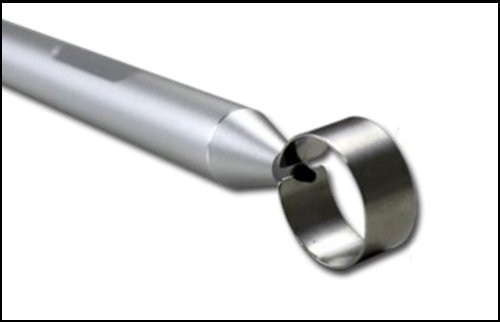
  1. Find the tweezers and the replacement tips.

    Tweezers and pen tips

  2. Position the circular tweezers so that the groove in the tweezers fits around the tip of the pen. Then use two fingers to firmly press the tweezers onto the tip.

    Tweezers around the tip of the pen

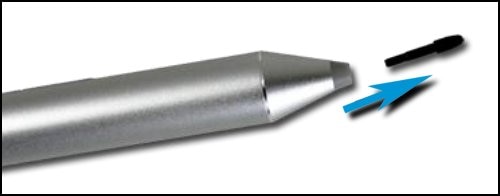
  3. While squeezing the tweezers, gently pull the tip from the pen.

    Removing the tip

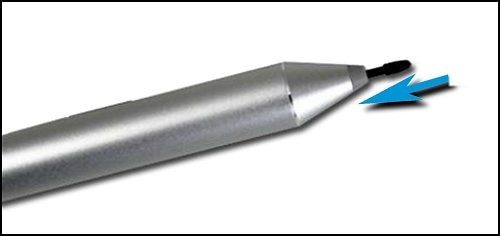
  4. Place a replacement tip in the tip cavity, and then gently push the tip until it securely clicks into position.

    Replacing the tip

I hope this answers your concern adequately. Let me know!


Please click “Accepted Solution” if you feel my post solved your issue, it will help others find the solution. Click the “Kudos/Thumbs Up" on the bottom right to say “Thanks” for helping!

TEJ1602
I am an HP Employee

Archived This topic has been archived. Information and links in this thread may no longer be available or relevant. If you have a question create a new topic by clicking here and select the appropriate board.
† The opinions expressed above are the personal opinions of the authors, not of HP. By using this site, you accept the <a href="https://www8.hp.com/us/en/terms-of-use.html" class="udrlinesmall">Terms of Use</a> and <a href="/t5/custom/page/page-id/hp.rulespage" class="udrlinesmall"> Rules of Participation</a>.